Check voids and discounts
Use the Void Report and Discounts Report to see every void and discount, whose order it was, and which manager allowed it.
The Security reports show every void and every discount, with the employee whose order it was and the manager whose security allowed it. Check them regularly: they're the quickest way to spot comps and voids that don't add up.
In the back office, go to Reports > Security. On the POS, it's Manager > Reports > Security. There are two reports, the Void Report and the Discounts Report.
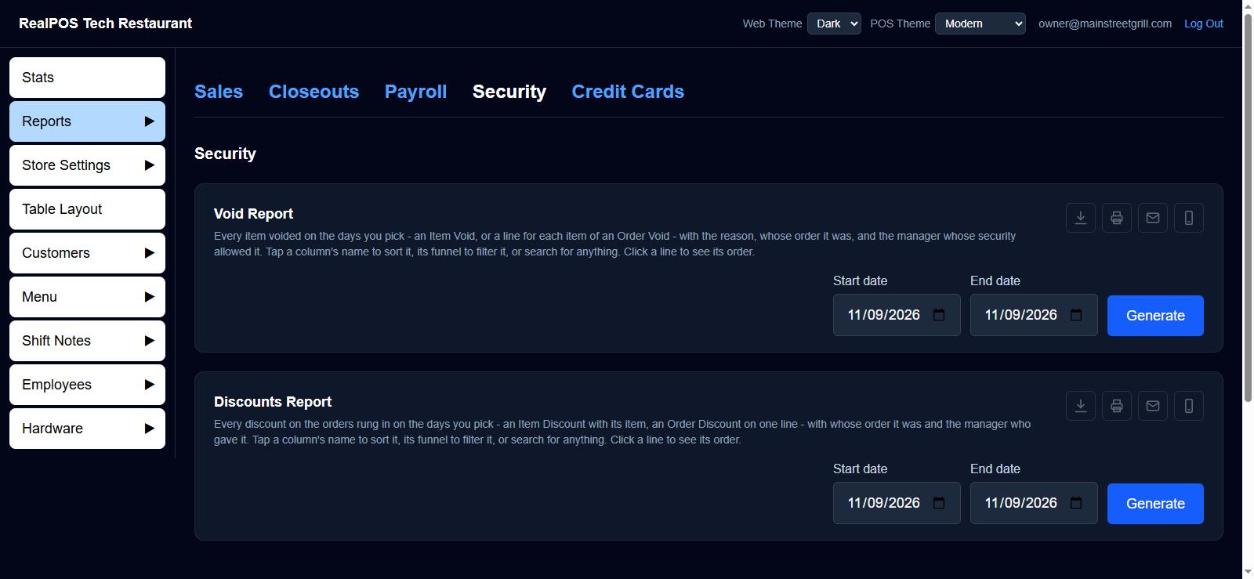 Reports > Security
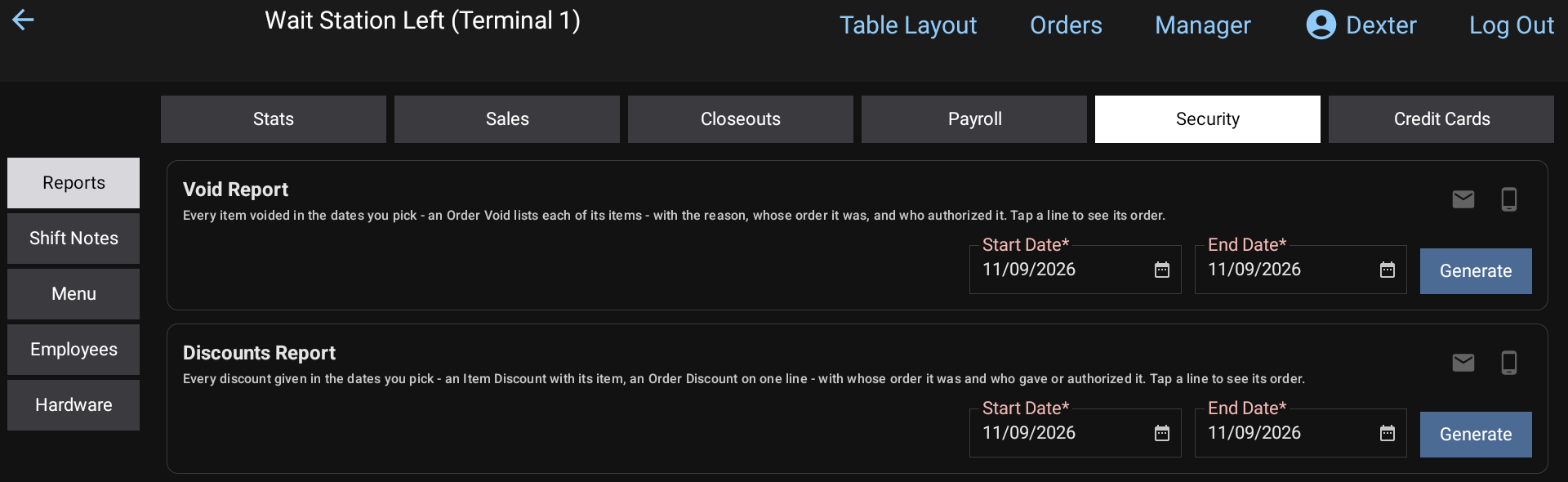 Manager > Reports > Security on the POS: the Void Report and the Discounts Report
Run a report
- Pick a Start date and End date.
- Click Generate.
Each line has the Date, Order #, the type, Items, the reason or discount, Amount, Employee and Manager.
- Click a column's name to sort by it. Click its funnel to show only some of its values.
- Type in the search box to find lines by anything on them: order number, item, reason, employee, manager.
- Click a line to see the whole order as a receipt, and print, text or email it.
Export, print, email and text work like every other report. See Reports.
Void Report
Every item voided on your dates, by when it was voided.
- Void Type is Item Void (one item taken off) or Order Void (the whole order, with a line for each of its items under the same order number).
- Void Reason is the reason picked on the POS. See Void reasons.
- Amount is what the item would have sold for, with its modifiers, after any item discount.
Discounts Report
Every discount on the orders rung in on your dates. Voided orders are left out.
- Discount Type is Item Discount (a line for the item) or Order Discount (one line for the order, no items).
- Discount is the discount's name.
- Amount is the discount in dollars. For an Order Discount, it's what came off the order's items.
Who allowed it
Employee is whose order it was. Manager is the person whose security allowed the void or gave the discount. When it says Override used, someone typed another employee's override PIN to get past a permission they didn't have. Those lines are highlighted.
Good to know
- The Daily / Weekly / Monthly Report has Voids and Discount totals too. See Daily report.
- Older discounts, given before the POS started recording it, don't show who gave them.
- Set up the discounts themselves under Store Settings > Discounts. See Discounts.