Refund a guest
Give money back on the POS, either against a paid order (Refund Order) or as a stand-alone amount (General Refund).
There are two ways to give money back, both from Closed Orders on the POS:
- Refund Order: pick items from a paid check. The money goes back to the way the guest paid (card, cash or gift card). It works for orders from past days too, and the card doesn't need to be there.
- General Refund: type an amount and pick how to pay it back. It isn't tied to any order.
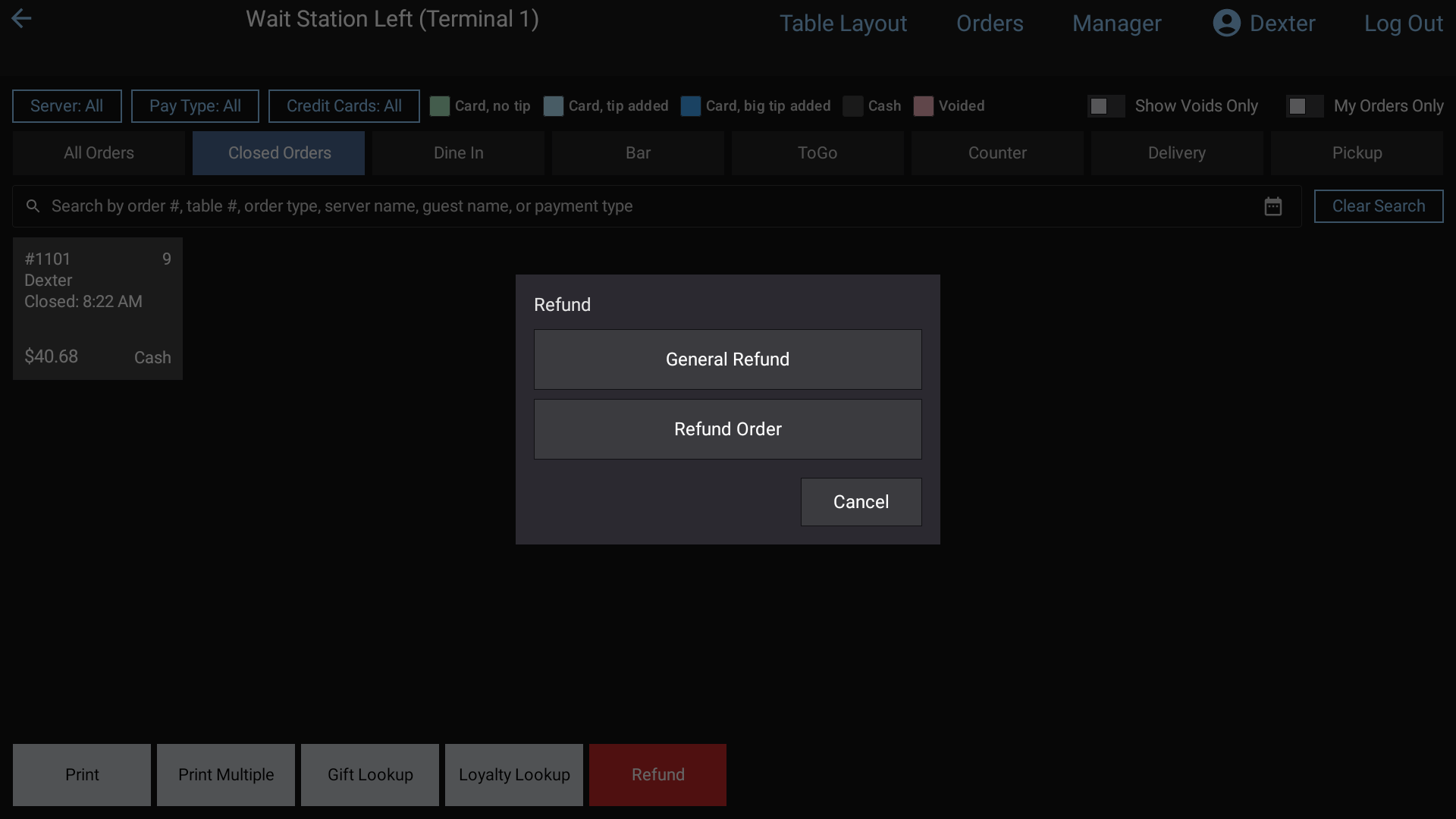 Tapping Refund on Closed Orders asks which kind: General Refund or Refund Order
Find the order
- On the POS, tap Orders, then the Closed Orders tab.
- For an order from another day, tap the calendar icon and pick the date. You'll see "Showing closed orders from" that day. Tap Back to Today to return.
- Use the search, or the Server, Pay Type and Credit Cards filters, to find it.
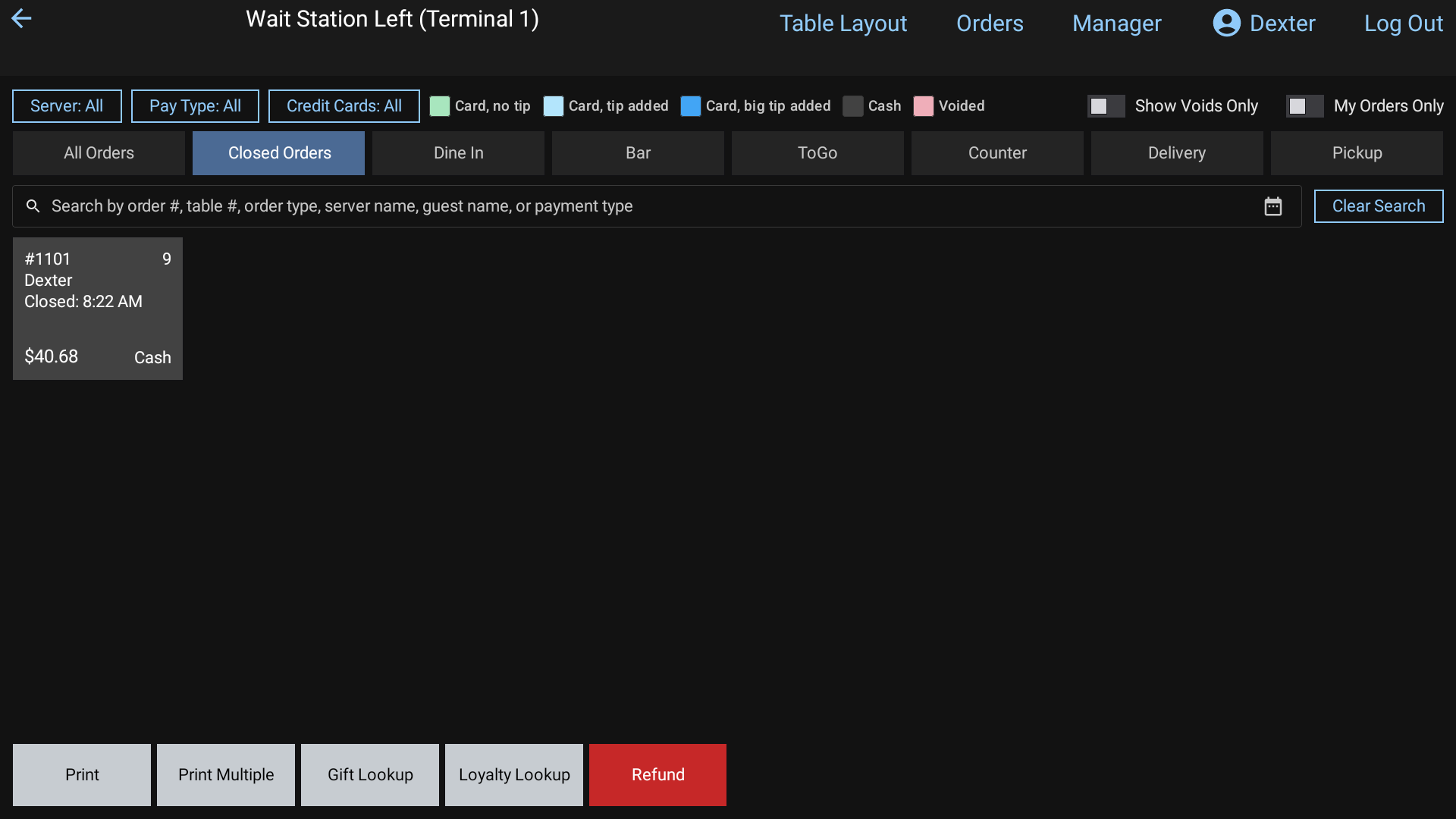 Closed Orders
Refund items from an order
Tap Refund on the bottom bar, then Refund Order. The button turns orange and reads Tap order to refund.
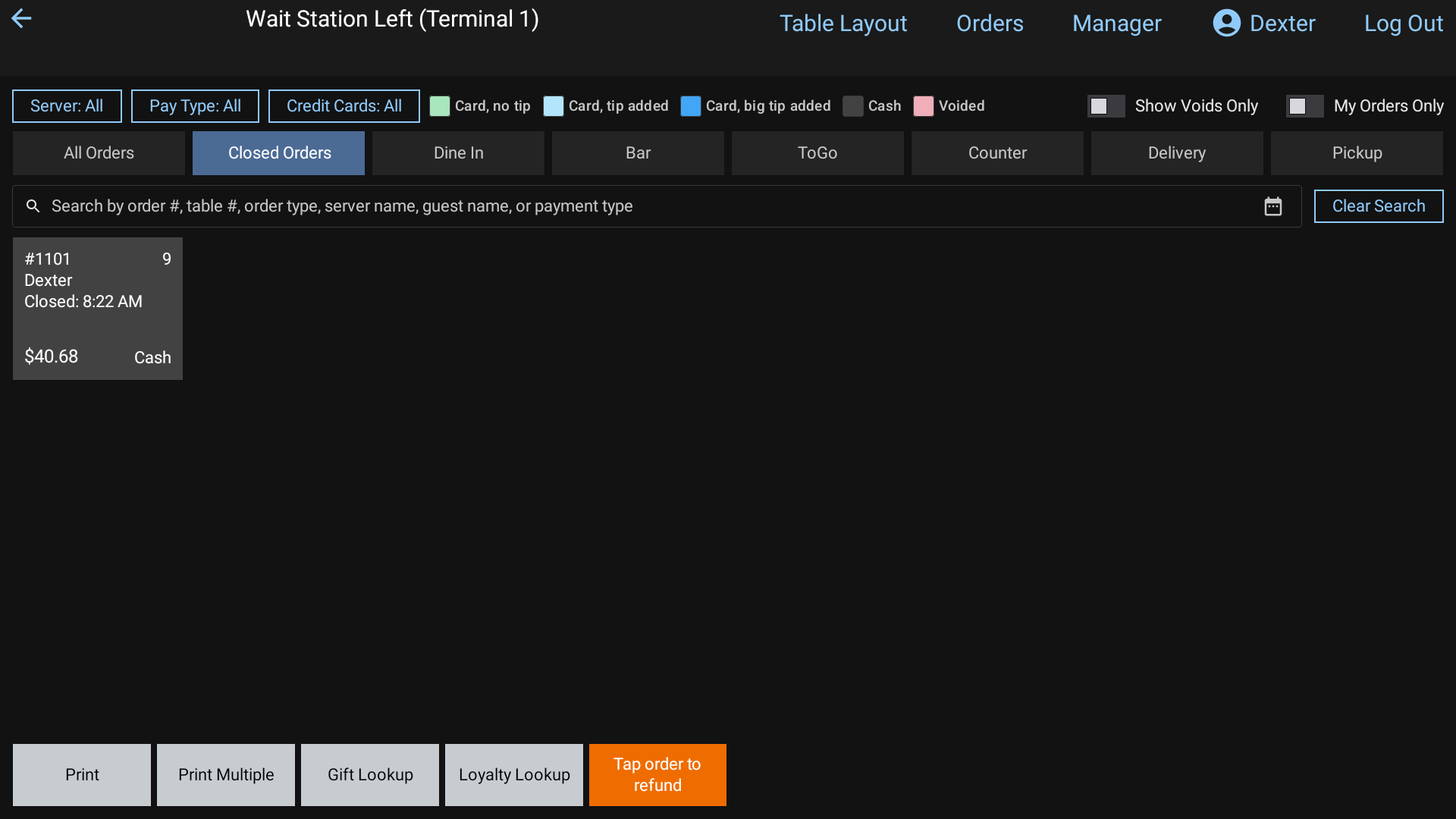 The orange Tap order to refund button: now tap the paid order
Tap the paid order. (You can also long-press a closed order and tap the red Refund button on its preview.)
Tap the items to refund, or Select All. Items already refunded are shown but can't be picked again.
If the check had a card tip, tap the Tip line to refund it too. The card's tip goes back to $0.00. You can refund just the tip by picking it alone.
The right side shows Items, Tax, any Dual Pricing fee, and the Total refund, with Goes back to listing each tender and how much returns to it.
Tap Refund.
When it's done you'll see Refund complete with what went back to which tender. A card refund prints a slip.
How the amount is worked out
- Each item is refunded at what the guest really paid: after its own discount and its share of any order discount, plus its tax.
- If the guest paid by card with Dual Pricing, the card fee on those items goes back too.
- If the check was paid with more than one tender, the refund goes back to the last one first.
- Refunding every item that's left returns everything left on the check, to the cent.
Refund an amount (General Refund)
- On Closed Orders, tap Refund, then General Refund.
- Type the amount under Enter Refund Amount and tap Enter.
- Pick how to pay it back:
- Cash: comes out of your drawer. The drawer opens if the Cash payment type is set to.
- A card type: the guest inserts, taps or swipes their card on the reader.
- Card Manual Entry: key the card number on the reader instead.
- Gift card: type the gift card number. The value goes back on the card.
- You'll see Refund complete when it's done.
Good to know
- Cash refunds come out of the drawer of whoever does the refund, not the server who owned the order. They show as Cash Refunds on that person's closeout. See Closeouts.
- Refunded items are tagged "(Refunded)" on the ticket, and the closed order square shows the amount refunded.
- If a card payment has no card token saved, it can't go back to the card automatically. You'll be told to use General Refund with the card present.
- Card refunds need a card reader set up on that terminal.
- You can also start a Refund Order from an order in the Sales & Orders Journal (Manager > Reports > Sales).