Read the Daily Report
Run the Daily / Weekly / Monthly Report for the whole store or each employee, and know what every table on it means.
The Daily / Weekly / Monthly Report puts the day on one page: sales by department, everything that has to be accounted for, how it was paid, tips, the cash to deposit, refunds, voids, discounts, tax, day parts and order types. Run it for one day, a week, a month, or any dates you like.
Run it
- In the back office, go to Reports > Sales and find Daily / Weekly / Monthly Report. On the POS, it's under Manager > Reports > Sales.
- Pick a Start date and End date.
- Under Show by, pick who the report is for:
- Whole Store: one page for the restaurant.
- All Employees: a page for each employee who rang in sales on those dates.
- Or untick both and tick the employees you want. Each one gets a page.
- Click Generate.
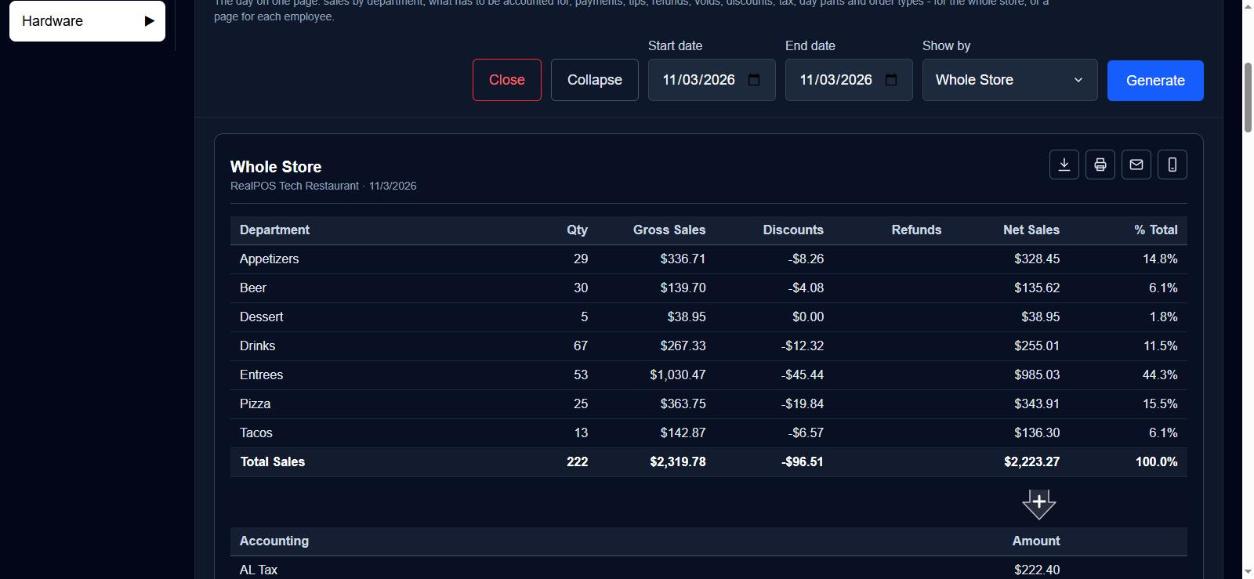 The Daily / Weekly / Monthly Report
Each page is a card of its own, with its own export, print, email and text icons, so you can send one server their page. The icons at the top of the report send every page in one file. If you change Show by while a report is open, it runs again for the same dates.
An employee's page covers their own orders, the payments taken on them, and the refunds they made.
What each table means
The tables come in this order.
| Table | What it tells you |
|---|---|
| Department | Qty, Gross Sales, Discounts, Refunds and Net Sales for each department, and each one's % Total. The Total Sales line is the day's sales. |
| Accounting | Everything on top of net sales that has to be accounted for: each tax, Dual Pricing Fees, Credit Card Tips / Grats Collected, Cash Gratuities, Gift Card Sales, Surcharges, Cash Rounding and Net Paid Ins / Outs. Total Accounting adds them to the net sales above. |
| Payments | How it was paid, by tender (cash, credit, gift card and your other payment types): Count, Sales/Tax/Etc Amt, Refunds, Tips/Grats and Total Collected. Total Collected lines up under the Accounting Amount so you can compare them. |
| Payments on Previous Day(s) Orders | Only shows when someone paid on these dates for an order rung in earlier. Its sales are in the earlier day's report. Click a Count to see the orders behind it. |
| Open Sales | Only shows when orders from these dates aren't paid yet: each one's date, Order #, Employee and what it will come to. |
| Tips | Credit Card Tips, Credit Card Gratuities, the Credit Tips/Grats Reduce, Cash Gratuities, Cash Tips Claimed and Net Tips / Grats. |
| Cash | Adjusted Cash after Tips/Grats Paid (Deposit): the cash you should have to deposit. |
| Credit Cards | Each card brand's count and amount (tip and fee included), with card refunds as negative lines. |
| Refunds | Order Refunds and General Refunds, with count and amount. |
| Voids | Items voided, by void reason. |
| Discount | Each discount's count and amount. |
| Tax | Sales and tax amount for each tax, then Tax Total and Non Taxable Total. |
| Day Parts | Sales, guests, orders and averages for each day part. |
| Order Type | The same, for each order type. |
Some headings are blue links (for example Sales/Tax/Etc Amt, and Non Taxable Total in the Tax table). Click one for a short list of what goes into it. On a saved, printed or emailed copy those are marked with * or ** and explained at the bottom of the page.
Good to know
- Non Taxable Total is all discounts, items with no tax, and orders that were tax exempt.
- The Credit Tips/Grats Reduce and the Deposit line follow your payroll settings: the tip reduce percent, and whether tips and gratuities are paid as wages or paid out in cash. The deposit is the cash taken, less cash refunds and any tips and gratuities paid out in cash, plus cash Paid Ins and less cash Paid Outs. See Run payroll and Paid In and Paid Out.
- Gift cards sold are not sales. They show as Gift Card Sales in the Accounting table, not in the Department table.
- An order counts in the day part it was first rung in. Orders outside every day part show as "Outside day parts". See Schedules and day parts.
- For each employee's cash-out at the end of a shift, use their shift closeout instead. See Closeouts.