Manager & Owner Manual › Staff & payroll
Group employees (FOH, BOH)
Put employees into groups like front of house and back of house so you can filter payroll and labor reports.
Groups let you run payroll and labor numbers for part of your team, such as FOH (front of house) or BOH (back of house). An employee can be in as many groups as you like.
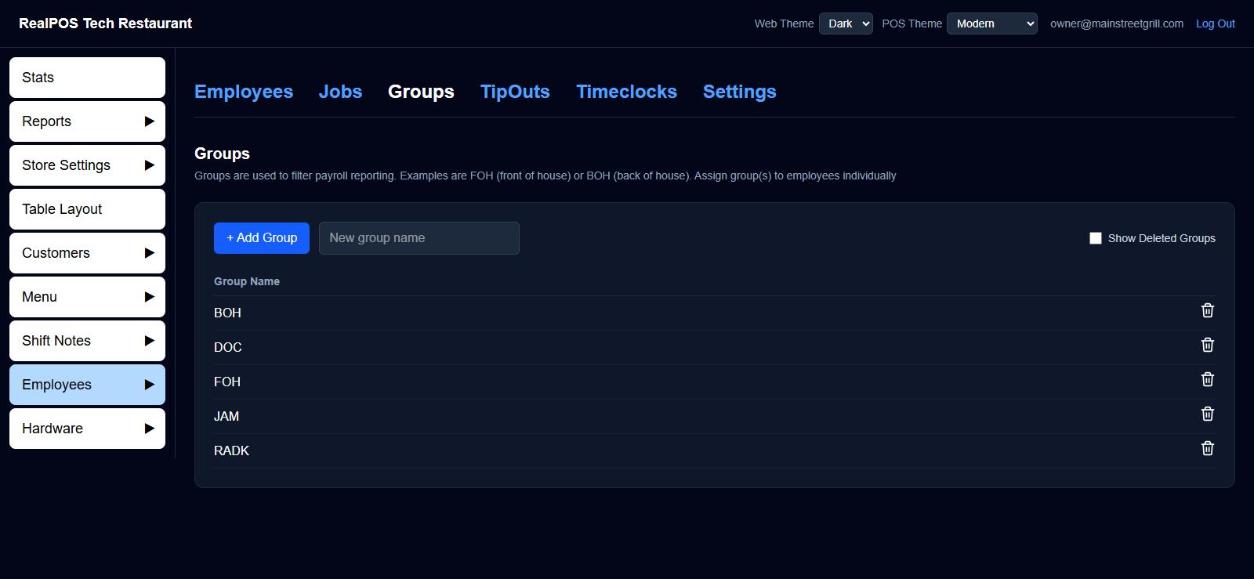 Employees > Groups
Add a group
- In the back office (login.realpos.net), go to Employees > Groups.
- Type the name in New group name.
- Click + Add Group.
On the POS it's the same: Manager > Employees > Groups, type in New group name, then tap + Add Group.
Put employees in a group
- Open the employee (see Enter your employees).
- Click the Group box. It shows No group until you pick one.
- Tick every group they belong to.
- Save the employee.
The Employees list has a Group column. Use the arrow beside it to show only certain groups.
Use groups in reports
- Reports > Payroll: open Select Employee/Group and tick a group. See Run payroll.
- Reports > Sales > Labor Sales Report: use the Group picker to see hours and pay for those groups only.
- Employees > TipOuts: pick Employee groups as funders or recipients. See Tip-outs and tip pools.
Delete or restore a group
Click the trash icon beside a group. Deleting is safe: employees keep the group, it just leaves the pickers.
To bring it back, tick Show Deleted Groups and click the restore icon beside it (on the POS, turn on Show Deleted Groups and tap Restore).
Good to know
- Group names must be different. If you try to add a name that was deleted, you'll be told to restore it instead.
- An employee in several groups shows up when any one of their groups is picked.