Run sales reports
Find the sales reports, pick dates, break the numbers down, and save, print, email or text any report.
Every report lives in the back office under Reports, and the same reports are on the POS under Manager > Reports. This page covers the sales reports and how every report works. The Daily report has a page of its own.
Stats: today at a glance
In the back office, Stats is the first page you see. On the POS it's Manager > Reports > Stats.
It shows one day: Gross Sales, Net Sales, Labor $, labor as a share of sales, Voids, Discounts, Refunds, gift cards, Paid Outs, Guest Count, averages per guest and per check, and Average Ticket Time. Under it are a Labor table by job and the Clocked In Employees for that day.
Use the arrows to go back a day or forward again, or click the date to pick one. The back office page updates itself every 15 seconds while it's open.
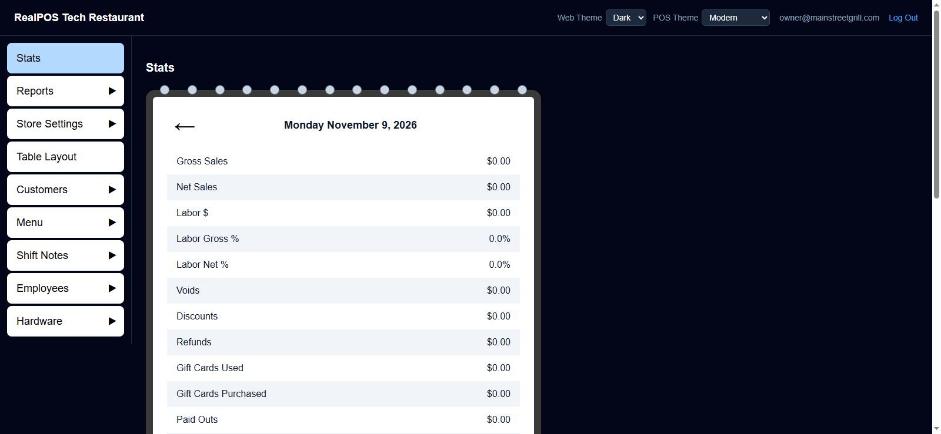 Stats in the back office
Run a report
In the back office, go to Reports > Sales. Each report is a box on the page. They all work the same way:
- Pick a Start date and End date. Both start on today.
- Click Generate.
- Read the report in the box. Collapse folds it away, Expand opens it again, and Close puts it away so you can pick new dates.
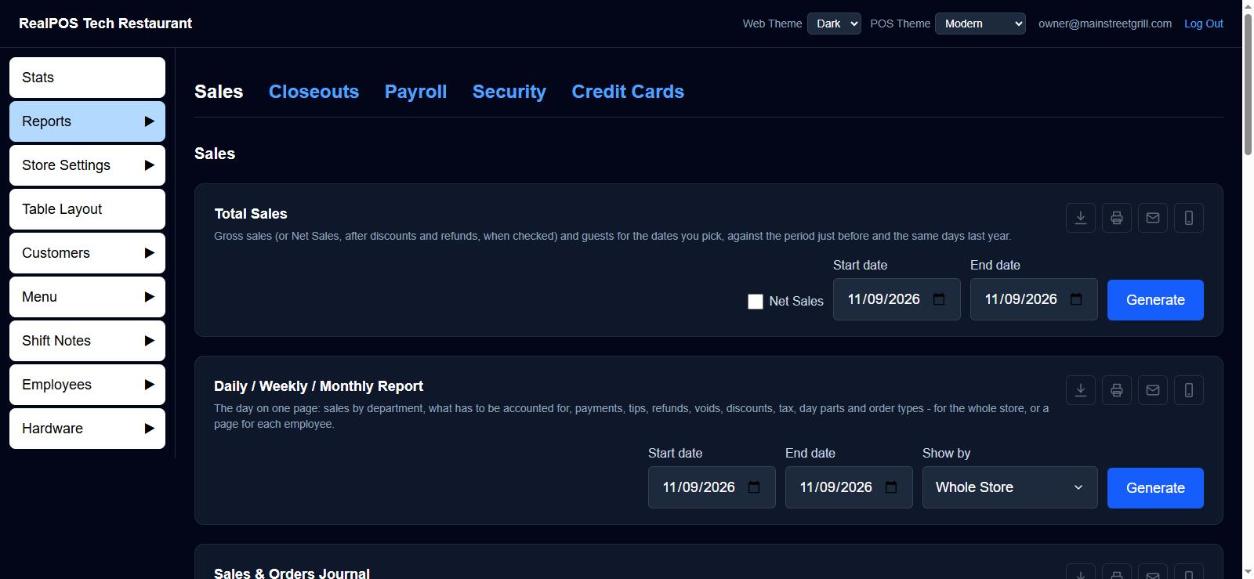 Reports > Sales in the back office
The icons at the top right of each report:
- Export (down arrow): save it as PDF, Excel (.xlsx) or CSV.
- Print.
- Email: pick the file type, then type the address.
- Text: pick the file type, then type a phone number. The text has a link to the report that works for 7 days.
On the POS, Total Sales and the Daily / Weekly / Monthly Report can be emailed or texted but not printed.
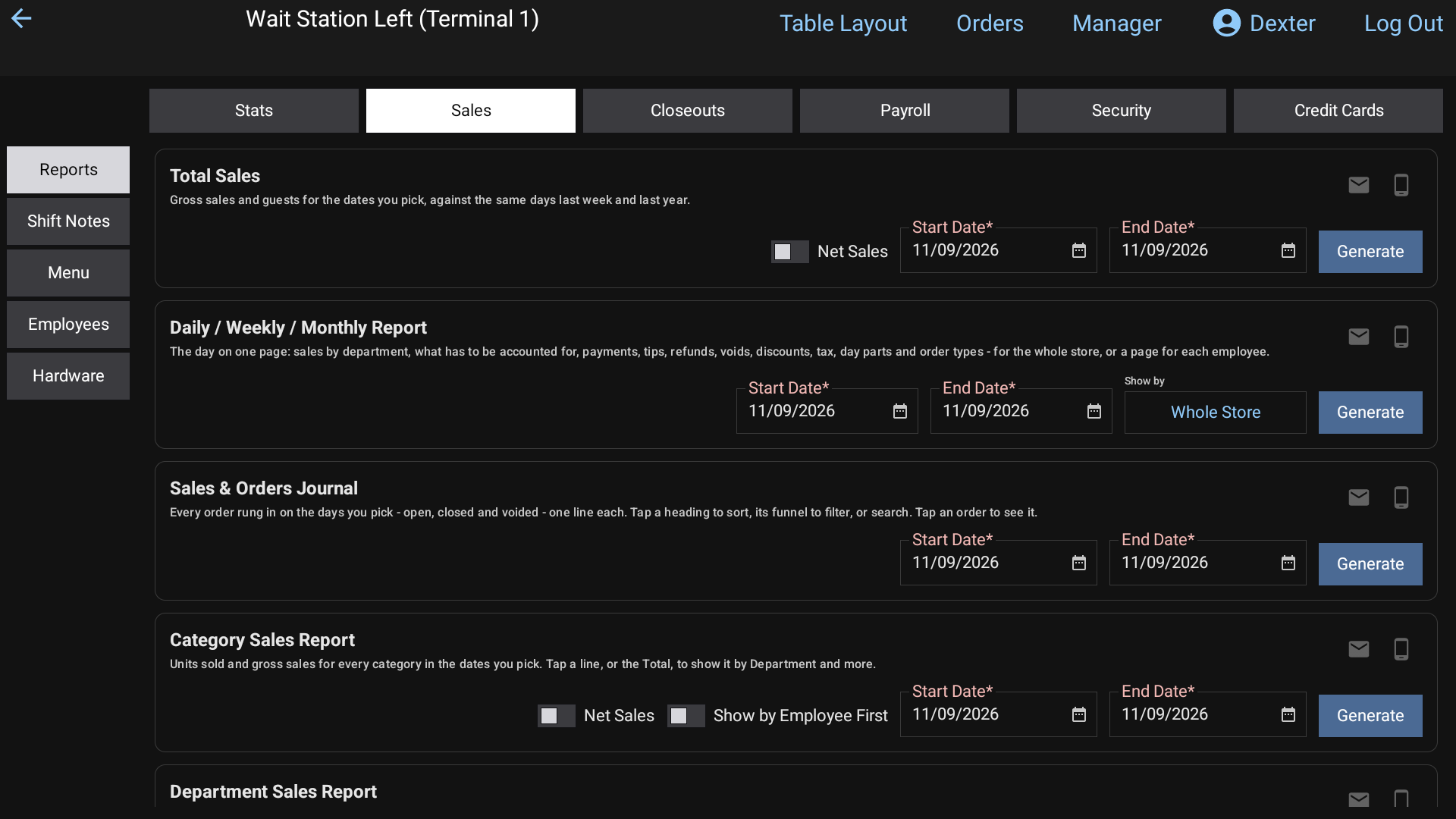 Manager > Reports > Sales on the POS: each report has its dates, Generate, and email and text icons
The sales reports
| Report | What it shows |
|---|---|
| Total Sales | Gross sales and guests for your dates, beside the period just before (Last Week(s)) and the same days last year, with the percent change. |
| Daily / Weekly / Monthly Report | The day on one page. See Daily report. |
| Sales & Orders Journal | Every order rung in on your dates, one line each. See below. |
| Category Sales Report, Department Sales Report, Item Sales Report | Units sold and sales for each category, department or item. |
| Labor Sales Report | Hours and pay by job, as a share of sales. Pick one or more Group to see just those employees. See Employee groups. |
| Best / Worst Sellers Report | Every item on the menu, sold or not, best sellers first. Click a column heading to sort it; low to high shows the worst sellers. |
| Tax Exempt Sales Report | Every order marked Tax Exempt, with the message typed with it. |
| Non Taxed Items Sales Report | Every sale of an item marked Non Taxable. Click an item to open it. |
Net Sales
Total Sales and the category, department and item reports have a Net Sales box. Tick it to see sales after discounts and refunds instead of the gross rung in. Refunds then show on a line of their own, taken off the Total.
Break the numbers down (Show by)
On Total Sales, click your restaurant's line (or the Total) to open Show by, then pick Revenue Center, Order Type, Hour, Day Parts, Day, Categories, Departments, Items or Modifiers. Click any row to break it down again, for example Departments, then a department by Items.
- Click a level's own Total line to break down every row of that level at once.
- Undo steps back one choice at a time.
- Once you show by Categories, Departments or Items, the guest columns count units sold (Qty) instead.
Day parts come from your schedules. See Schedules and day parts.
The Sales & Orders Journal
This lists every order on your dates, open, closed and voided, one line each: Order #, Date, Order Type, Status, Subtotal, TIPS/GRATS, Total, PayType, Last4, Guest#, Employee, Open Date/Time, Closed Date/Time and Guest Name.
- Click a column's name to sort by it. Click its funnel to show only some of its values.
- Type in the search box to find an order by anything on its line: order number, employee, card last 4, guest name.
- Clear filters shows everything again.
Click an order to see it as a receipt. Under it:
- Refund: tick the items (and the tip, if you want) and click Refund. A terminal with the card reader runs the refund back to whatever paid and prints the slip. See Refunds.
- Print, Text, Email: send the guest a copy of the receipt.
- + Add Tip: add or change the tip on a card payment. A terminal with the card reader runs it.
On the POS, the journal is under Manager > Reports > Sales, and an order opened there can go straight to Refund Order.
Good to know
- Subtotal in the journal is what the items sold for after discounts. Total is what was collected (a card's charge with its dual pricing and tip, cash with its rounding). For an order not paid yet, it's the subtotal with surcharge and tax.
- Orders rung in before your terminals were tracked by revenue center show under "No revenue center" in Total Sales.