86 an item and change prices on the POS
Mark items out of stock, count down limited items, and change prices for good or for one order, right from the POS.
When the kitchen runs out of something mid-shift, or a price needs fixing, you can do it right on the POS order screen without going to the back office.
Open the item's stock and price window
On the POS order screen, press and hold an item's button for about two seconds. A window opens with a keypad on the left and these on the right:
- 86 (red): marks the item out of stock straight away.
- Disable 86 (green): shows instead of 86 when the item is already out. Tap it to make the item available again.
- Disable Stock: stops tracking stock for this item.
- Stock Count: how many are left.
- Price, and one box for each of the item's price schedules.
86 an item
- Press and hold the item's button.
- Tap 86.
The window closes. The item's button turns grey and can't be tapped, and every terminal and the back office see it as out of stock. To bring it back, hold the button again and tap Disable 86 or Disable Stock.
Count down a limited item
Use this for specials with a set number, like "12 prime rib tonight".
- Press and hold the item's button.
- Tap the Stock Count box and type the number.
- Tap Save.
The count shows in the corner of the item's button and goes down by one each time it's rung in. When it hits 0, the item is 86'd on its own. Disable Stock stops the count.
Change a price for good
- Press and hold the item's button.
- Tap the Price box (or a schedule's box, like "Happy Hour") and type the new price. The first digit replaces the old price.
- Tap Save.
Nothing changes until you tap Save. Cancel throws away what you typed. C puts a price box back to what it was. If the register can't reach the back office, the change still applies on that register and a message tells you it couldn't send all price changes. Re-enter the price once you're back online, or change it in the back office.
Change a price on one order only
Change Price changes the price of one line on the current order. The menu price stays the same.
- Tap the item on the order to select it.
- Tap Change Price.
- Type the new price and tap Enter.
The keypad says "This price change is temporary". It works before or after the item is sent. The changed price prints beside the item on the kitchen ticket, like <$2.99>.
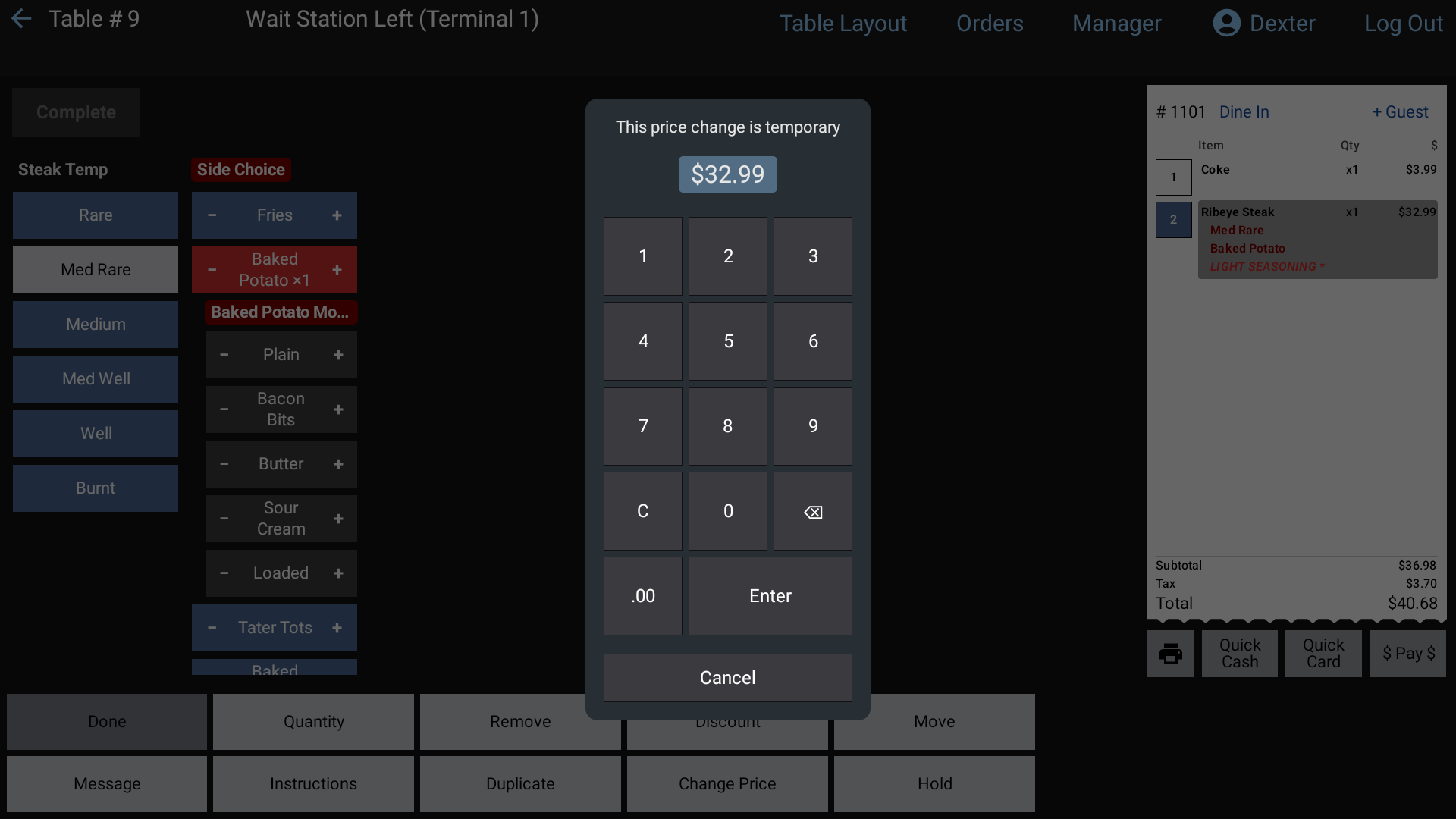 Change Price on one order line
Open Price and Sold by Weight items
Some items ask for a number every time they're rung in. You turn these on per item in the back office. See Add and edit menu items.
- Open Price: the POS shows a keypad with the item's name. Staff type the price for this order.
- Sold by Weight: the POS asks for the weight in Lb. or Oz. and multiplies it by the item's price.
Neither one changes the menu price.
Good to know
- You can also 86 and set stock from the back office item page (86, Disable 86, Disable Stock, Stock Count) and from Manager > Menu > Items on the POS. All three stay in step. A red 86 shows in the Stock column of the Items list.
- The long-hold window doesn't need a separate permission. Anyone who can open an order can use it, so make sure staff know when to use it.
- To take a single item off an order, staff use Void Item. See Void an item.