Fix and add timeclock punches
See who is clocked in, correct a missed or wrong punch, and add a shift someone forgot to clock.
The timeclock list shows every clock-in for the dates you pick. Use it to fix a punch when someone forgets to clock out, clocks in under the wrong job, or never clocks in at all. Changes here flow straight into the Payroll report.
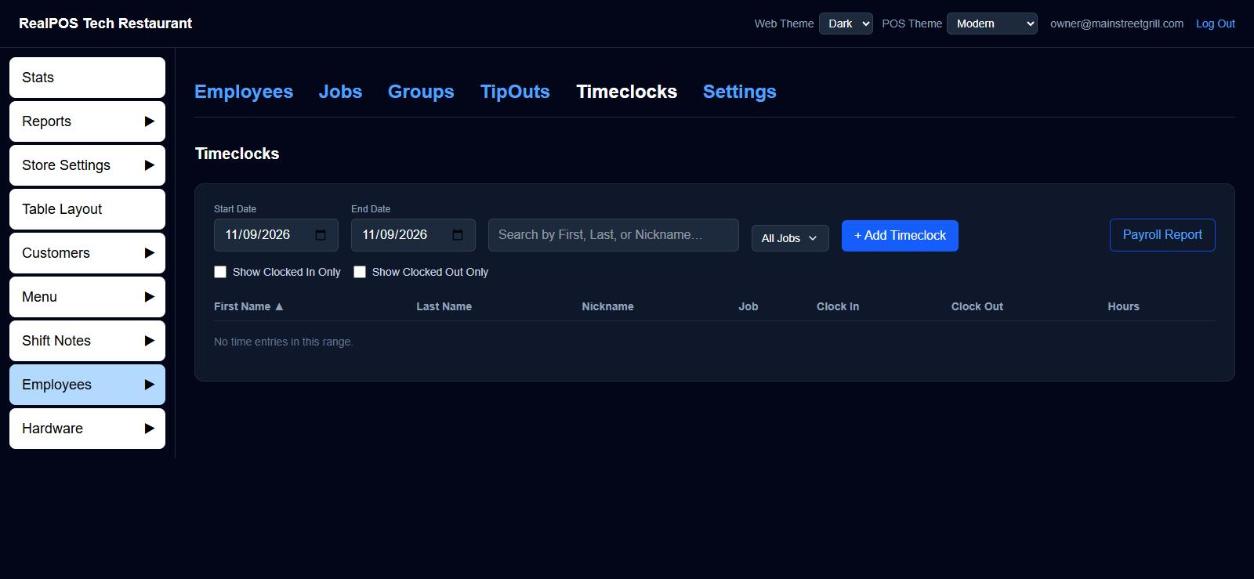 The Timeclocks page in the back office
See the punches
- In the back office (login.realpos.net), go to Employees > Timeclocks.
- Pick a Start Date and End Date. The list opens on today.
- Narrow it down if you need to:
- Type in Search by First, Last, or Nickname…
- Use the Jobs filter to show one or more jobs.
- Tick Show Clocked In Only to see who is on the clock right now, or Show Clocked Out Only for finished shifts.
- Click any column heading (First Name, Last Name, Nickname, Job, Clock In, Clock Out) to sort. Click it again to reverse.
Hours shows the length of each shift. For someone still on the clock it counts up to now.
Fix a punch
- Click the employee's row. Edit Time Entry opens.
- Change what's wrong:
- Job: pick another of that employee's jobs.
- Clock In / Clock Out: type over the date and time, or click the calendar icon to pick a date and set the hour, minute and AM/PM, then OK.
- Still clocked in: tick it to reopen the shift (no clock-out time).
- Click Save.
To remove a punch completely, click Delete Entry. It's gone straight away, with no undo.
Add a missing shift
- Click + Add Timeclock.
- Search for the employee and click their name. If they have only one job it's picked for you; otherwise choose the Job.
- Set Clock In and Clock Out.
- Click Save.
Pink rows: clocked out by the system
If Clockout all employees on system close is turned on (see Store Close), anyone still clocked in at the End of Day Time is clocked out automatically at that time. Those rows show pink so you can spot who forgot.
The system also leaves a Manager Note listing who it clocked out (see Shift notes).
Open a pink row and set the real clock-out time. Once you change the clock-out time, the pink flag clears because someone has checked it.
On the POS
The same list is on the terminal under Manager > Employees > Timeclocks, with its own + Add Timeclock button and the same pink rows for system clock-outs.
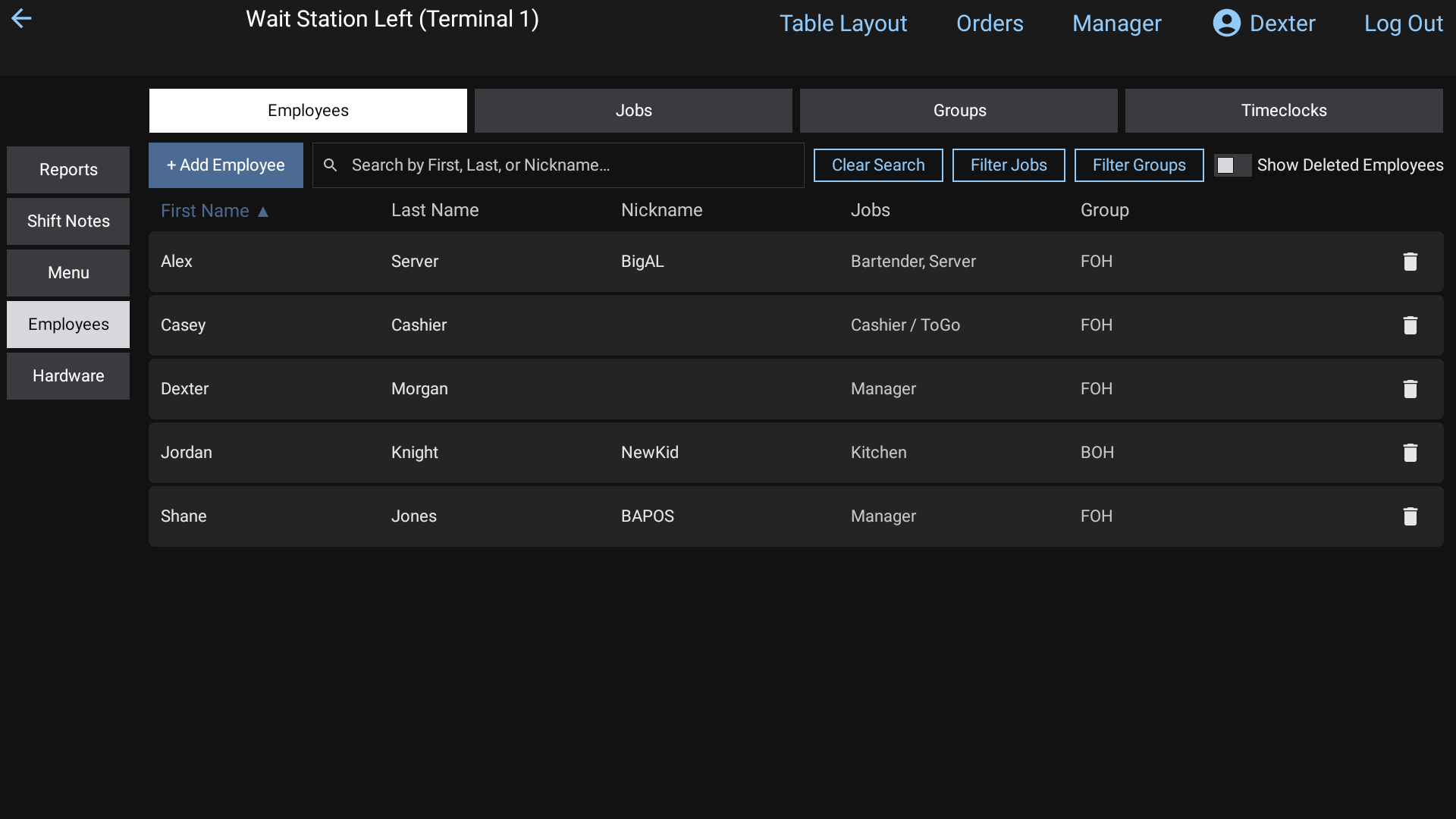 Manager > Employees on the POS
Good to know
- Two shifts for the same person can't overlap. If they would, you'll see "This overlaps another time entry for this employee." Fix the other shift first.
- The clock-out has to be after the clock-in.
- Payroll Report (top right of the page) opens the payroll PDF for the same dates.
- You can also fix a shift's times, job and cash tips right on the Payroll report.
- Pay period, overtime rules and tip settings are on Employees > Settings. See Run payroll.