Set up terminals
Name each POS terminal, pick its default order type and timeouts, and connect its receipt printer and card reader.
Every POS station is a terminal. Each one has its own settings: what staff see when they log in, how long it stays signed in, which receipt printer it uses and which card reader it talks to. You set these in the back office (login.realpos.net) under Hardware > Terminals, or on the POS under Manager > Hardware > Terminals.
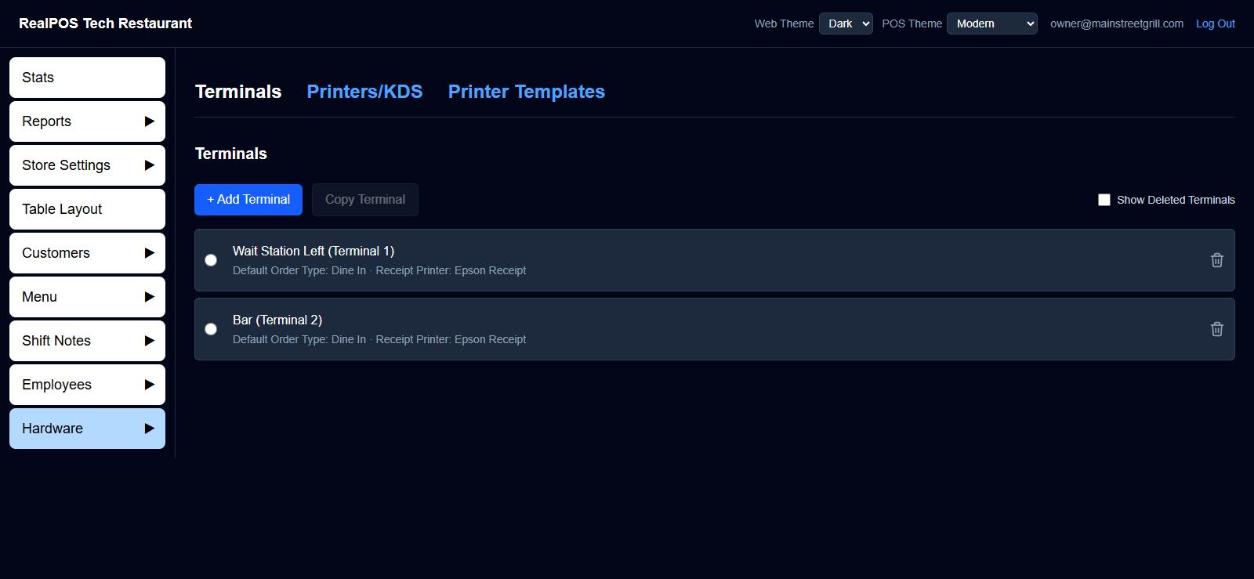 The Terminals list
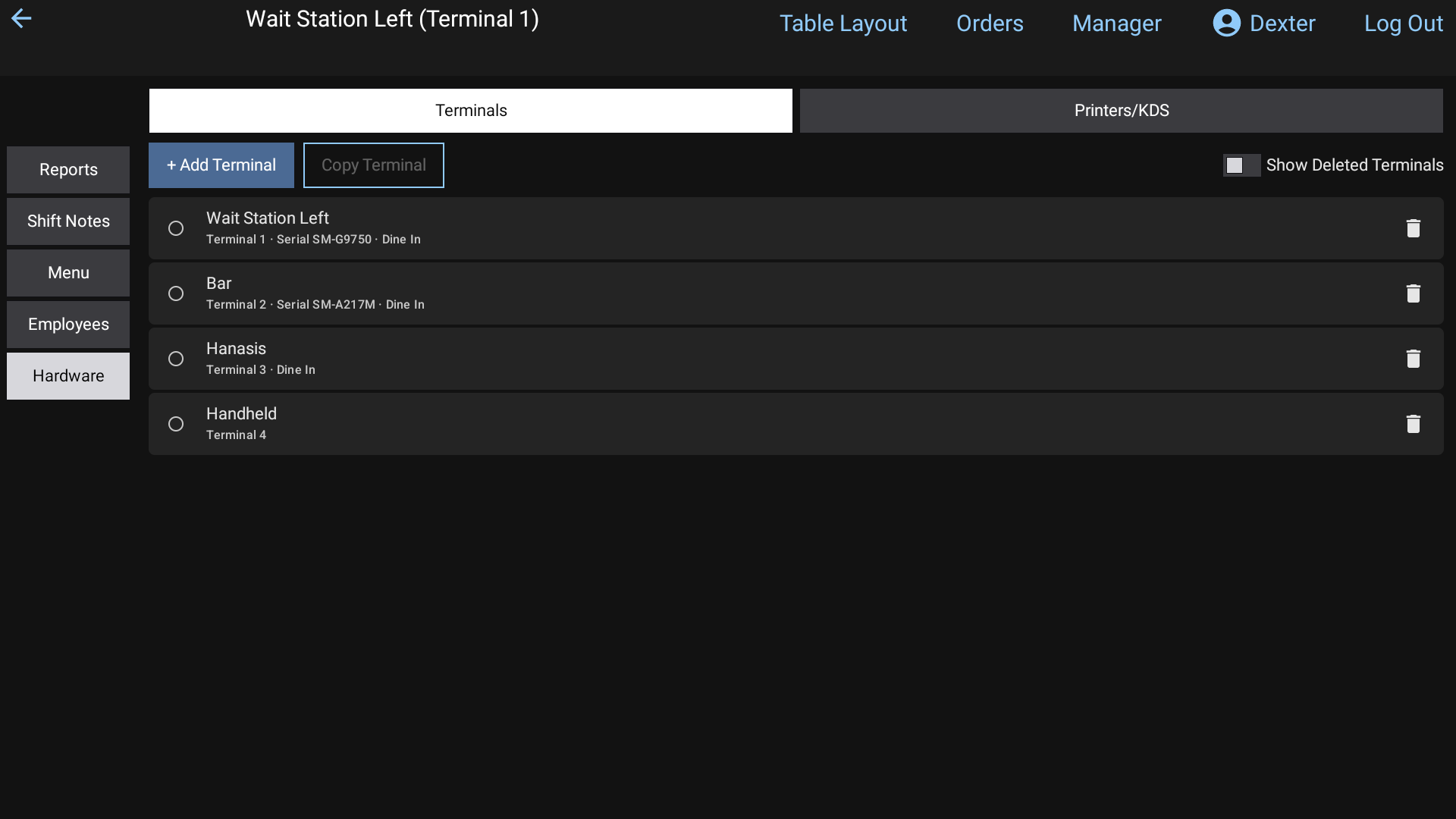 Manager > Hardware on the POS: the Terminals tab, with Printers/KDS beside it
The Terminals list
- + Add Terminal creates a new terminal with the next default name and opens its settings.
- Copy Terminal copies the settings of the terminal you've selected (the round button on its row) onto a new terminal. The copy still gets its own new default name.
- The trash can removes a terminal. Tick Show Deleted Terminals to see removed ones: the green + brings one back, and the X deletes it for good.
Each row shows the terminal's name and a short summary, such as its Default Order Type and Receipt Printer.
General Settings
Click a terminal to open it. The General Settings tab has:
- Default Name: the terminal's permanent name. It can't be changed.
- Custom Name: what staff see, for example "Bar Terminal".
- Serial Number: shown read-only. It's set by RealPOS support.
- Default Order Type: every order started on this terminal is tagged with this order type. When staff log in, the terminal goes straight to that order type's table layout if it has one, or to its Orders tab. Choose None — direct to Orders screen to log in to the Orders screen's All Orders view and tag nothing automatically.
- Use Quick Tab: logging in also opens the Default Order Type's Quick Tab screen. It needs a Default Order Type.
- Revenue Center: the group this terminal belongs to (set up under Store Settings > Revenue Centers).
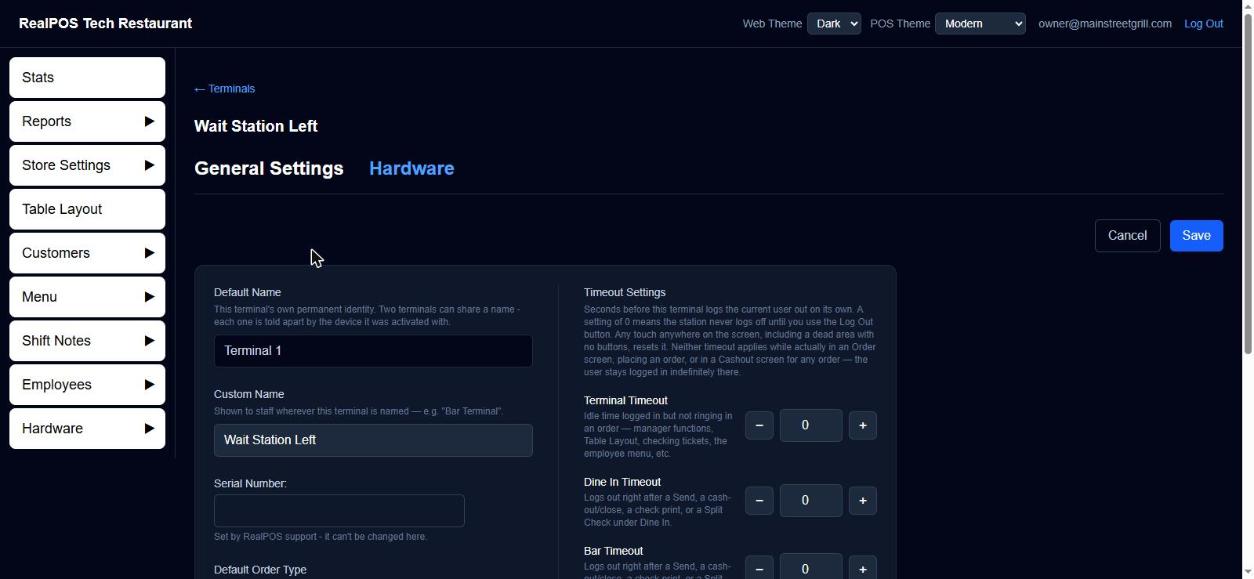 A terminal's General Settings
Timeout Settings
These log the current user out on their own after a number of seconds. 0 means the terminal never logs out until someone taps Log Out. Any touch on the screen resets the timer.
- Terminal Timeout: idle time while logged in but not ringing in an order (manager functions, the table layout, the employee menu and so on).
- [Order type] Timeout: one per order type. It logs out right after a Send, a cash-out or close, a check print, or a Split Check under that order type.
Neither timeout applies while someone is on an Order screen or a Cashout screen.
Click Save when you're done. Cancel asks Do you wish to cancel? before throwing away changes.
Hardware
The Hardware tab sets this terminal's own printer and card reader:
- Receipt Printer: the printer this terminal sends receipts to.
- Receipt Printer Type: USB or Network. For Network, type the printer's address on your local network.
- Check Template and Receipt Template: which layout this terminal prints checks and receipts with. See Printers and kitchen screens.
- Card Reader (Datacap): pick the Card Reader model, then enter its Card Reader IP Address (the Port fills in for you). With a reader set up, a Card payment is taken on the PIN pad. With none, a Card payment is just recorded.
The merchant account every reader charges to is shared by all terminals. It's set under Store Settings > Payments > Card. See Payment types.
Push Parameters
The first time a card reader is set up or replaced, save the Hardware tab and then click Push Parameters. This sends Datacap's settings to the reader. The reader restarts and shows its Welcome screen again in about a minute. The terminal must be on and connected while you do this. When it's finished you'll see Done or Failed with the time.
Terminal settings on the POS
On the POS, long-hold the terminal name at the top of the screen to open Settings. It shows who is signed in, the sync status, and buttons to Sync now and Sync settings from back office.
Revenue centers
A revenue center is a named group of terminals, such as a Bar or a Patio. In the back office, open Store Settings > Revenue Centers, click + Add Revenue Center, give it a Name and tick the Terminals that belong to it. A terminal can be in only one revenue center.
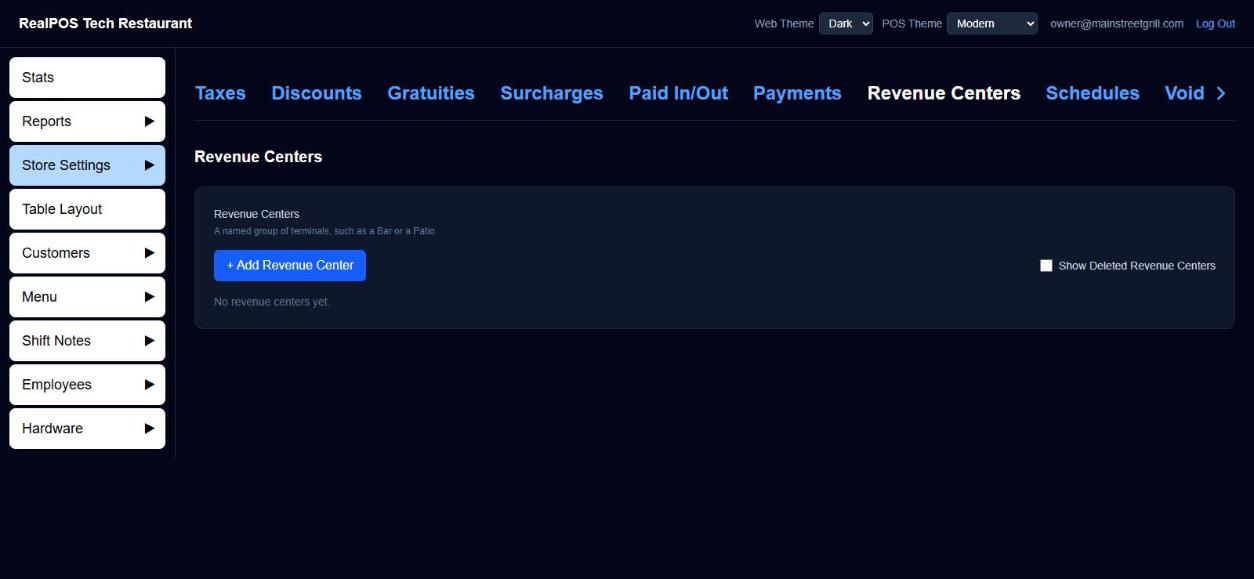 Revenue Centers
Good to know
- Changes reach the terminals when they next sync.
- The terminal name turns pink on the POS while Store and Forward is taking cards with the internet down. See Payment types.