Store close and end of day
Set when your business day ends, what RealPOS closes out automatically, and how to check everything is closed before you go home.
At the end of every business day, RealPOS closes the day out for you: it settles waiting tips, closes banks, clocks out anyone still on the clock and closes the card batch. You choose when that happens in the back office (login.realpos.net) under Store Settings > Store Close. Before you leave, the Closeout Wizard on the POS shows you what's still open.
Set the end of day
- In the back office, open Store Settings > Store Close.
- Pick the End of Day Time. This is when the business day rolls over. Pick a time after your last guest leaves, for example 4:00 AM for a late bar.
- Pick your Timezone. RealPOS uses this everywhere, including on the POS, instead of each device's own clock.
- Tick Clockout all employees on system close to clock out anyone still clocked in at the End of Day Time.
- Click Save.
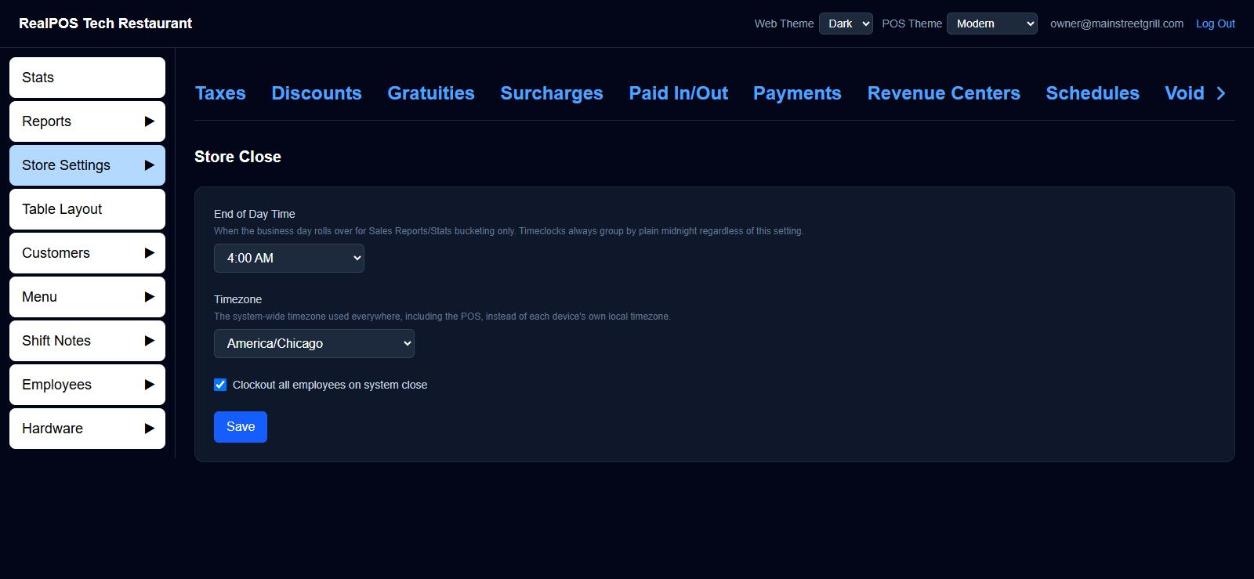 Store Close settings
What happens at the End of Day Time
One terminal that's on and online runs the close, in this order:
- Every card tip still waiting is set to $0, and adjusted at Datacap.
- Paid pickup orders still waiting are cleared. Closed Orders, the pickup tab and every employee's shift report start fresh for the new day.
- Every open bank is closed.
- Everyone still clocked in is clocked out.
- The card batch is closed, last, once every tip is final.
When it's done, a Manager Note lists what was done and every order still open (no payment, or part paid) with its owner and amount. Read it in Shift notes.
Orders with no payment, or only part paid, stay open and carry over to the next day.
Before you go home: the Closeout Wizard
On the POS, open Manager > Reports. The Stats tab has the Closeout Wizard on the right: five buttons, red until that step is done and green when it is.
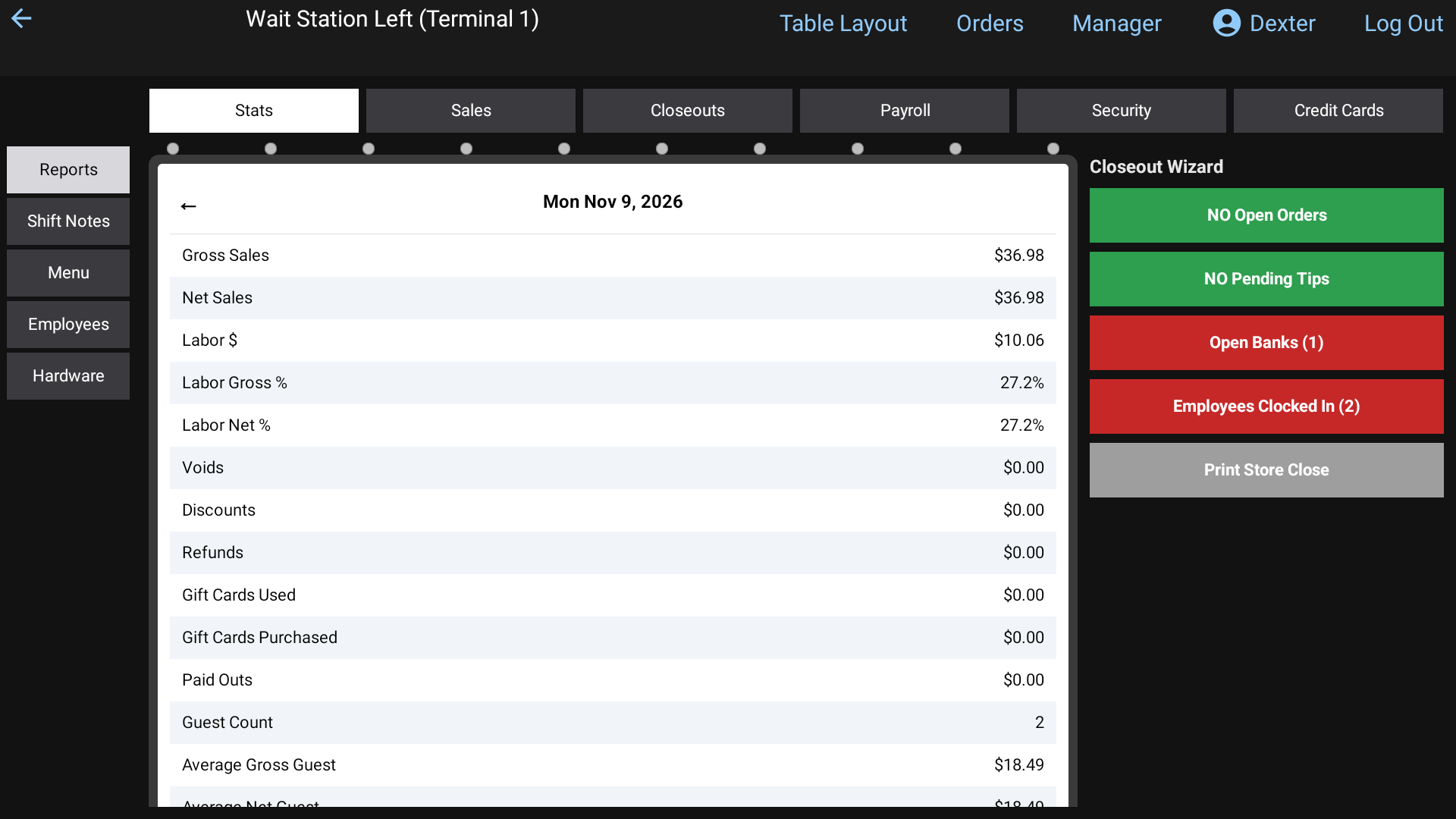 The Closeout Wizard
- Open Tickets (n): tap to see the open orders. Turns green as NO Open Orders.
- Pending Tips (n): tap to go to the pending tips and enter them. Turns green as NO Pending Tips.
- Open Banks (n): tap to see open banks and close them. Closing a bank asks Do you wish to close this employee's bank?, prints their shift report and closes the bank. They stay clocked in. If they still have open orders you'll see This employee still has (n) open orders. with Show Orders.
- Employees Clocked In (n): tap to go to the timeclocks and clock people out.
- Print Store Close: turns green once the first three are done. It adds together every shift worked today into one report and shows it ready to print.
If a terminal hasn't been able to sync, you'll see Terminal not syncing with a warning that this could affect closeout numbers. Check that terminal is on and connected.
Good to know
- A terminal must be on and connected at the End of Day Time for the close to run. A terminal that was off through the close doesn't run it hours later.
- The card batch closes only if the terminal running the close has a card reader set up. If the batch couldn't close, the Manager Note says so.
- For individual employee and past store closeouts, see Closeouts. For the day's sales, see the Daily report.