Set up discounts
Create the discount buttons your staff use on the POS, choose percent or dollar amount, and control who can use them.
Discounts are set up in the back office and used on the POS from the Discount (whole order) and Item Discount screens. You can give staff ready-made buttons (named discounts, like "Employee Meal 50%" or "$5 Off"), let them type their own amount (open discounts), or both.
Add a named discount
- In the back office, go to Store Settings > Discounts.
- Click + Add Discount.
- Type the Discount Name. This is what shows on the POS button.
- Set the Amount. The button beside the box switches between % (a percent off) and $ (a dollar amount off). Click it to change. Percents are whole numbers from 1 to 100; dollar amounts can have cents.
- Choose where it can be used:
- Order Discount: shows on the discount screen for the whole order.
- Item Discount: shows on the discount screen for the selected items. Check one or both.
- Check Secure if only certain jobs should be able to use it (see below).
- Click Save.
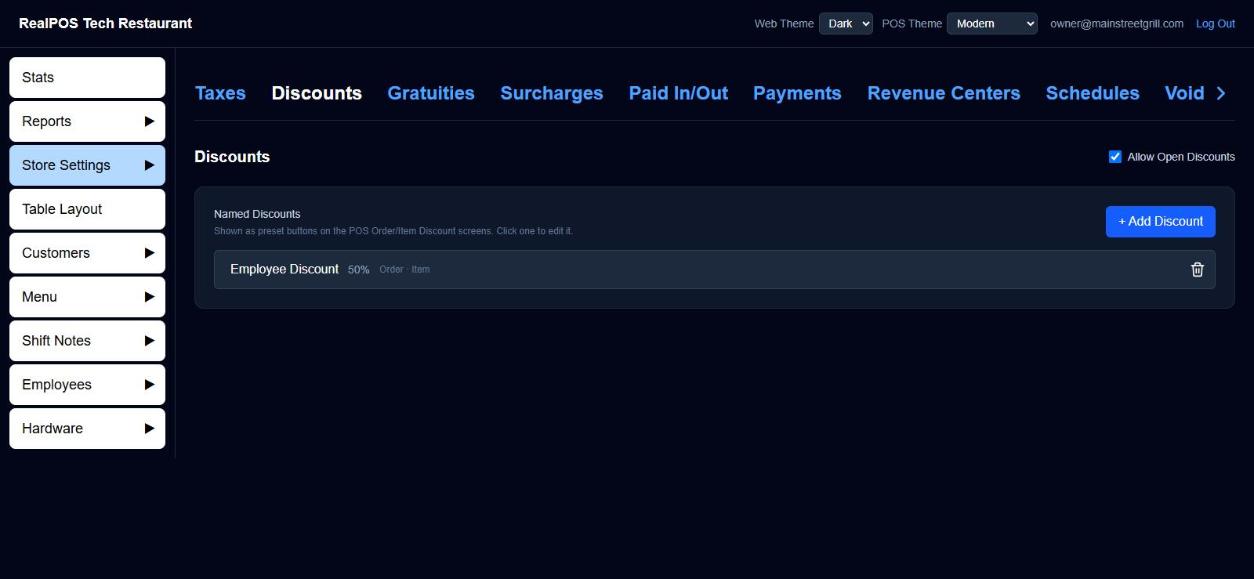 The Discounts page with named discounts
Each discount on the list shows its amount and where it's used (Order, Item, Secure). Click one to change it. Click the trash icon to delete it; it's removed straight away.
Open discounts
Allow Open Discounts, at the top right of the Discounts page, decides whether staff can type their own percent or dollar amount on the POS discount screens.
- Checked: the discount screens show a keypad for a custom amount, as well as your named discount buttons.
- Unchecked: staff can only use your named discounts.
The setting saves as soon as you click it.
Who can use discounts
Discounts are controlled by two permissions on each job (Employees > Jobs):
| Permission | What it controls |
|---|---|
| Discounts | Using a named discount marked Secure. Discounts not marked Secure can be used by anyone. |
| Open Discounts | Typing in a custom amount or percent. Without it, pressing OK on a typed discount asks for a manager override. |
Without the permission, a manager can still allow it with a manager override. See Add jobs and set their security.
Items that can't be discounted
Some things should never be discounted, like gift cards. Check Ignore Discounts on the item (Menu > Items), on its department (Menu > Departments), or on its category (Menu > Categories). If any of the three is checked, discounts skip that item.
Good to know
- Discounts are tracked. Every discount used, who applied it and on which order, is on the discounts report. See Security reports.
- Time-of-day prices aren't discounts. For happy hour, give items a special price on a schedule instead. See Schedules.
- New discounts and changes reach the terminals on their next sync.