Shift closeouts and cash drops
How employees close out their shift, what the closeout report shows, and how to reprint shift reports or a whole day's closeout.
A closeout is the end-of-shift report: what the employee sold, how it was paid, their tips, and the cash they owe the restaurant (or the restaurant owes them). Every shift starts from $0 at clock-in.
How an employee closes out
On the POS the employee taps their name in the top bar to open their employee menu.
- Print Shift Closeout and Clock Out stay locked until all their own checks are closed and all their card tips are entered. If they still have open checks, the button reads You Have Open Orders and takes them to their orders.
- They tap Print Shift Closeout, type their cash tips, and tap Print Shift Closeout again.
- The report shows on screen. They tap Print to print it.
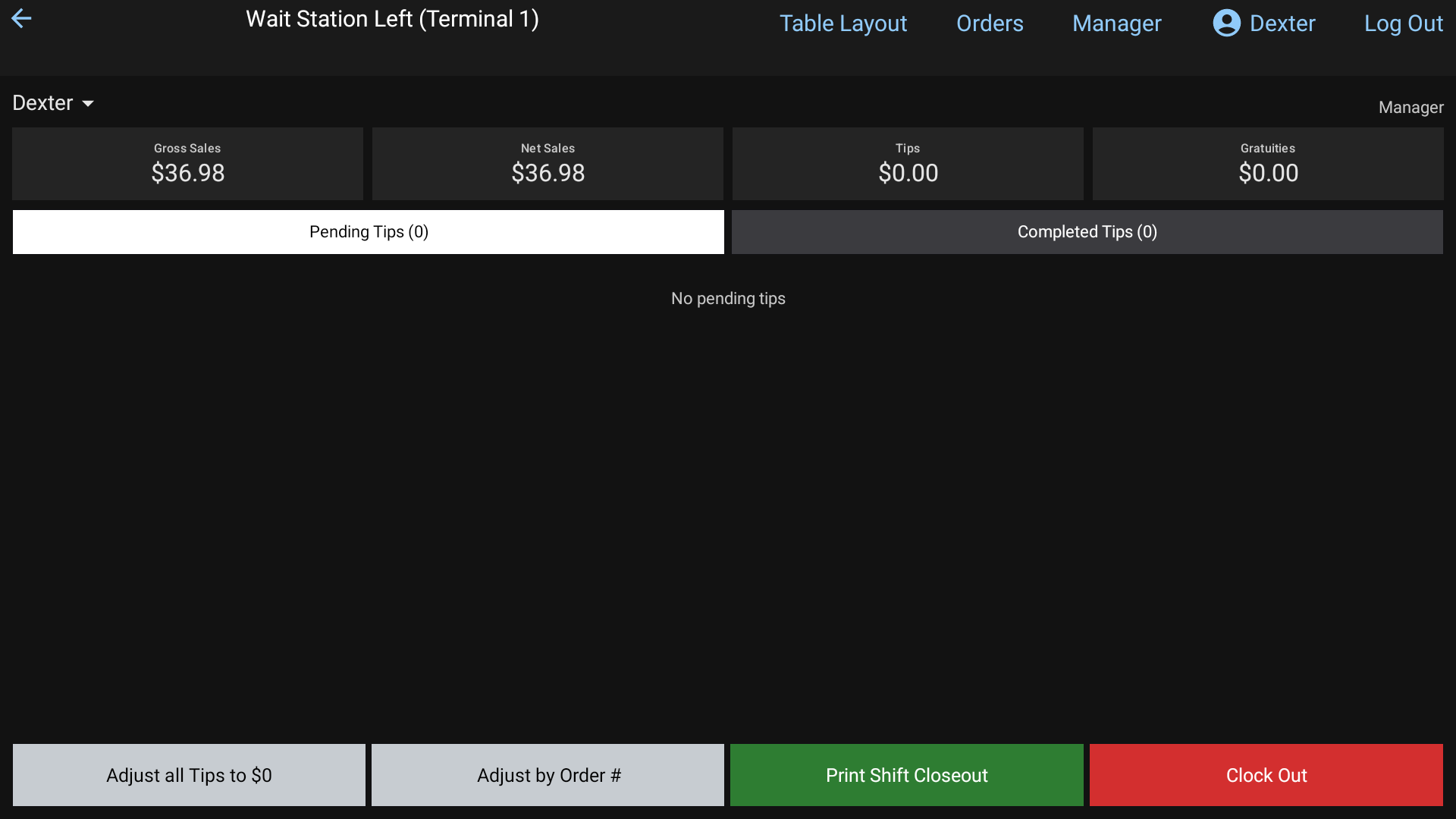 The shift closeout report on the POS
What's on the report
From top to bottom, the closeout shows (sections only appear when they have something in them):
- The employee, job and date, then sales by department and Gross Sales.
- Discounts, Refunds and Net Sales.
- Card sales by brand and Total Credit Cards.
- Surcharges, voids by reason (Total Voids) and Paid Ins and Outs (Net Paid Ins/Outs). See Paid In and Paid Out.
- Tax Details and Non Taxable.
- Open Orders, if any are still open.
- Payments Summary: Cash Payments, Total Credit Cards, Gift Cards Used and Total Payments Collected.
- Cash Breakdown: Payments on Orders in cash, plus cash surcharges and Paid Ins (Cash), less Credit Tips/Grats Paid out of the drawer, Cash Gratuities Paid, Cash Refunds and Paid Outs.
- Tips & Grats Detail: Credit Card Tips, Credit Card Gratuities, Credit Tips/Grats Reduce, Cash Gratuities and Net Tips / Grats.
- Employee Cash Tips: their Declared Cash Tips.
- Total Cash To Drop, printed big. If it's positive, the employee owes the restaurant that cash. If it's negative, the restaurant owes the employee.
Whether card tips are paid out in cash at closeout or on the paycheck depends on Tips Paid as Wages and Gratuities Paid as Wages, and the reduce % comes from Credit Card Tip/Gratuity Reduce %. Both are on Employees > Settings. See Run payroll.
Reprint a shift report
In the back office (login.realpos.net):
- Go to Reports > Closeouts.
- Under Employee Shift Reports, pick a Start Date and End Date and click Generate.
- You get one row per clock-in: First Name, Last Name, Nickname, Shift Open Time, Shift Close Time, Open/Closed and Gross Sales $. Click a heading to sort.
- Click Reprint Report on a row to see that shift's closeout. Click Print to print it on your office printer, or Close.
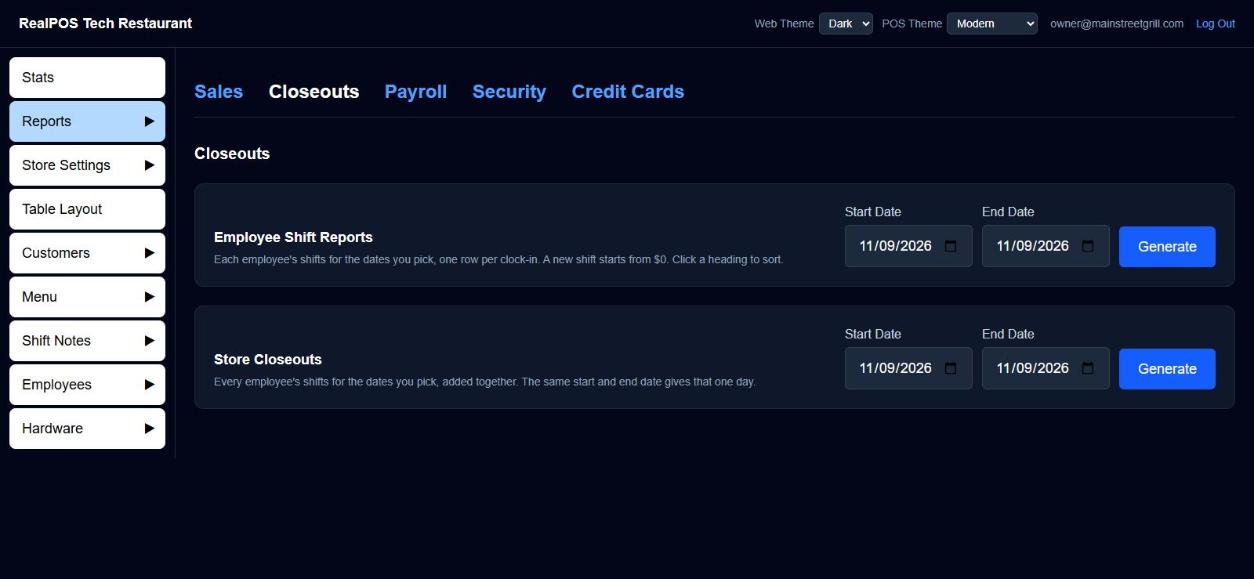 Reports > Closeouts
A reprint from the back office also shows any tip-outs for that shift. See Tip-outs and tip pools.
A whole day (or range) at once
Under Store Closeouts, pick a Start Date and End Date and click Generate. Every employee's shifts are added together into one report ("All Employees"). Use the same start and end date for a single day.
On the POS
The same two reports are under Manager > Reports > Closeouts. On the POS you can also close someone's bank from Employee Shift Reports:
Generate the list for today.
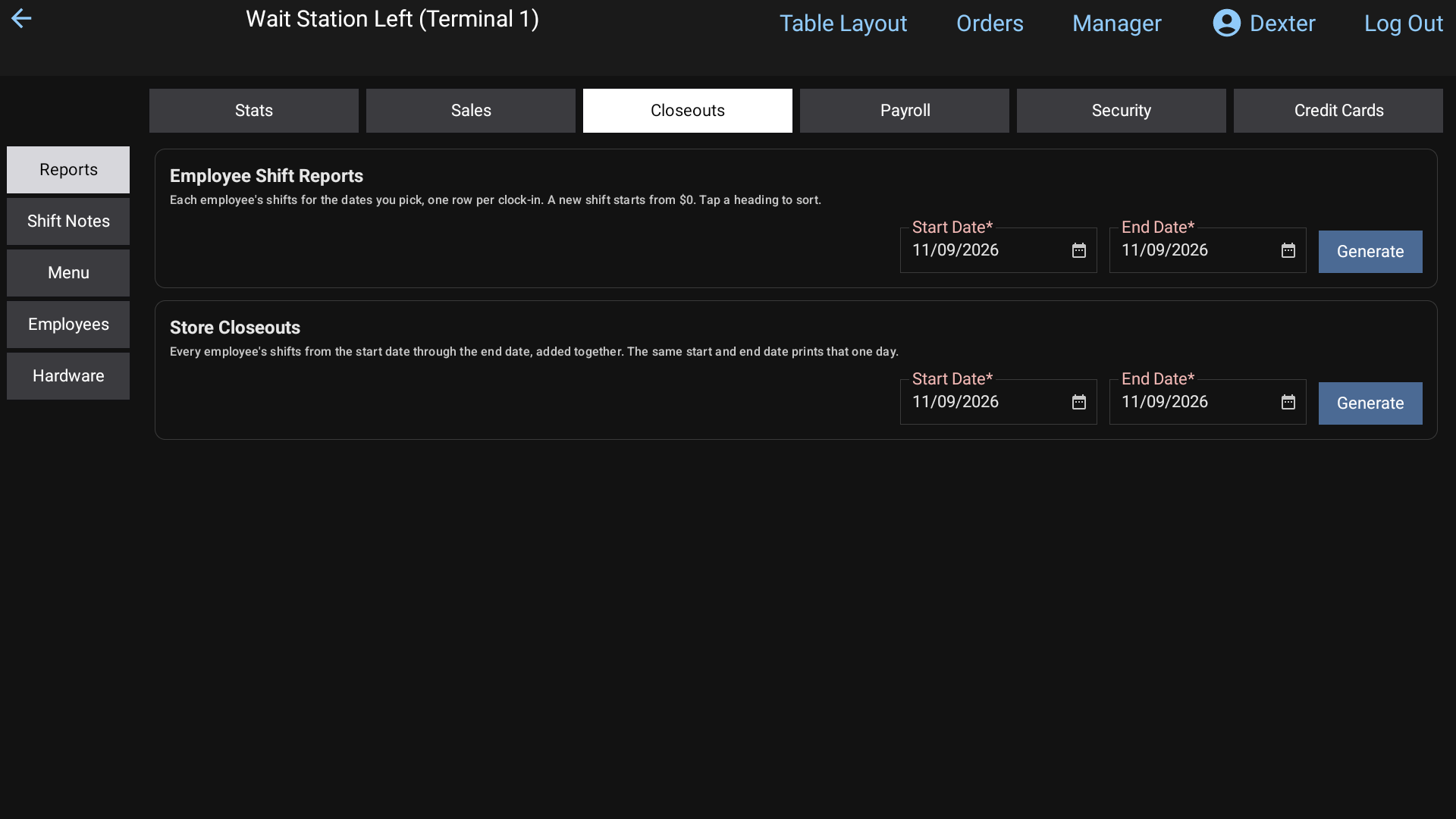 Manager > Reports > Closeouts on the POS: Employee Shift Reports and Store Closeouts
Tap the green Open on their row.
At Do you wish to close this employee's bank?, tap Yes. Their shift report prints and the bank closes. They stay clocked in.
If they still have open orders you'll see "This employee still has (N) open orders." Tap Show Orders to deal with them first.
The Closeout Wizard
Manager > Reports > Stats has a Closeout Wizard beside the day's stats. Each button is red until that step is done and green when it is:
- Open Tickets / NO Open Orders
- Pending Tips / NO Pending Tips
- Open Banks / NO Open Banks
- Employees Clocked In / NO Employees Clocked In
- Print Store Close: gray until there are no open tickets, pending tips or open banks. It then shows every shift worked today added together, ready to print.
Tap a red button to jump to what needs doing. For the automatic end-of-day steps, see Store Close.
Good to know
- Cash refunds come out of the drawer of whoever did the refund. See Refund a guest.
- Card tips above the High Tip % Warning (on Employees > Settings) are highlighted dark blue on the employee menu, with their tip %.