Gift cards and loyalty
Sell and reload gift cards, take them as payment, check balances, sign guests up for loyalty points, and see it all in the back office.
RealPOS has its own gift cards and loyalty points. Both are run from the POS order screen, and both are listed in the back office under Customers.
Sell or reload a gift card
- Open an order on the POS.
- Tap Gift Card, then Load Card.
- Type the card number (at least 10 digits) and tap Enter.
- Type the amount to load, in whole dollars, and tap Enter.
- "Would you like to add another gift card?" Tap Yes to load another card on the same order, or No to finish.
The card goes on the order as a line, and the guest pays for it like anything else. The card is turned on once the order is paid. Loading a card that already has money on it adds to its balance.
Check a balance
- In an order: tap Gift Card, then Check Balance, enter the card number and tap Enter.
- Without an order: tap Gift Lookup at the bottom of the floor screen.
The balance shows big, with the last 4 digits of the card. Tap Print to print a small balance slip for the guest, or OK to close. "Card Not Found" means that number isn't one of your cards.
Take a gift card as payment
On the payment screen, staff choose the Gift Card tender and enter the card number. The amount box fills in with whichever is less, the card's balance or what's due, and can be changed before they tap Enter. Whatever is left on the check can be paid another way. See Take a payment.
The Gift Card tender is one of your payment types. See Payment types.
Loyalty points
Guests earn 1 point for every $1 spent, tax included, once the order is paid.
To add a guest to an order:
- In the order, tap Loyalty.
- Type the guest's phone number and tap Enter.
- If they're already a member, they're added to the order.
- If not, the POS signs them up: type their name (New Loyalty Member — Name) and tap Next, then their email if they want to give it (New Loyalty Member — Email) and tap Save.
To put a member on just one guest's items, long-hold that seat on the order and choose Loyalty. That seat earns points on its own items (before tax).
To check someone's points without an order, tap Loyalty Lookup at the bottom of the floor screen and type their phone number. You can print their points balance too.
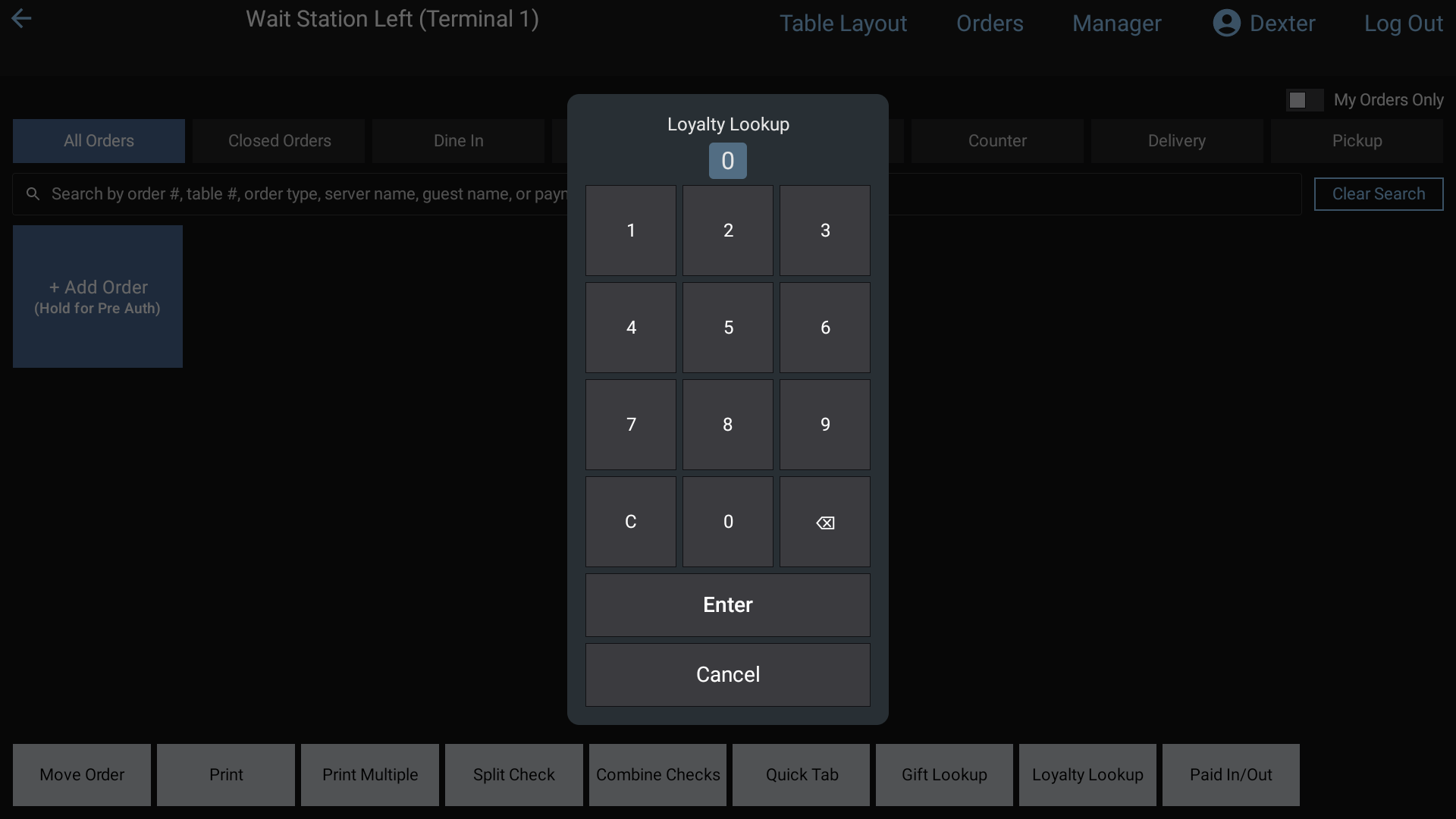 The Loyalty Lookup keypad: type the guest's phone number and tap Enter
See them in the back office
- Customers > Gift Cards lists All Gift Cards with each card's Card Number, Value (what's on it now), Status and when it was Created. A card sold on an order that isn't paid yet shows as PENDING, then ACTIVE once the order is paid. Search by any part of the card number.
- Customers > Loyalty lists All Loyalty Members with their Name, Phone, Email and Points. Search by name or phone number.
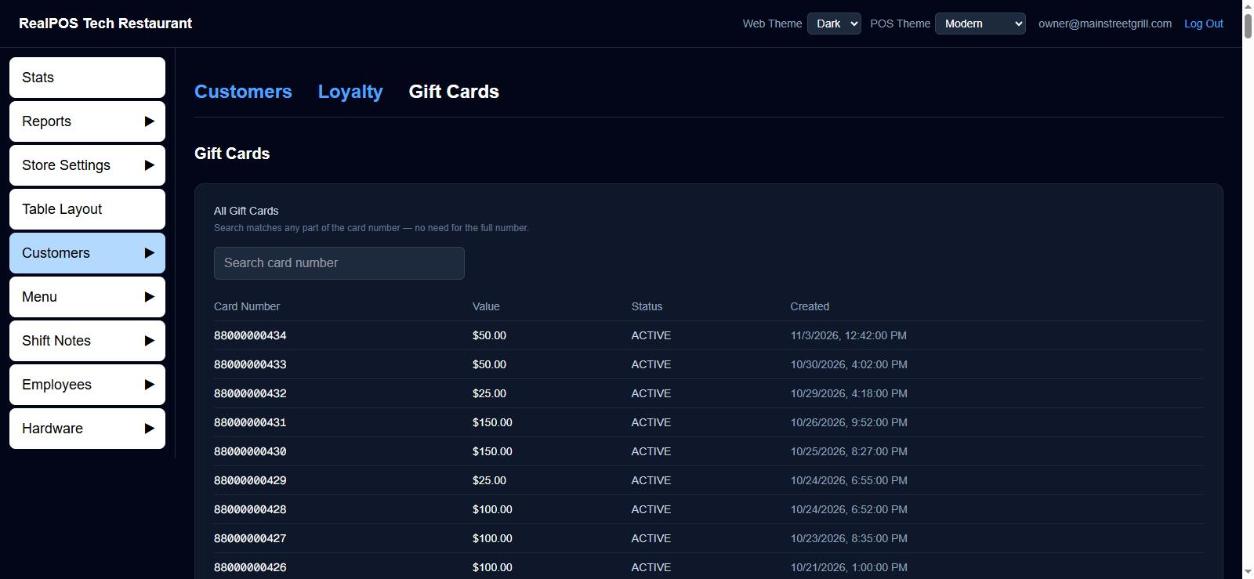 Gift cards in the back office
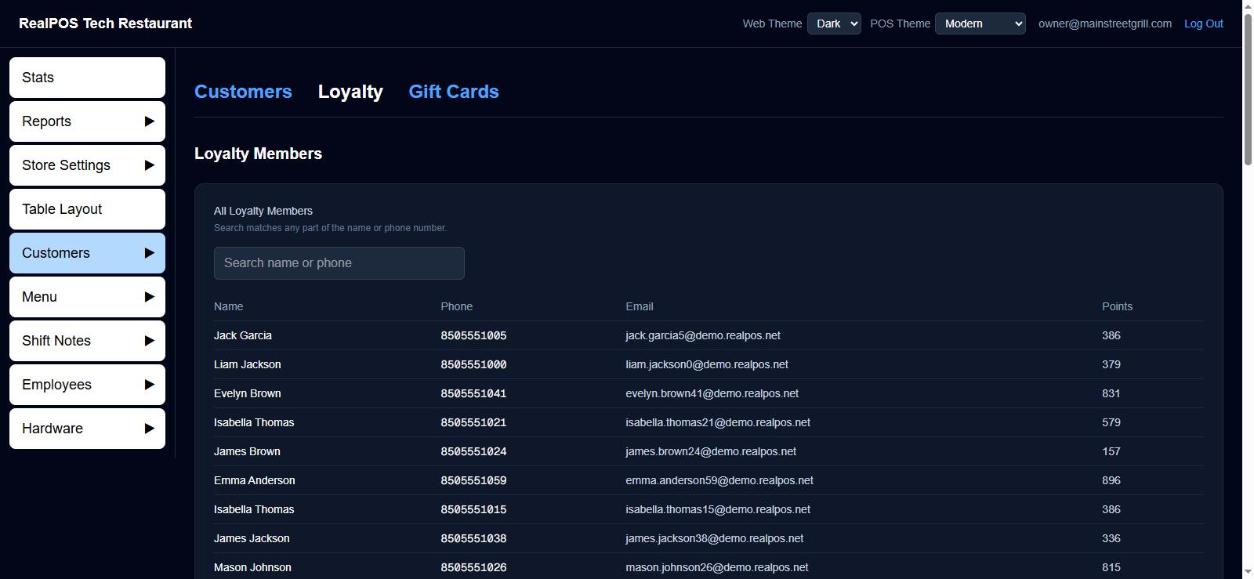 Loyalty members in the back office
Good to know
- Gift cards sold are not counted as sales. They show as Gift Card Sales on the Daily Report, and the Stats page shows Gift Cards Purchased and Gift Cards Used. See Daily report.
- Loyalty members are also your customer list. See Customers.