Run payroll
Set up your pay week and overtime rules, then run the Payroll report for hours, pay and tips.
The Payroll report shows each employee's shifts for the dates you pick, with hours, overtime, pay and tips, a paycheck line, and a summary by job. You can fix a shift right on the report.
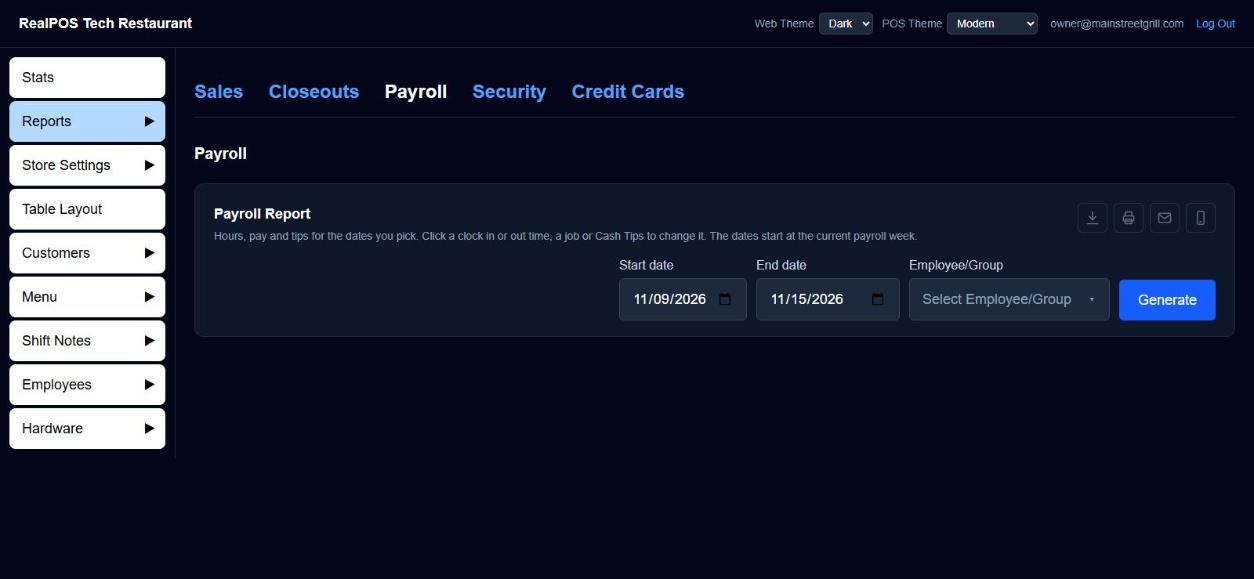 The Payroll report in the back office
Set up payroll first
Do this once, in the back office (login.realpos.net) under Employees > Settings (the Payroll Settings page).
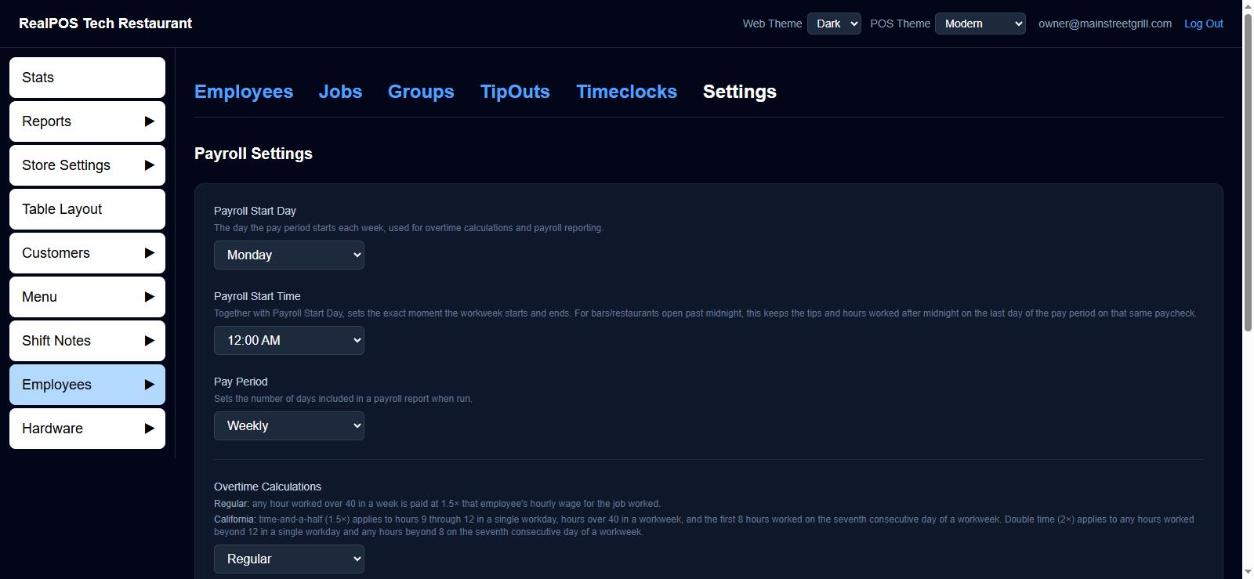 Payroll Settings
- Payroll Start Day: the day your pay week starts. Used for overtime and payroll reporting.
- Payroll Start Time: the exact time the week starts and ends. If you're open past midnight, this keeps tips and hours worked after midnight on the last night of the period on the same paycheck.
- Pay Period: Weekly, Bi-Weekly or Monthly.
- Overtime Calculations:
- Regular: hours over 40 in a week are paid at 1.5 times the wage for the job worked.
- California: 1.5 times for hours 9 to 12 in a day, hours over 40 in a week, and the first 8 hours on the seventh day in a row; 2 times for hours over 12 in a day and over 8 on the seventh day in a row.
- Credit Card Tip/Gratuity Reduce %: the share of card processing fees taken out of each employee's card tips and gratuities. Leave at 0 to take nothing.
- High Tip % Warning: card tips above this percent of the payment are highlighted dark blue on the POS. 0 turns it off.
- Tips Paid as Wages: ticked, card tips (less the reduce %) go on the paycheck. Unticked, employees take their card tips home at the end of their shift.
- Gratuities Paid as Wages: the same choice for card gratuities. Cash gratuities are always treated like cash tips.
Click Save.
Run the report
- Go to Reports > Payroll.
- The dates start on the current pay week. Change Start date and End date if you need to.
- To run it for some people only, open Select Employee/Group. Tick groups (shown first, in bold) and/or employees. Nothing ticked means everyone. Clear unticks them all.
- Click Generate.
Each employee gets a box with their Payroll ID and one row per shift: Time In, Time Out, Job, Rate, Reg Hrs, OT Hrs, Total Hours, Hours Pay, Charge Tips, Gratuities, Tip Reduce, Total Tips/Grats and Cash Tips. With California overtime you also get Daily OT and Double OT. A bi-weekly or monthly run adds a total line after each week (Week 1 Total, Week 2 Total and so on).
Under the shifts:
- Paycheck: Hours Pay Total, Tips Total, Gratuities Total, Tip Outs (only if you use TipOuts), Total Pay and Payroll Tips. Tips or gratuities show PAID when they aren't paid as wages (the employee already took them home).
- Metrics: Sales, % Store Sales, Tip %, Avg Order and Avg Guest.
At the bottom, Summary totals hours and pay by job, with Labor Sales as a percent of total sales.
Fix a shift from the report
Click the underlined values:
- A Time In or Time Out opens the same edit window as Timeclocks.
- A Job lets you pick another of that employee's jobs.
- Cash Tips opens a keypad to type the amount they declared.
The report runs again for the same dates and stays open.
A Time Out in pink means the system clocked that person out at store close. Check it and set the real time.
Save, print, email or text
Use the icons at the top right:
- Save: PDF, Excel (.xlsx) or CSV.
- Print.
- Email: pick the format, then the address.
- Text: sends a link to the file.
Collapse hides the shifts, Expand brings them back and Close clears the report.
On the POS
The same report is under Manager > Reports > Payroll, with the same Select Employee/Group picker and tap-to-fix times, jobs and cash tips.
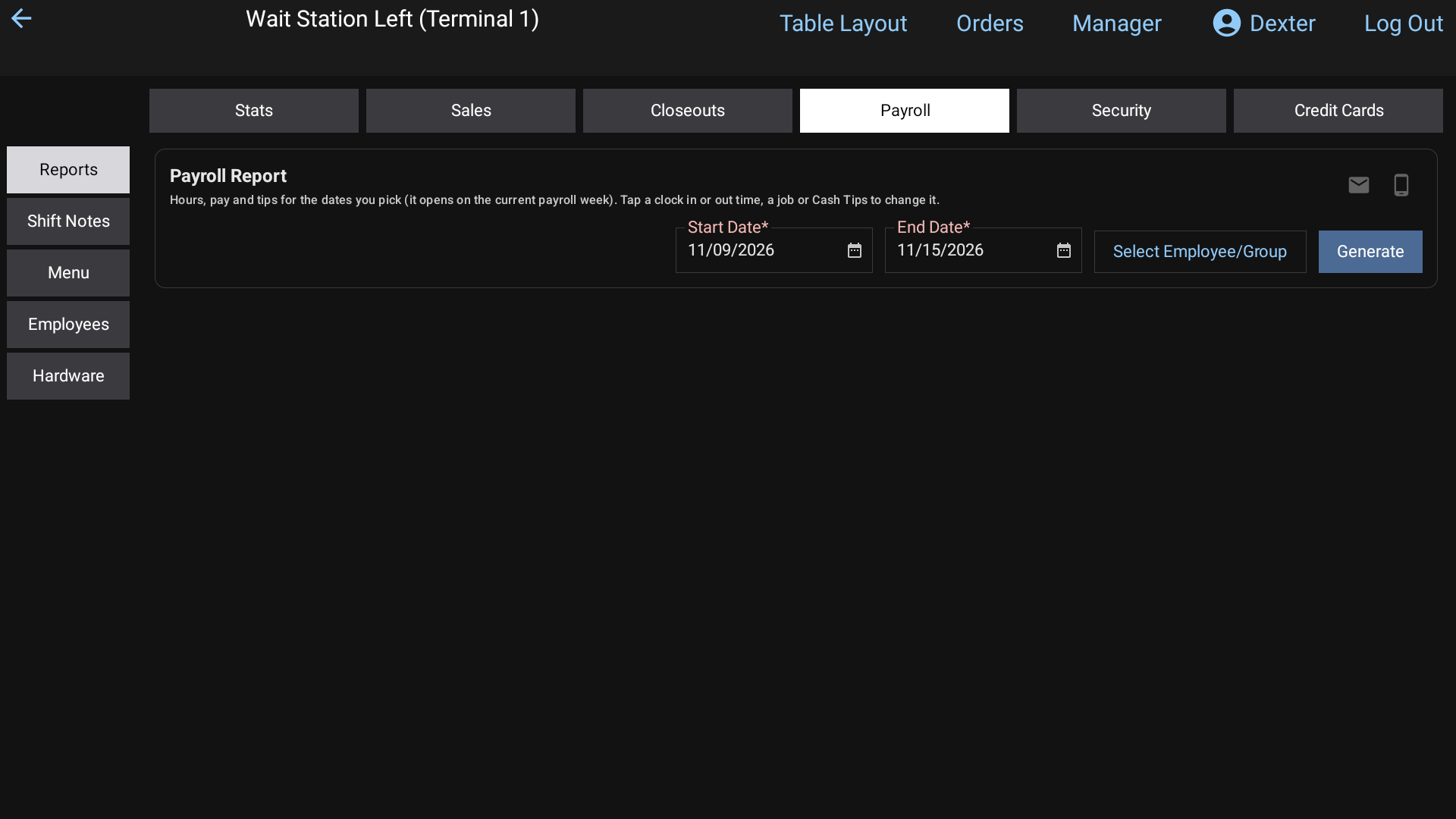 Manager > Reports > Payroll on the POS, with Select Employee/Group beside the dates
Good to know
- Total Pay includes card tips and gratuities only when they're paid on the paycheck. It never includes cash tips.
- Payroll Tips is card tips and gratuities less the card fee, plus declared cash tips, plus or minus To Payroll tip outs.
- Tip Reduce only affects card tips and gratuities, never cash gratuities.
- To filter by front of house or back of house, set up Employee groups.