Manager & Owner Manual › Staff & payroll
Leave shift notes
Leave notes for other managers, for the whole staff on the login screen, or for one employee to read when they next sign in.
Shift notes are a shared notepad. There are three kinds:
| Kind | Who sees it |
|---|---|
| Manager Notes | Only visible to managers. |
| Staff Notes | Visible to all employees on the login screen. |
| Employee Notes | Visible to a specific employee on next login. |
You can write and manage notes on the POS or in the back office. They're the same notes in both places.
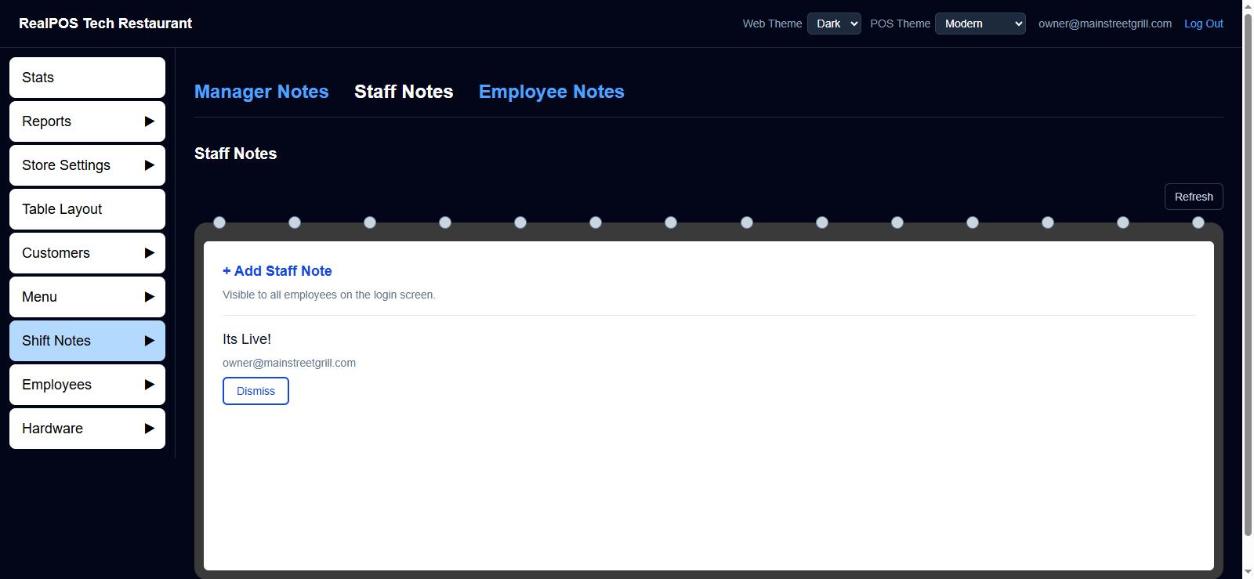 Shift notes in the back office
Add a note on the POS
- Go to Manager > Shift Notes.
- Pick the tab: Manager Notes, Staff Notes or Employee Notes.
- Tap + Add Manager Note, + Add Staff Note or + Add Employee Note.
- For an Employee Note, pick the person under Send to which employee?
- Type the note. Tap Write to write it with your finger instead (it's turned into typed text), or Keyboard to go back to typing.
- Tap Save.
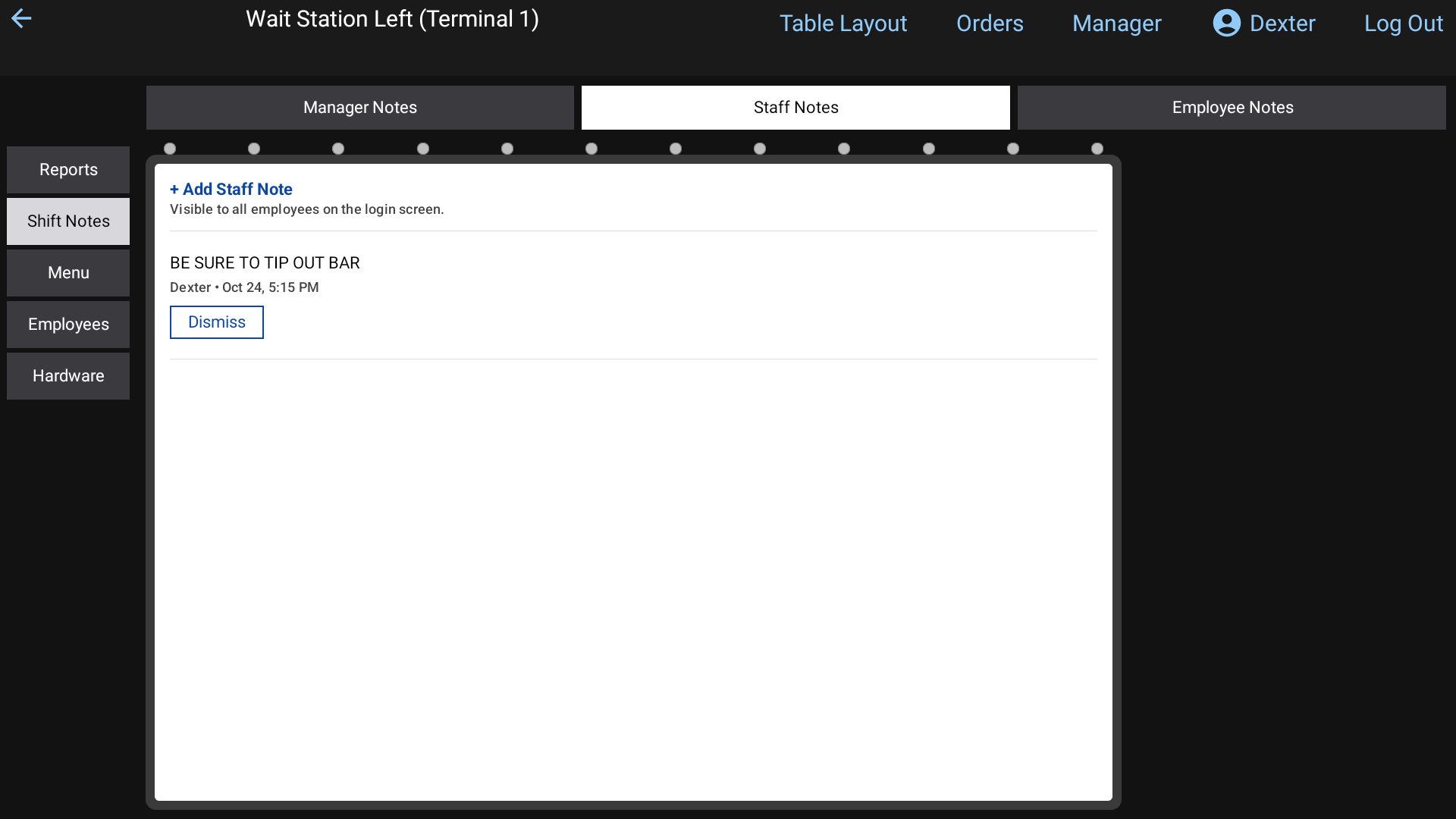 Manager > Shift Notes on the POS
Add a note in the back office
- In the back office (login.realpos.net), open Shift Notes and pick Manager Notes, Staff Notes or Employee Notes.
- Click the + Add line at the top of the notepad.
- For an Employee Note, pick who it's for.
- Type the note and click Save.
Click Refresh to see notes someone has just added from a terminal.
What employees see
- Staff Notes show on the Shift Notes notepad on the POS login screen, for everyone.
- An Employee Note pops up after that employee enters their PIN, titled "Note from" whoever wrote it. They can't skip it: Dismiss only works after a few seconds. If they have several, each one shows in turn before they're signed in.
On the Employee Notes tab each note shows Read or Unread, so you know whether it was seen.
Edit, dismiss or relist
- Tap (or click) a note's text to edit it.
- Dismiss deletes the note after you confirm with Yes.
- Relist (Employee Notes that were already read) marks it unread again so it pops up at that person's next login.
Good to know
- When the system clocks people out at store close, it leaves a Manager Note naming who it clocked out. See Fix and add timeclock punches.
- A note dismissed in the back office may still show on a terminal that already downloaded it.