Manager & Owner Manual › Getting around
The POS Manager screen
Open the Manager screen on a terminal and find reports, shift notes, the menu, employees and hardware without leaving the floor.
The Manager screen puts the back office's everyday jobs on the terminal itself: run a report, leave a note, fix a price, edit a timeclock punch. What you change here is the same data the back office shows.
Open it
- On the POS, tap Manager in the top bar.
- If your job doesn't include the Manager permission, a box says "An override is required to access the Manager menu". A manager types their override PIN to let you in.
To leave, tap Table Layout in the top bar (or the back arrow).
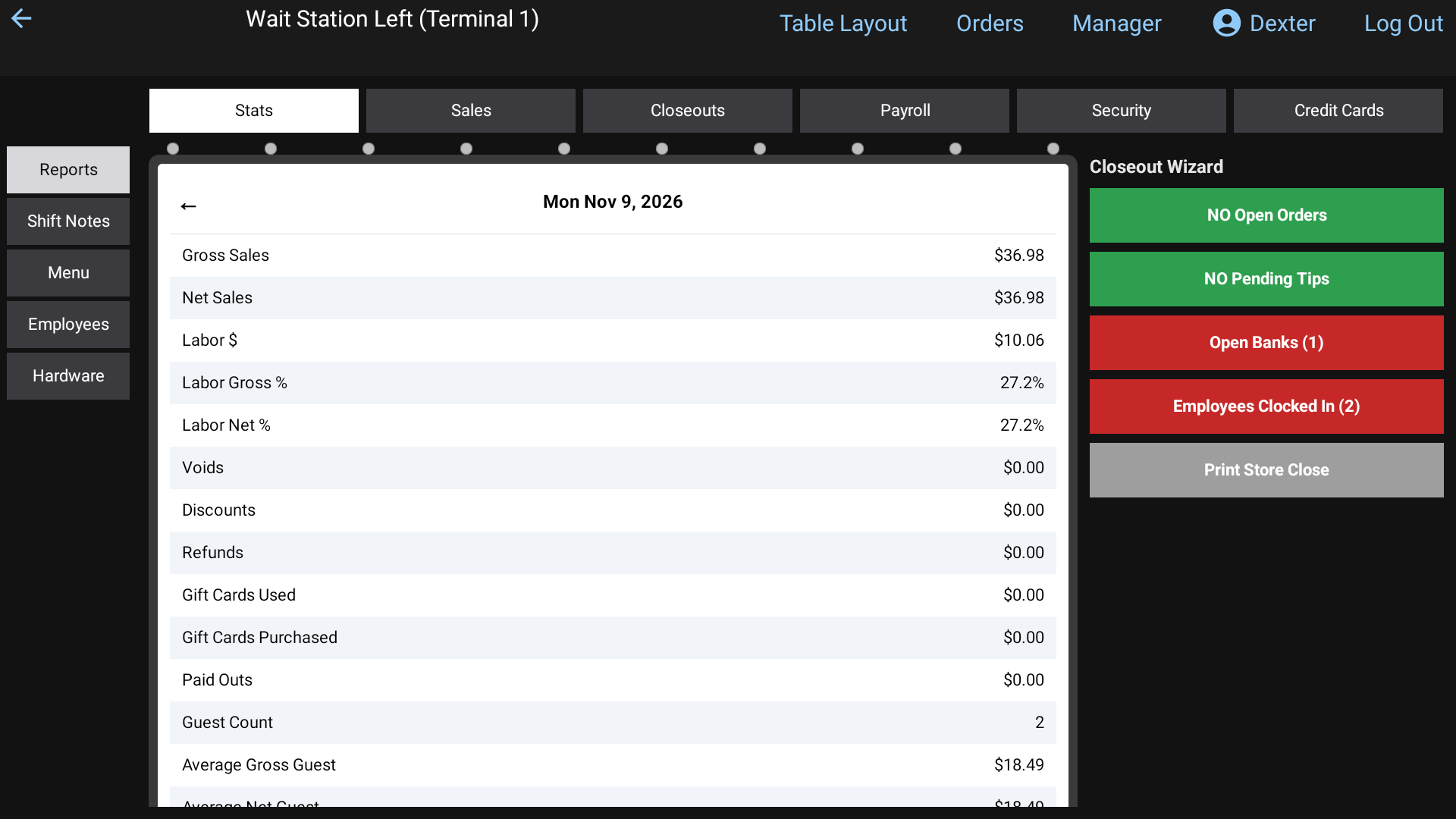 The Manager screen on the POS
What's on it
The buttons down the left side switch sections:
| Section | Tabs across the top | What it's for |
|---|---|---|
| Reports | Stats, Sales, Closeouts, Payroll, Security, Credit Cards | The same reports as the back office. Stats also holds the Closeout Wizard for the end of the night. |
| Shift Notes | Manager Notes, Staff Notes, Employee Notes | Leave notes for managers, for everyone, or for one employee. |
| Menu | Categories, Departments, Items, Modifiers, Modifier Sets, Instructions, Order Types | Edit the menu, same as the back office's Menu pages. |
| Employees | Employees, Jobs, Groups, Timeclocks | Add and edit staff, jobs and groups, and fix punches. |
| Hardware | Terminals, Printers/KDS | Your terminals, printers and kitchen screens. |
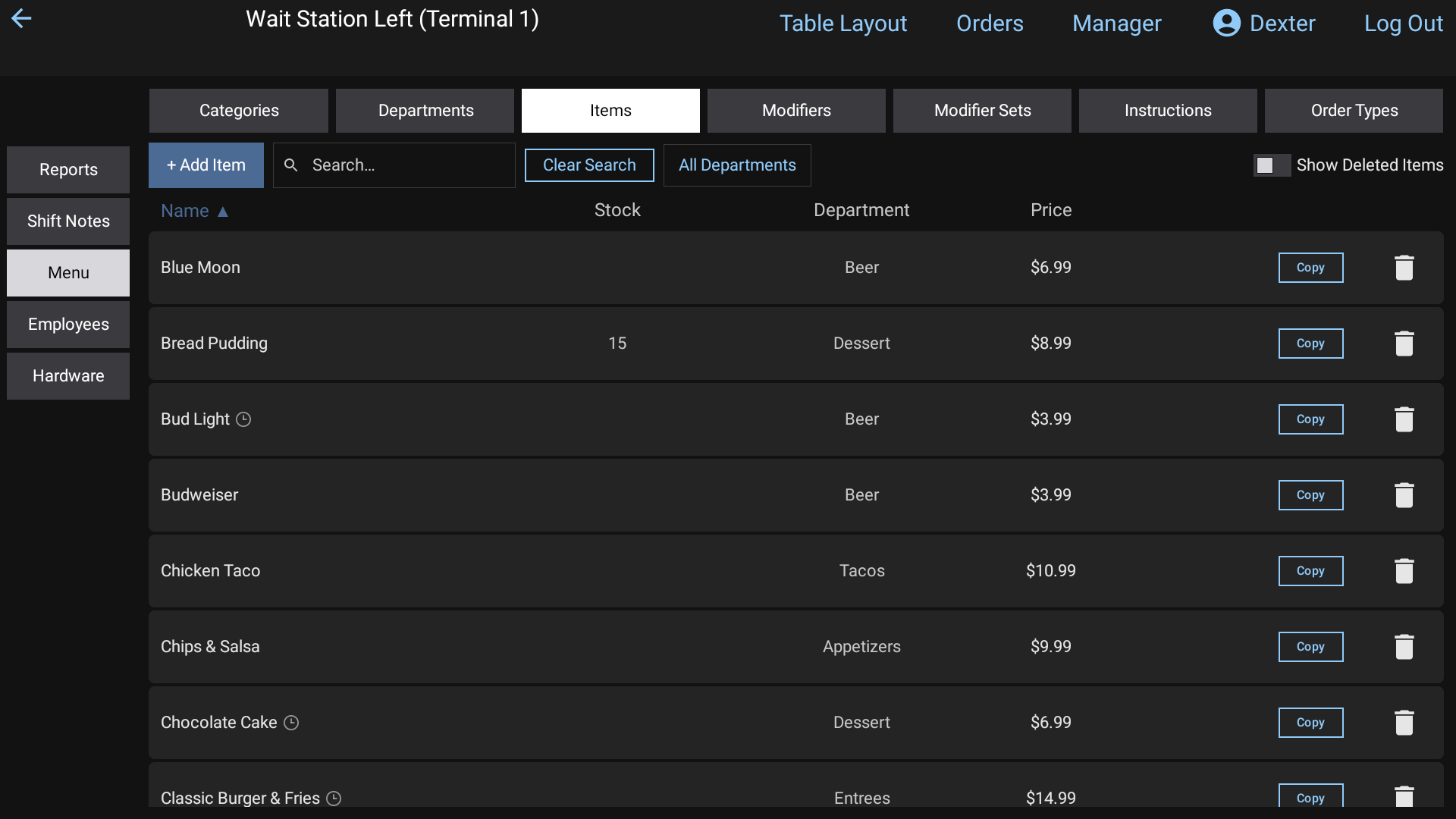 Editing the menu from the Manager screen
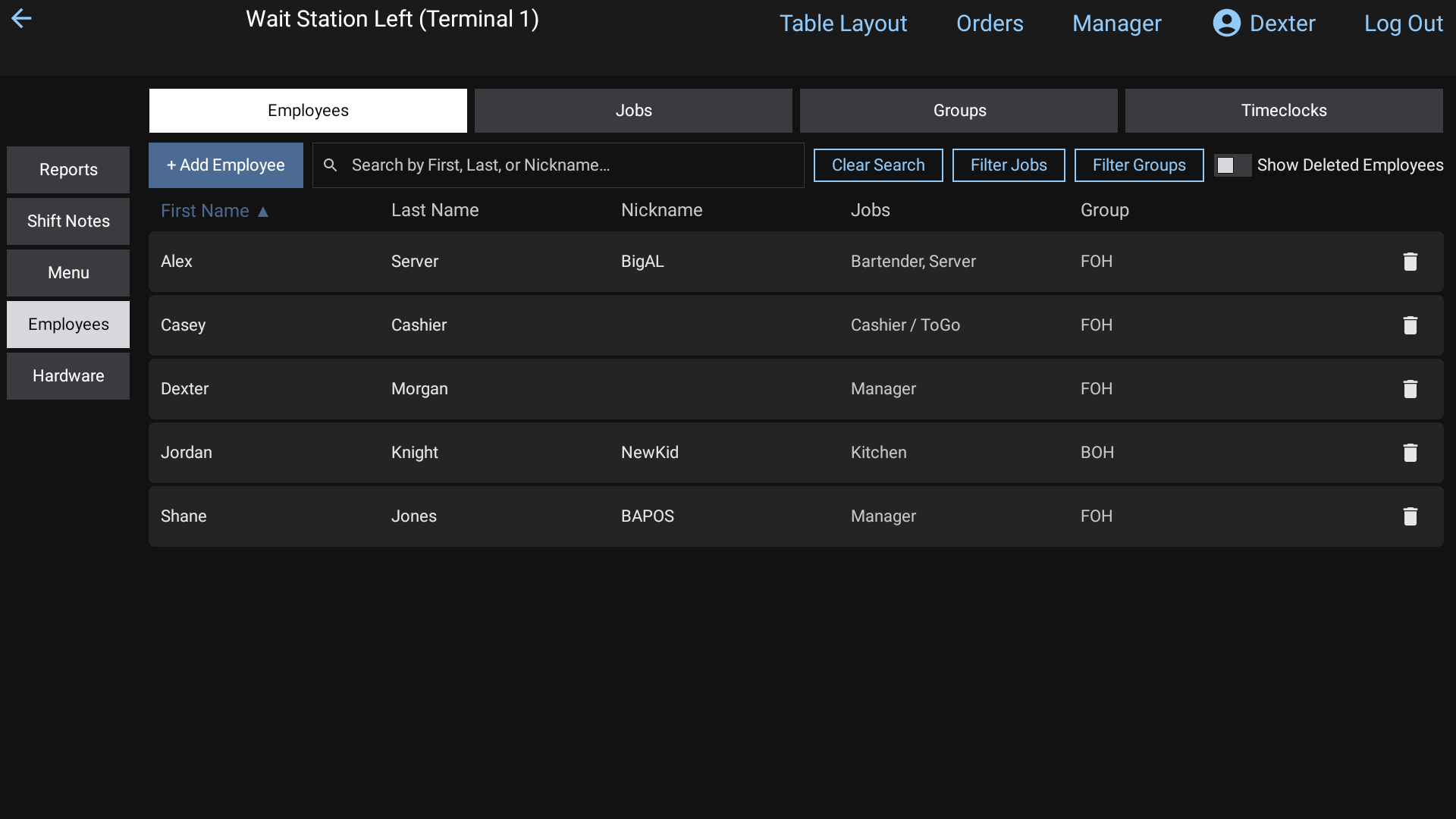 Employees on the Manager screen
Where to read more
- Reports: Reports, Daily report, Closeouts, Store close, Payroll, Security reports, Credit card report
- Shift notes: Shift notes
- Menu: Menu items, Modifier Sets, 86 and price changes
- Employees: Enter your employees, Timeclock, Employee groups
- Hardware: Terminals, Printers and kitchen screens
Good to know
- If you're in the middle of editing something and tap another section or leave the screen, the POS checks with you first so you don't lose unsaved changes.
- When you open Reports and another terminal hasn't been able to sync, a Terminal not syncing box names it and warns "This could affect closeout numbers." Check that terminal's connection before closing out.
- The terminal's own settings (printers, timeouts and so on) are not here. Long-hold the terminal's name at the top of the screen instead. See Terminals.