Gratuities and surcharges
Set the gratuity percentages staff can add to an order, and named surcharges for the Payment screen.
A gratuity is a percentage added to an order, for example for a large party. A surcharge is an extra charge added on the Payment screen, as a percent or a dollar amount. You set the quick-pick choices for both in the back office (login.realpos.net) under Store Settings.
Gratuity presets
- Open Store Settings > Gratuities.
- Type a percent in + Add percent (1 to 100) and click +.
- To remove one, click its trash can.
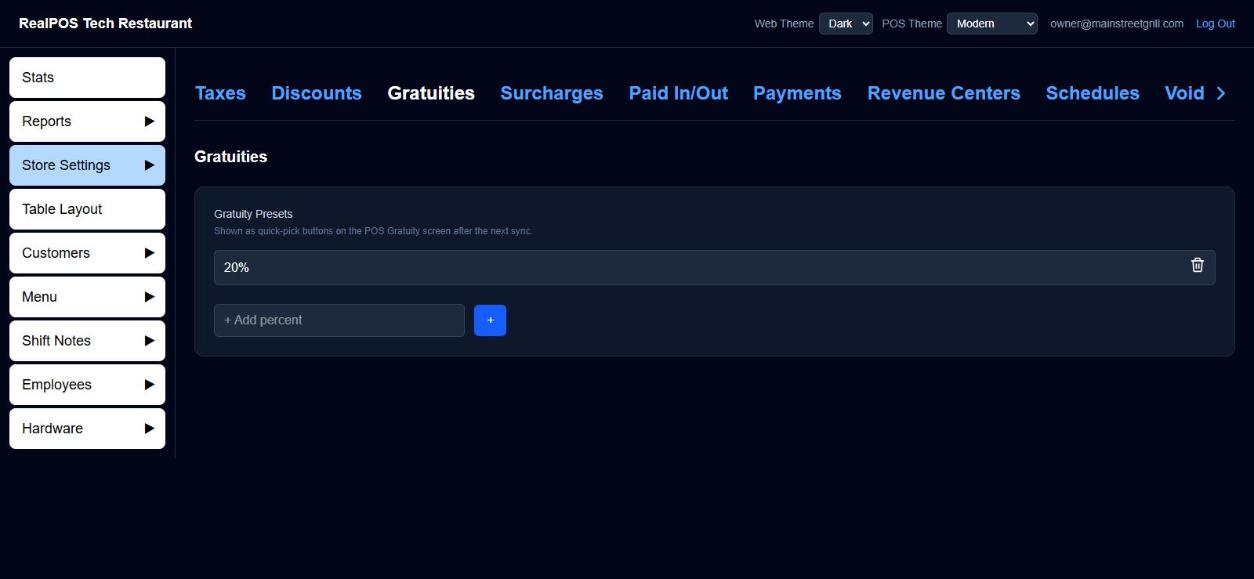 Gratuity presets
The list starts with 15%, 18%, 20% and 25%. The presets show as buttons on the POS after the next sync.
Adding a gratuity on the POS
On the order screen, tap Gratuity and pick a percentage. The order shows a Gratuity (x%) line. To take it off, tap Gratuity again and tap Remove.
Named surcharges
- Open Store Settings > Surcharges.
- Click + Add Surcharge.
- Enter a Surcharge Name.
- Under Amount, click the % / $ button to switch between a percent (whole numbers) and a dollar amount (up to 2 decimal places), then type the value.
- Optional: pick an Apply Tax. The surcharge is taxed at that rate on its own. Leave it blank for no tax.
- Click Save.
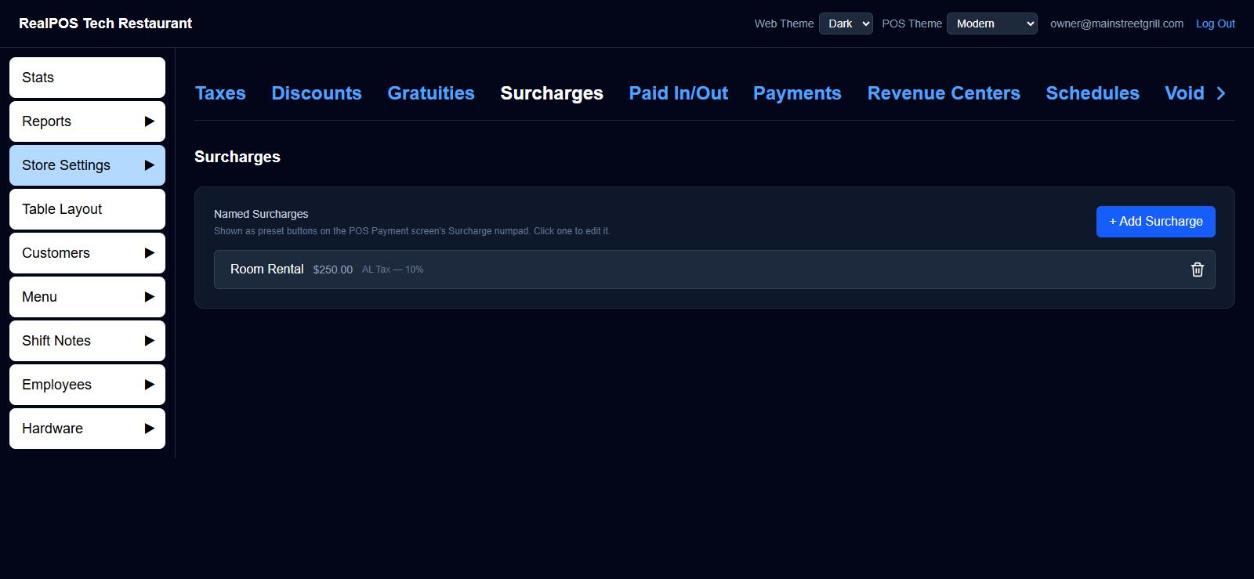 Named surcharges
Click a surcharge in the list to edit it, or its trash can to delete it.
Adding a surcharge on the POS
On the Payment screen, tap Surcharge. Your named surcharges show as buttons; tap one to apply it with its own tax setting. Staff can also type a custom percent or amount. A custom one asks Is this surcharge taxable? with Non-Taxable and Taxable.
Good to know
- A surcharge applies to the whole order, not a single item.
- Suggested tip percentages that print on checks are set in your check template, under Recommended Gratuity. See Printers and kitchen screens.
- Taxes are set up under Store Settings > Taxes. See Set your tax rate.