Add jobs and set their security
Create the jobs your staff work (server, bartender, cashier, manager...) and choose what each job is allowed to do on the POS.
Every employee has one or more jobs. A job decides two things: the default pay rate, and what that person is allowed to do on the POS (their permissions). You set security once on the job, not on each person, so everyone who works as a Server has the same rights.
A new restaurant starts with four jobs:
| Job | What it starts with |
|---|---|
| Manager | Every permission. |
| Server | Taking orders, moving tables, splitting and combining checks, voiding items, transfers, gratuity, holds, taking payment, loyalty, and clocking in and out. |
| Cashier | Much the same as Server, plus gift cards and discounts (including open discounts). It does not have Clear Order, Cancel Order or Hold. |
| Kitchen | Clocking in and out only. Kitchen staff go to their own employee menu and can't take orders. |
You can change these, copy them, or add your own (Bartender, Host, Shift Lead...).
Add a job
- In the back office, go to Employees > Jobs.
- Click + Add Job.
- Type the Job Name, for example "Bartender".
- Optional: type a Default Pay Rate. It fills in automatically as the wage when you give this job to an employee, and you can change it for each person.
- Under Permissions, check each thing this job is allowed to do. Each permission shows a short explanation under its name. Type in Search permissions… to find one quickly.
- Click Save.
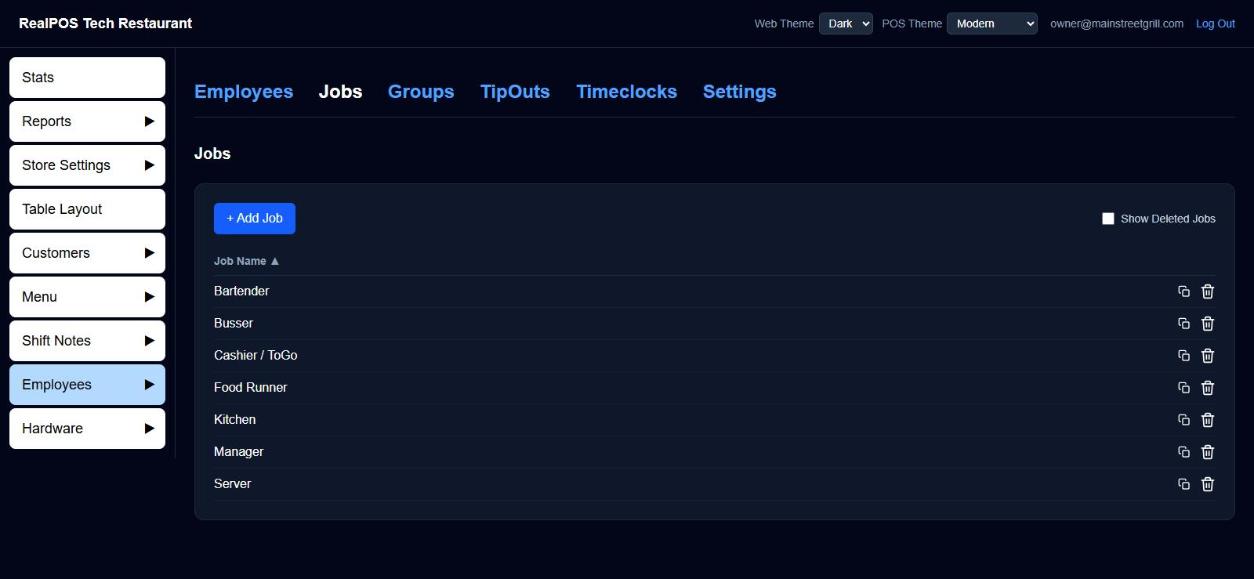 The Jobs list
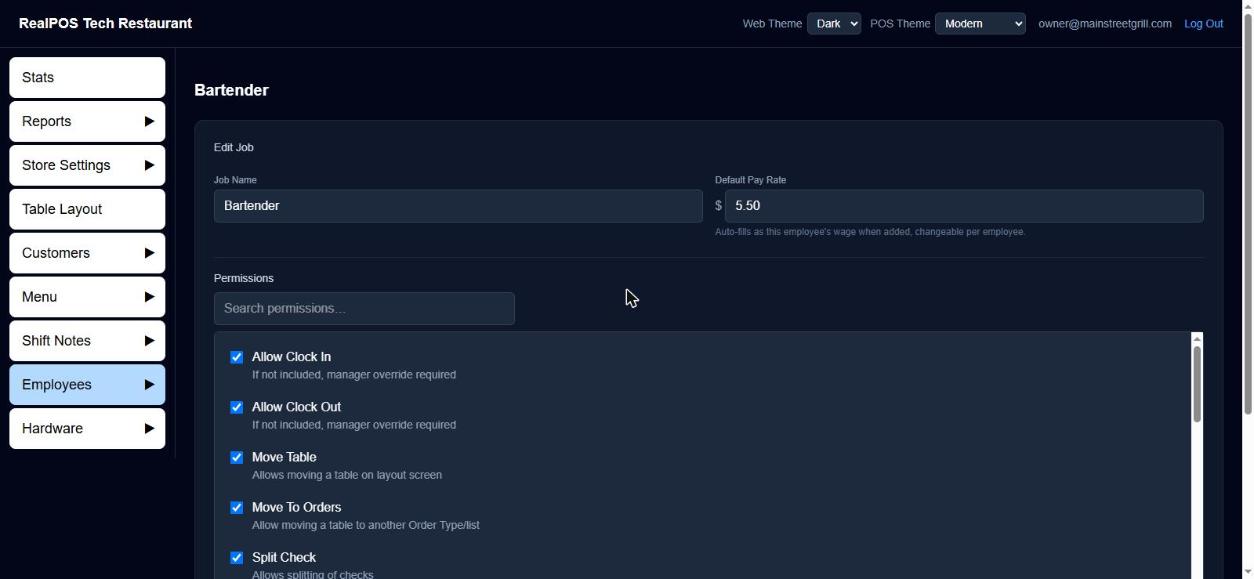 A job's name, default pay rate and permissions
Change or remove a job
- Change a job: click its name on the Jobs list, make your changes and click Save.
- Remove a job: click the trash icon beside it. The job is hidden, not erased, so past timeclock and payroll records keep their job. To bring it back, check Show Deleted Jobs and click the green + beside it.
What each permission allows
When a job doesn't have a permission, using that feature usually asks for a manager override: a manager enters their override code to allow it that one time. Anything on the POS that isn't on this list, anyone can use.
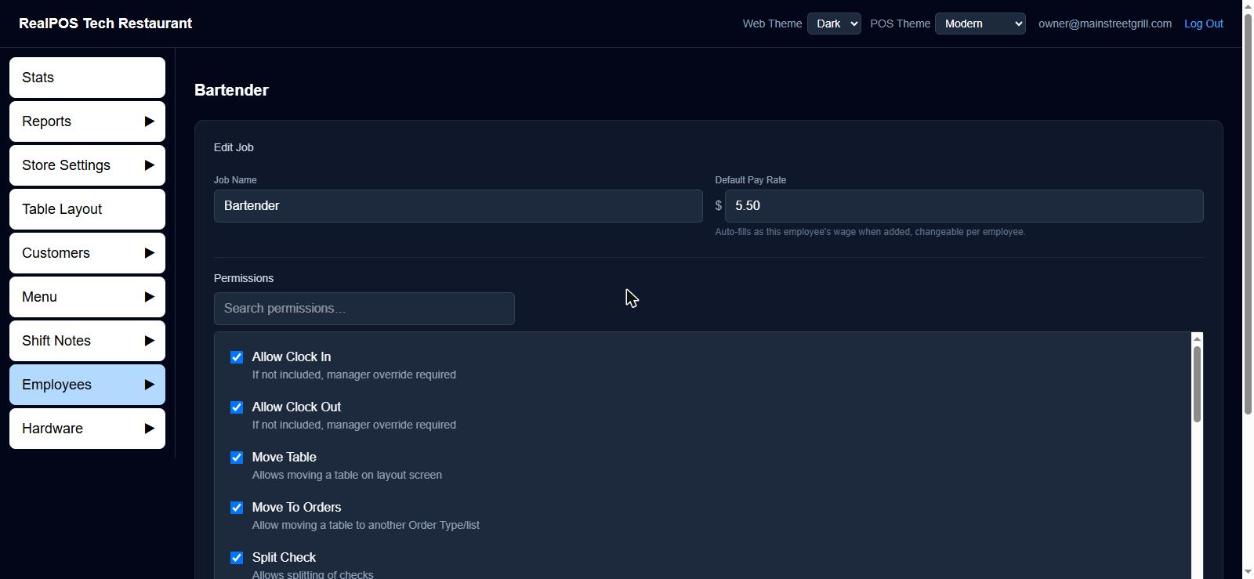 The permissions on a job
Time clock
| Permission | What it allows |
|---|---|
| Allow Clock In | Clocking in without a manager. Without it, a manager must enter their override code for this person to clock in. |
| Allow Clock Out | Clocking out without a manager. Without it, a manager must enter their override code to clock them out. |
Taking orders
| Permission | What it allows |
|---|---|
| Order Taker | Taking orders, and getting into the table layout and the orders lists. Without it, the person is treated as kitchen or back-of-house staff: after clocking in they only see their own employee menu. |
| Clear Order | The Clear Order button while in an order. |
| Cancel Order | Using the back button to leave an order after items have been rung in. (Anyone can go back from an order with nothing rung in yet.) |
| Hold | Holding items on an order. |
| Transfer | Transferring an order to another employee. |
| Move Table | The Move Table button on the table layout. |
| Move To Orders | Moving a table to another order type or orders list (Move to Orders on the table layout, or Move on the orders screens). |
| See All Staff Orders | Seeing every employee's orders on the Orders screens, not just their own, and adding or correcting the tip on any of them. Cashing out someone else's order leaves its sales and tips on the original server's report. |
Checks and payment
| Permission | What it allows |
|---|---|
| Cash Out Order | Taking payment for orders. Without it, the pay buttons need an override. |
| Split Check | Splitting checks, anywhere it appears. |
| Combine Checks | Combining checks, anywhere it appears. |
| Gratuity | Adding a gratuity to an order. |
| Refunds | General refunds and refunding an order back to the original card, cash or gift card. |
Discounts, prices and voids
| Permission | What it allows |
|---|---|
| Discounts | Using discounts marked Secure. Discounts that aren't marked Secure can be used by anyone. |
| Open Discounts | Typing in their own discount amount or percent on the discount keypad. Without it, they can type one, but pressing OK asks for a manager override. |
| Change Price | Changing an item's price for that order only (the Change Price button). |
| Void Item | Voiding an item. |
| Void Order | Voiding an entire order. |
Gift cards and loyalty
| Permission | What it allows |
|---|---|
| Gift Card | Loading gift cards. Anyone with Order Taker can look up a gift card balance. |
| Loyalty | Adding a loyalty customer to an order, or using the loyalty button in an order. Anyone with Order Taker can look up a loyalty customer. |
Manager screens on the POS
| Permission | What it allows |
|---|---|
| Manager | Getting into the Manager menu on the POS. Give it together with at least one of the permissions below, or the person is told to add a sub menu permission to their job. |
| Reports | The Reports section of the Manager menu. |
| Shift Notes | The Shift Notes section of the Manager menu. |
| Menu Builder | The Menu section of the Manager menu. |
| Employees | The Employees section of the Manager menu. |
| See Wages | Seeing employees' wages in the Manager menu. Without it, the wage on an existing employee shows as ****. A wage can still be typed once when adding a new employee. |
| Terminal Settings | Opening a terminal's own Settings screen (long-press the terminal name at the top of the POS). Without it, a manager override is needed. |
Good to know
- Permissions are for the POS. They control the POS terminals and handhelds. The back office uses its own email logins; see Sign in to the back office.
- Changes take effect on their own. What you save here reaches the terminals on their next sync.
- Start strict. It's easier to add a permission when someone needs it than to find out a new hire could void orders. Give voids, refunds, open discounts and the Manager menu only to the jobs that need them.
- Next step: Enter your employees and give each one their jobs.