Pizza Builder
Build pizza items in every size, with whole, half and quarter toppings and their prices, in one screen.
The Pizza Builder sets up a pizza for you: one item per size, plus topping sets for whole, half and quarter pies, all priced. It's in the back office (login.realpos.net) under Menu > Items > Pizza Builder.
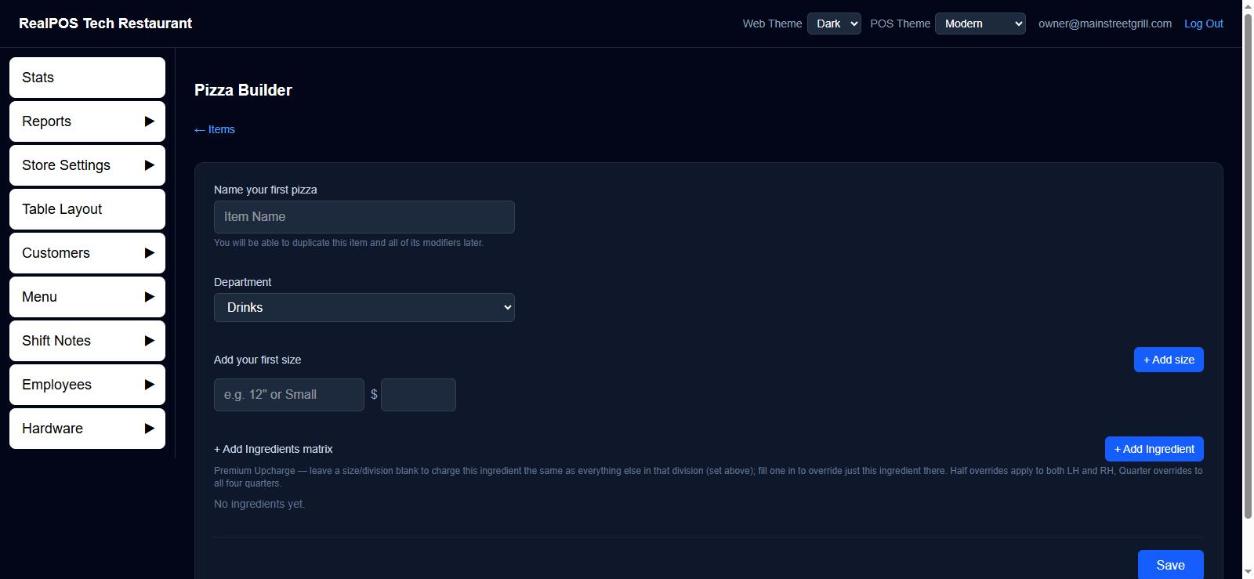 The Pizza Builder
Build a pizza
- Go to Menu > Items and click Pizza Builder.
- Under Name your first pizza, type the name, like "Cheese Pizza".
- Pick the Department.
- Under Add your first size, type a size (like
12"orSmall) and its price. Click + Add size for more sizes. - For each size, under Will you allow?, tick Whole, Half and/or Quarter and type the price of one topping in that division. Each size needs at least one.
- Click + Add Ingredient for each topping, like "Pepperoni".
- If a topping costs more than the rest, click Premium Upcharge beside it and type its price for each size and division. Leave a box blank to use the normal price.
- Click Save.
What it makes
For a pizza called "Cheese Pizza" with sizes Small and Large:
- One item per size, named with the size first: "Small Cheese Pizza", "Large Cheese Pizza", at the size's price.
- Topping sets on each item, one per side the size allows:
- Whole: "Small Whole Toppings", with toppings named "WH Pepperoni".
- Half: "Small LH Toppings" and "Small RH Toppings" (left and right half), toppings "LH Pepperoni", "RH Pepperoni".
- Quarter: "Small 1Q Toppings" through "Small 4Q Toppings", toppings "1Q Pepperoni" and so on.
A Half price applies to both halves, and a Quarter price to all four quarters. These are ordinary items, Modifiers and Modifier Sets. You can edit them afterwards like any others.
Free toppings
On a pizza item's own page (open it from Menu > Items), Free Toppings sets how many toppings come free. It's one shared budget: 1 means one whole topping free, or two half toppings, or four quarter toppings, or any mix that adds up the same.
Good to know
- Toppings are shared by name. "WH Pepperoni" is one modifier used in every size's Whole set, with its own price in each set.
- New pizza items go to a printer or kitchen screen named "General" if you have one. Change Printer / KDS on the items if they should go somewhere else. See Add and edit menu items.