Modifiers
Create the individual choices (like Ranch, Medium Rare or No Onions) that go into Modifier Sets.
A modifier is one choice a guest can make about an item: "Ranch", "Medium Rare", "Add Bacon". Modifiers don't go on items directly. You put them into Modifier Sets, and attach the sets to items. A modifier's price is set inside each set, so the same modifier can cost different amounts in different sets.
You manage modifiers in the back office (login.realpos.net) under Menu > Modifiers, or on the POS under Manager > Menu > Modifiers.
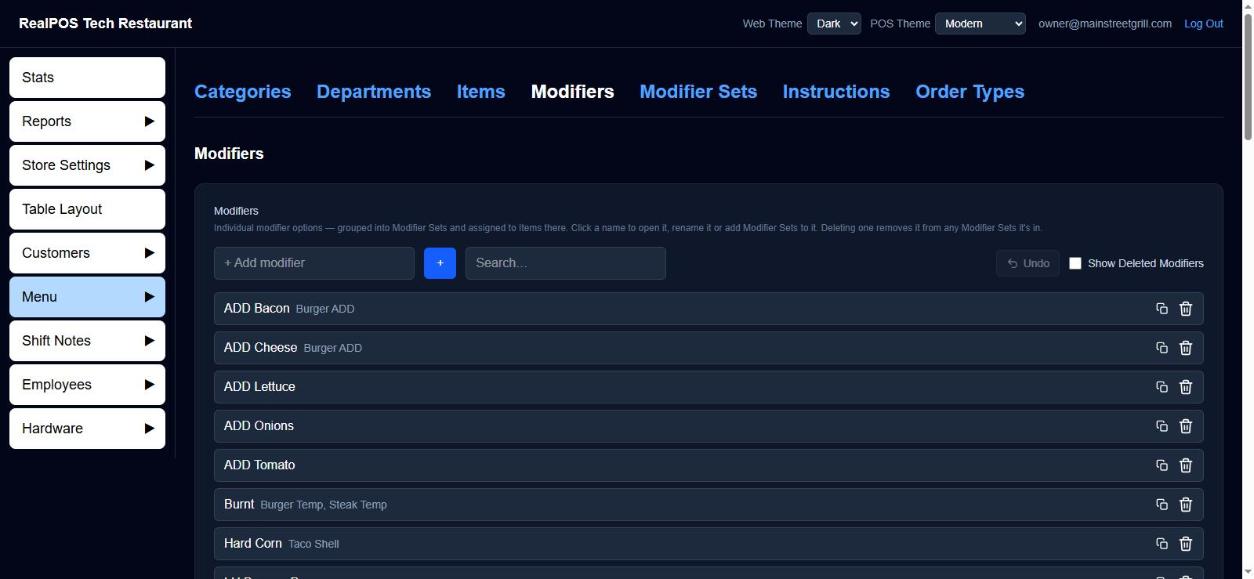 The Modifiers list
Add a modifier
- Go to Menu > Modifiers.
- Type the name in + Add modifier and click +.
Next, add it to a Modifier Set so it shows up on the POS. Each row on the list shows which sets the modifier is already in.
Rename a modifier
Click its name to open it, change Name, and click Save. Names must be unique.
Copy a modifier
Click the copy icon on its row. You get "(copy)" of the modifier, already in every Modifier Set the original is in at the same prices, with its name selected so you can type over it.
Modify a modifier (nested choices)
A modifier can open its own Modifier Sets when it's picked. For example, picking "Salad" could open a "Dressing" set right under it.
- Click the modifier's name to open it.
- Under Modifier Sets, click + Add, tick the sets, and click OK.
- Drag the handle to order them. Use Free with − and + to make the first few picks free.
On the POS, these sets open indented right under the modifier when it's picked. If one of them is a forced set, the modifier turns red until the required picks are made.
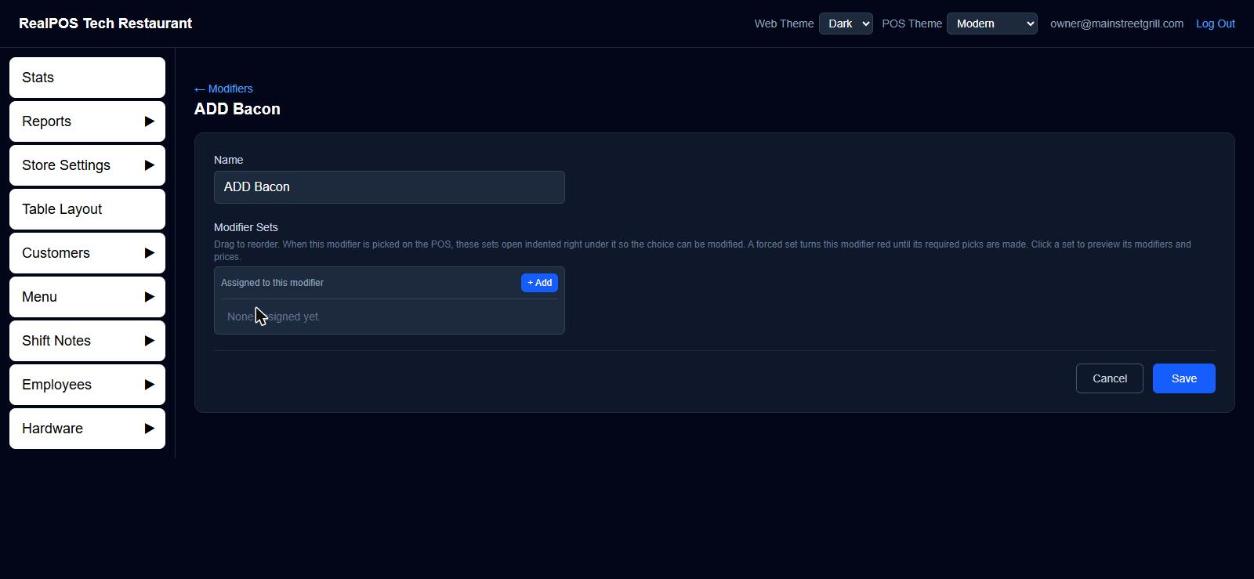 A modifier's page with its own Modifier Sets
Delete and restore a modifier
Click the trash icon on its row. Deleting a modifier also takes it out of every Modifier Set it was in. Undo puts it back in those sets. To restore it later, tick Show Deleted Modifiers and click + on its row, then add it back to the sets you want.
Good to know
- Quick per-item notes like "No salt" are usually better as Instructions than as modifiers.
- To make a lot of "NO / ADD / EXTRA" modifiers at once, use the Modifier Set Builder. See Modifier Sets.