Modifier Sets
Group modifiers into sets, set their prices and limits, attach them to items, and build NO/ADD sets in one go.
A Modifier Set is a group of choices offered together on an item, like "Burger Temp" (Rare, Medium, Well) or "Sides" (Fries, Salad, Slaw). You set each modifier's price inside the set, decide whether a pick is required, and attach the set to as many items as you like.
You manage sets in the back office (login.realpos.net) under Menu > Modifier Sets, or on the POS under Manager > Menu > Modifier Sets.
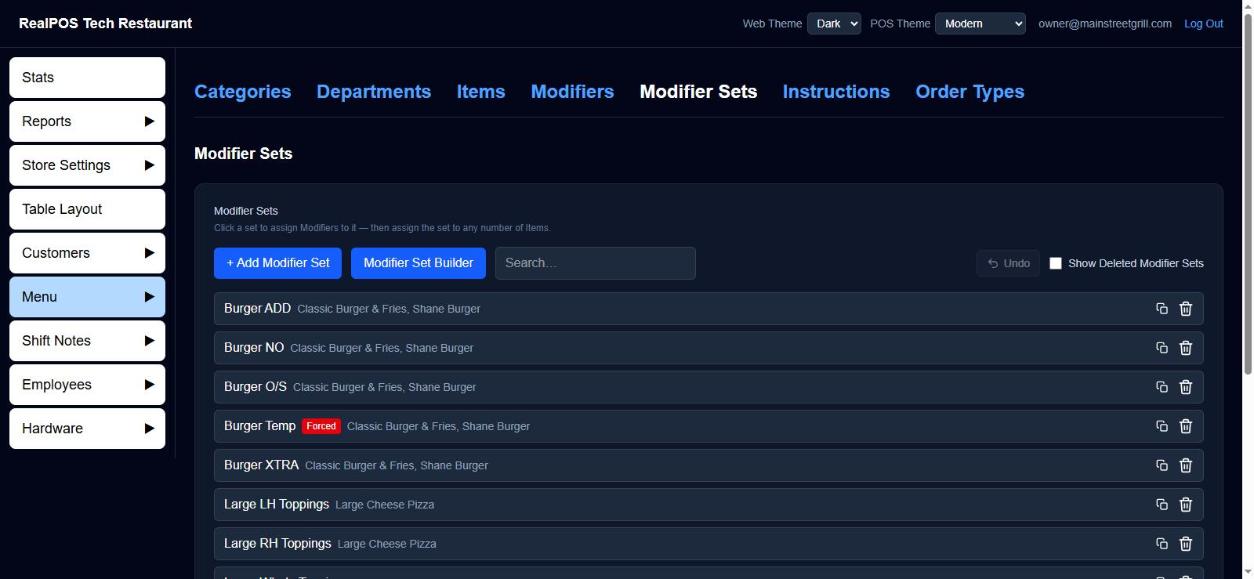 The Modifier Sets list
Create a Modifier Set
- Go to Menu > Modifier Sets and click + Add Modifier Set.
- Type the Name.
- Click + Add Modifier, tick the modifiers you want, and click OK. They're added at $0.00.
- Type a price into each modifier's $ box (it saves when you click away). Or type one price in Default Modifier Price to give every modifier in the set that price when you click Save.
- Set the limits (below).
- Click Save.
The modifiers have to exist first. See Modifiers.
Limits
- Forced Modifier (must select): how many picks are required. On the POS, Complete stays off until that many are picked. 0 means not forced. Forced sets show a red Forced tag on the list.
- Quantity (most picks allowed): the most picks allowed from this set in total. Once reached, the other buttons lock until one is taken off. 0 means no limit.
- Same Modifier Quantity: above 1, the same modifier can be picked that many times, each pick ringing in as its own line.
Order the modifiers
Drag the ⋮⋮ handle to reorder the modifiers in the set. Tick Sort A-Z to sort them alphabetically in one click. Dragging a row afterwards turns Sort A-Z back off.
Attach the set to items
You can do this from either side:
- On the set's page, under Items using this set, click + Add Item, tick items and click OK. The set goes to the end of each item's own set order.
- On an item's page, under Modifier Sets, click + Add. See Add and edit menu items.
A set needs at least one modifier before you can attach it. The trash icon next to an item detaches the set from it.
Copy a set with a word swapped
The copy icon on a set's row makes a new set from it, swapping one word in the set's name and every modifier's name. For example, copy "NO Burger" and change "NO" to "ADD" to get "ADD Burger" with "ADD Lettuce", "ADD Tomato" and so on.
- Click the copy icon on the set's row.
- In Type the word in the mod set & modifier name you wish to replace, type the word to swap.
- In Change to:, type the new word.
- Click Create.
The swap keeps each word's capitals (NO becomes ADD, No becomes Add).
Build NO / ADD / EXTRA sets at once
The Modifier Set Builder makes one set per prefix, each holding every ingredient you list, at that prefix's price.
- On Menu > Modifier Sets, click Modifier Set Builder.
- Type a Modifier Set Name, like "Burger". Choose Before or After to put the prefix before or after the name in each set's name ("NO Burger" or "Burger NO").
- Under Prefix, type a prefix (NO, ADD, XTRA, ON SIDE...) and its Upcharge $. Click + Add Prefix for more.
- Under Add Ingredients Matrix, type each ingredient. Click + Add Ingredient for more.
- Click Save.
With prefixes NO ($0) and ADD ($1) and ingredients Lettuce and Tomato, you get a "NO Burger" set (NO Lettuce, NO Tomato, free) and an "ADD Burger" set (ADD Lettuce, ADD Tomato, $1 each). Modifier names always start with the prefix.
Run it again with the same name to add a prefix or ingredient you forgot. It adds to the sets that are already there instead of making duplicates. The new sets are ordinary sets you can edit afterwards. Attach them to items the usual way.
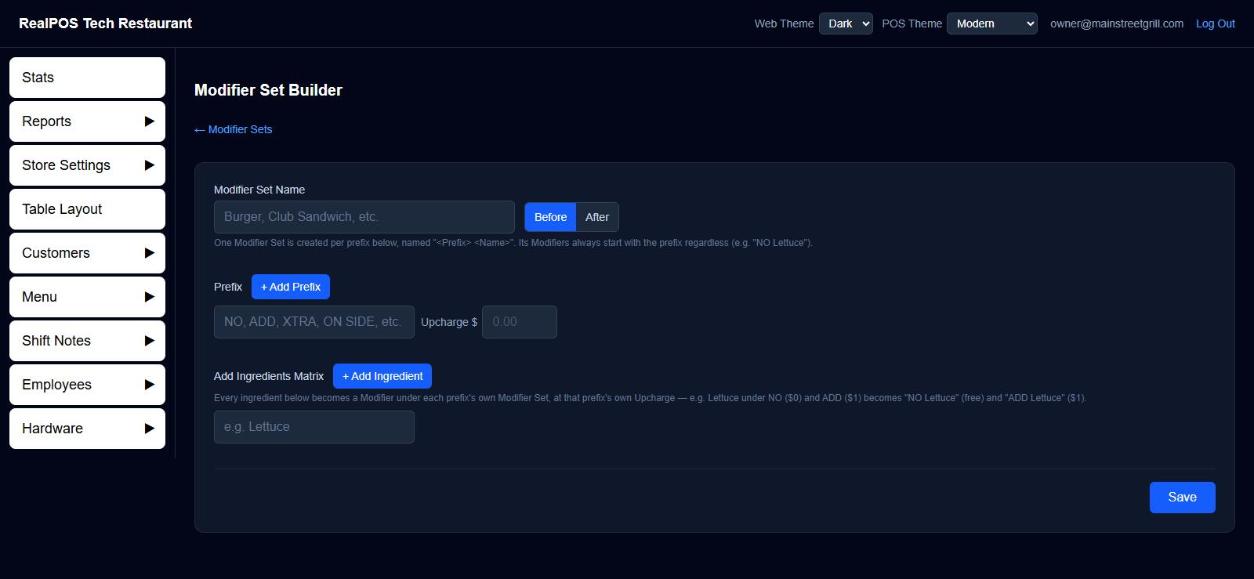 The Modifier Set Builder
Delete and restore a set
Click the trash icon on its row, or Delete Modifier Set then Yes, delete on its page. You can't delete a set while items still use it. Detach it first. Tick Show Deleted Modifier Sets and click + to restore one.
Good to know
- Undo on the set's page reverses the last change (a price, an add, a remove, a reorder).
- To make the first few picks from a set free on one item, use Free on that item's page. See Add and edit menu items.
- Pizza topping sets are made by the Pizza Builder and live in this same list.