Set up tip-outs and tip pools
Have servers tip out the bar or bussers, or pool tips between bartenders, worked out automatically from each shift.
TipOuts works out who owes whom at the end of each shift. You set the rules once; every time an employee closes out, their share is worked out from their own shift and split among the people who worked with them.
TipOuts is set up in the back office only (login.realpos.net).
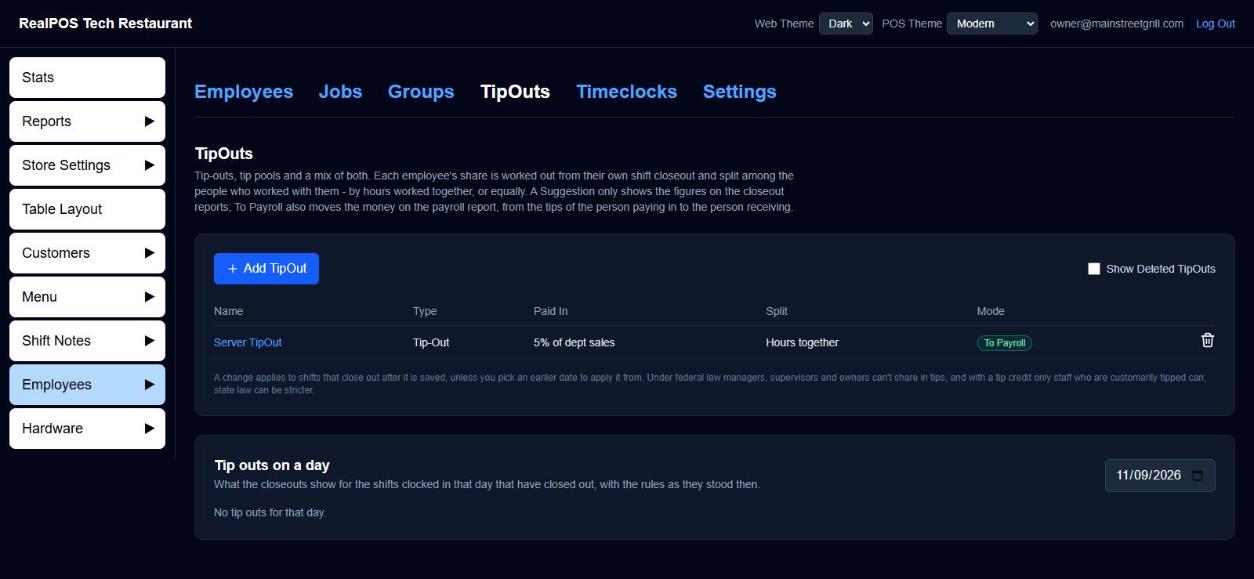 Employees > TipOuts
Two kinds of rule
- Tip-Out: one set of people (the funders) pays a percent to others (the recipients). For example, servers tip out the bartenders 5% of liquor sales, or bartenders tip out the host 2% of all sales.
- Tip Pool: one list of members shares everything they end up with: their own tips, plus tip-outs they received, less tip-outs they paid. Two bartenders ringing everything under one number still split it.
Suggestion or To Payroll
Every rule has a Mode:
- Suggestion: the figures show on each employee's closeout report only. Nothing is taken out of anyone's tips.
- To Payroll: the money moves on the Payroll report, out of the tips of the person paying in and into the tips of the person receiving.
Starting with Suggestion is a safe way to check the numbers before you switch a rule to To Payroll.
Add a rule
- Go to Employees > TipOuts and click Add TipOut.
- Give it a Name, for example "Busser Tip-Out".
- Pick the Type: Tip-Out or Tip Pool.
- Pick the Mode: Suggestion or To Payroll.
- Pick the Split:
- Weighted by hours worked together: someone who worked 6 hours alongside the person paying in gets twice the share of someone who overlapped for 3.
- Equal split: everyone who worked alongside them gets the same, however long they overlapped.
- Set what each person pays in, as a percent:
- Of tips: tick Card tips & gratuities (after the card fee) and/or Declared cash tips.
- Or of sales (Tip-Out only): pick Gross Sales or Net Sales, and pick departments to take it from just those (for example liquor), or none for all sales.
- Choose who pays in (Who pays in (funders), or Pool members for a pool). You can pick by job (Clocked in as), by Employee groups, or name Employees one by one.
- For a Tip-Out, choose Who receives it (recipients) the same way. To split it between several groups (for example Bar 50%, Hosts 25%, Bussers 25%), click Add another group of recipients and set each group's share. The shares should add up to 100%.
- Under Applies to, choose Shifts that close out from now on, or Shifts closed out from a date to apply it to earlier shifts too.
- Check the plain-English sentence under the form, then click Save.
Change or delete a rule
- Click the rule's name to edit it. A change applies to shifts that close out after you save, unless you pick an earlier date.
- Click the trash icon to delete it from now on. Shifts already closed out keep it. Tick Show Deleted TipOuts to see deleted rules and restore one.
Check a day
Tip outs on a day at the bottom of the page shows what the closeouts show for one day: each person's net To Payroll and Suggested amounts, and a card for each shift that paid in, with who got what. Pick a date to look at another day.
Where tip-outs show up
- On each employee's shift report when you reprint it from Reports > Closeouts (see Closeouts), under Tip Outs - To Payroll and Suggested Tip Outs.
- On the Payroll report, as Tip Outs on the paycheck line (To Payroll rules only).
Good to know
- Money is shared out when the person paying in closes out, among the people whose shifts overlapped theirs. If nobody overlapped, they keep it.
- A Tip-Out never pays the funder themselves. A pool includes the member's own shift.
- A To Payroll pool only counts To Payroll tip-outs.
- Under federal law managers, supervisors and owners can't share in tips, and with a tip credit only customarily tipped staff can. State law can be stricter. Check before you set up a pool.