Payment types
Choose the tenders staff can take, who can use them, what prints, cash rounding, and your card merchant settings.
Payment types are the tenders offered on the POS Cashout screen and Pay button. Set them up in the back office (login.realpos.net) under Store Settings > Payments.
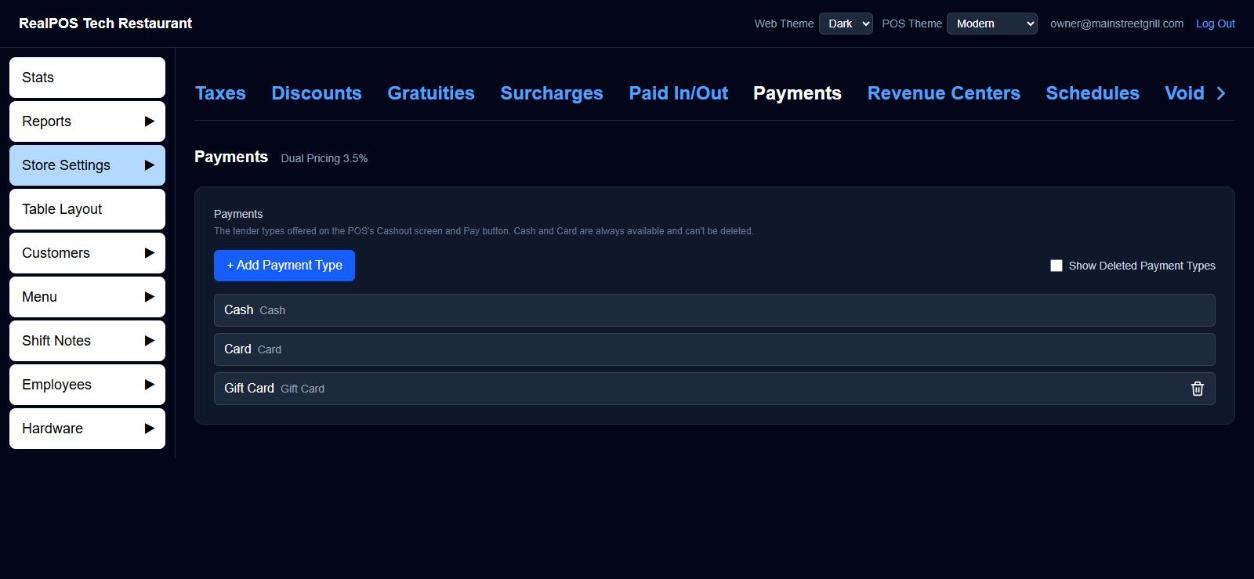 The Payments list
Every restaurant starts with Cash, Card and Gift Card. Cash and Card are always available and can't be deleted.
Add a payment type
Use this for other tenders you accept, for example a house account or a delivery app.
- Click + Add Payment Type.
- Type a Name.
- Set the options below and click Save.
If you leave without saving, the new payment type isn't kept.
Payment type settings
Click any payment type to open it.
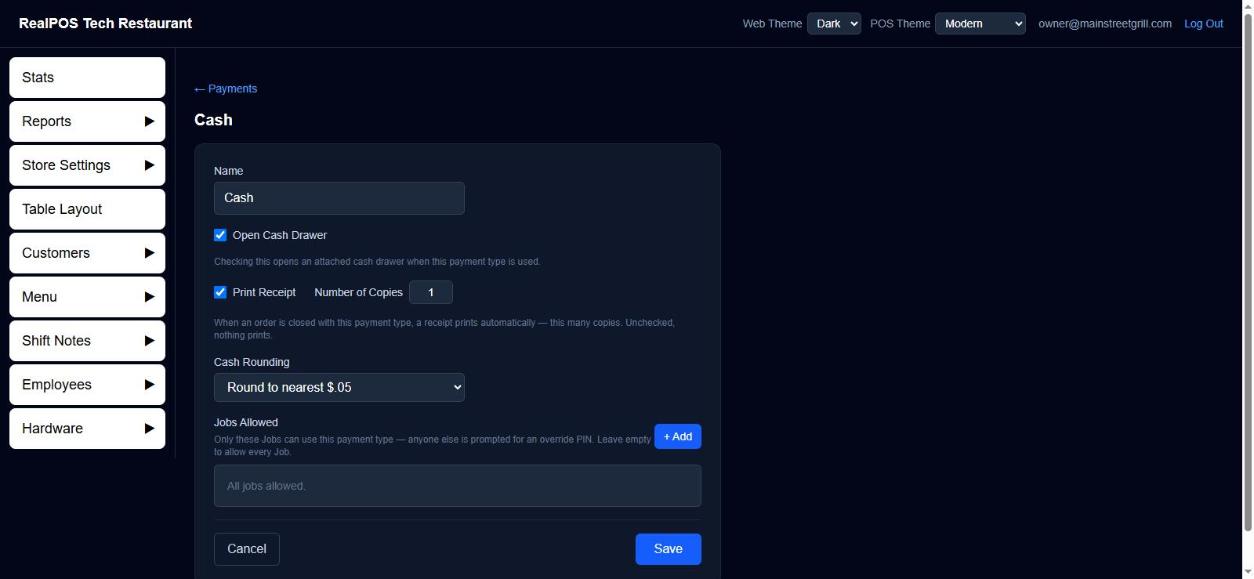 Editing a payment type
- Open Cash Drawer: opens an attached cash drawer when this payment type is used.
- Print Receipt and Number of Copies: when an order is closed with this payment type, a receipt prints automatically, this many copies (1 to 9). Unticked, nothing prints.
- Allow Tips (Card only): ticked, the card receipt prints a Tip and Total line, and the payment waits in the employee's menu for a tip to be added. Unticked, none of that.
- Cash Rounding (Cash only): No Rounding, Round to nearest $.05 or Round Down to nearest $.05.
- Jobs Allowed: click + Add to pick the jobs that can use this payment type. Anyone else is asked for an override PIN. Leave it empty to allow every job.
To hide a payment type, click Delete Payment Type on it, or the trash can on the list. Tick Show Deleted Payment Types and click + to bring one back.
Card merchant settings
Open the Card payment type. Merchant Settings (Datacap) sits beside its other settings. These apply to every terminal's card reader. Each terminal's own reader is set under Hardware > Terminals (see Terminals).
- Datacap Merchant ID and Datacap Environment: Test (CERT) — no real charges or Live (PROD) — real charges.
- Suppress Amount Acknowledge: the reader skips its "SALE $x - OK?" screen and goes straight to asking for the card.
- Enable Pre Auth: adds a Pre Auth button to the order screen so a tab can be opened on a card. Set Amount is how much is held. $0.00 holds nothing; it checks the card and stores it to charge later on that order.
- Enable Store and Forward: when the internet is down, cards are still accepted and sent in once it's back. A stored card is approved without the card company checking it, so it can be declined later. The terminal name turns pink on the POS while this is happening. Datacap must also turn this on for your merchant account. Set the Largest card payment taken offline and Most card payments stored at once.
- Transaction Adjust Timeout: leave this blank on a live store.
Click Save under the merchant settings to keep them.
Good to know
- The top of the Payments page shows how your cards are processed (for example Dual Pricing and its rate) when that's set up for your account.
- For taking a payment on the POS, see Take a payment.