Order types
Set up Dine In, Take Out, Pickup and other order types, and choose how each one behaves on the POS.
Order types (Dine In, Take Out, Pickup, Delivery...) tell everyone what kind of order it is. Each one can ask for a guest name, print in red for the kitchen, prompt for a tip on the card reader, or stay on the login screen until it's picked up.
Set them up in the back office (login.realpos.net) under Menu > Order Types, or on the POS under Manager > Menu > Order Types.
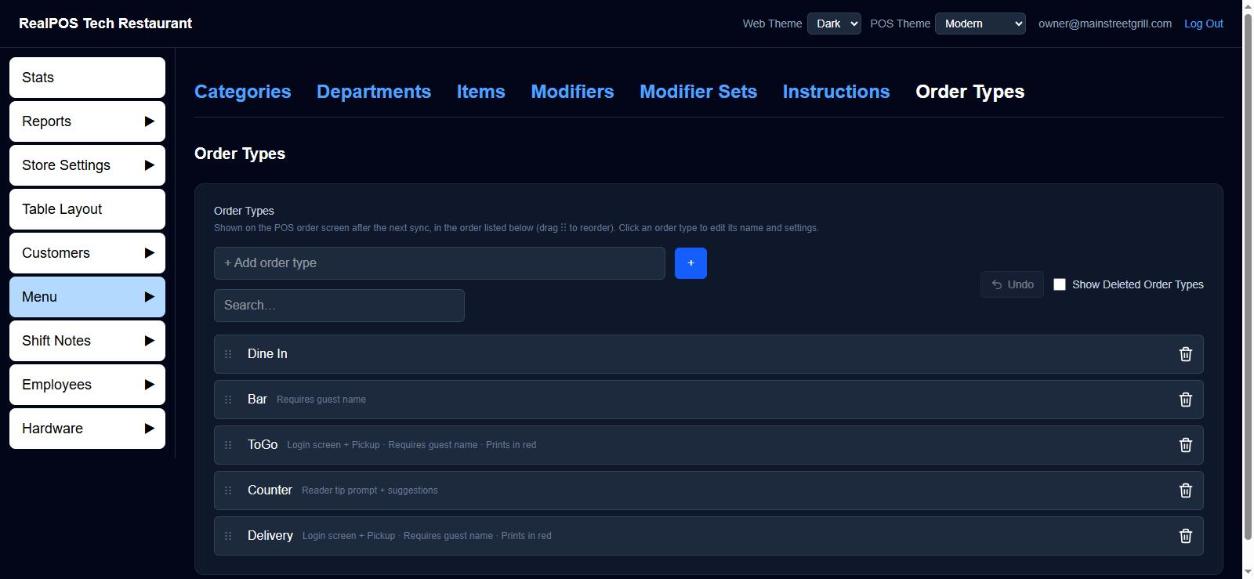 The Order Types list
Add an order type
- Go to Menu > Order Types.
- Type the name in + Add order type and click +.
- Click the new order type to set its options (below).
The POS shows order types in the order on this list. Drag the ⋮⋮ handle to reorder them.
Order type options
Click an order type to open Edit Order Type, change what you need, then click Save.
- Name: rename it.
- Show on login screen and require pickup: orders of this type stay on the staff login screen's preview even after they're paid. They show orange while open and purple once paid but not yet picked up, until they're cleared from the Orders tab's Pickup tab or a card tip is added.
- Require Guest Name: the POS asks for a guest name before the order can be sent, printed or paid. A loyalty member on the order counts as a name.
- Order Type prints in red: the order type's name prints in red on kitchen tickets and shows in red on kitchen screens, so the kitchen spots it.
- Prompt for Tip: the card reader asks the guest for a tip before a card payment on this order type. Use it for counter or takeout orders. Leave it off where guests sign a receipt and add the tip after, like dining in.
- Show Suggested Tip Amounts: with Prompt for Tip on, the reader shows tip buttons with dollar amounts, plus Other and No. The percents come from Recommended Gratuity on the terminal's Check Template.
- Table Layout: pick a layout to open first when someone starts an order of this type. Leave it on None — send straight to the Orders tab to skip the floor plan. See Table layout.
The list shows each order type's options in small grey text next to its name.
Delete and restore an order type
Click the trash icon on its row. At least one order type must stay visible, so you can't delete the last one. Tick Show Deleted Order Types and click + to restore one. Undo reverses the last delete or restore.
Good to know
- The POS picks up order type changes on its next sync. The back office list refreshes itself every 15 seconds, so changes made on the POS show up too.
- For how card payments are set up, see Payment types.