Check credit card transactions
See every card charge and card refund, fix a tip, and pull the day's credit card log when a charge needs looking into.
Use the Credit Cards report to answer "did this card go through?", find a charge by its last 4 digits, or fix a tip after the guest has gone.
In the back office, go to Reports > Credit Cards. On the POS, it's Manager > Reports > Credit Cards.
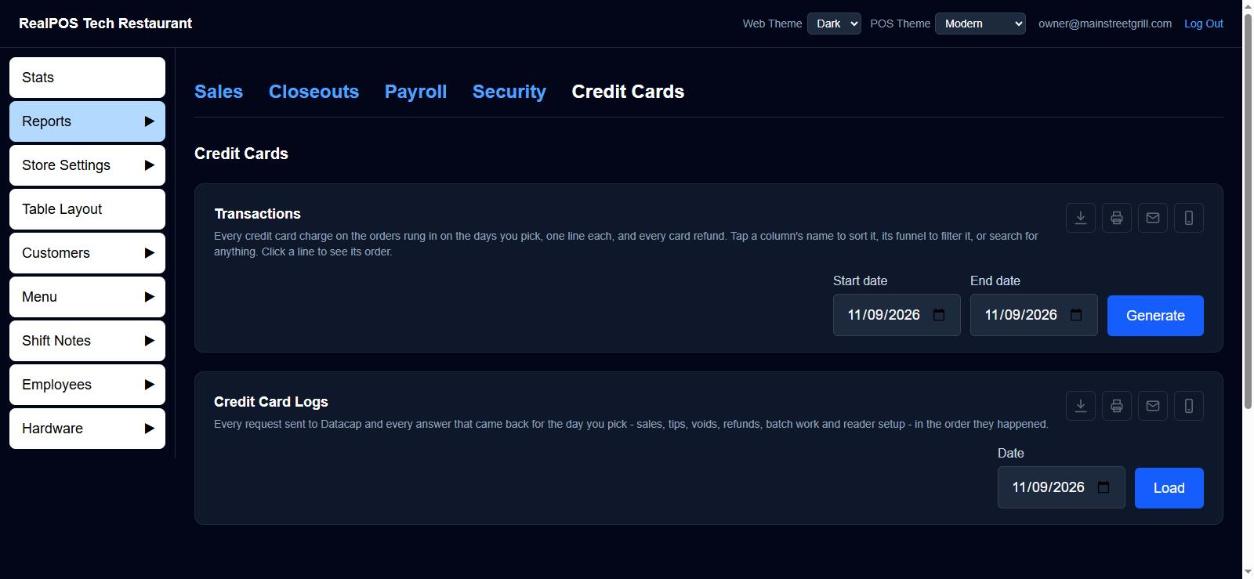 Reports > Credit Cards
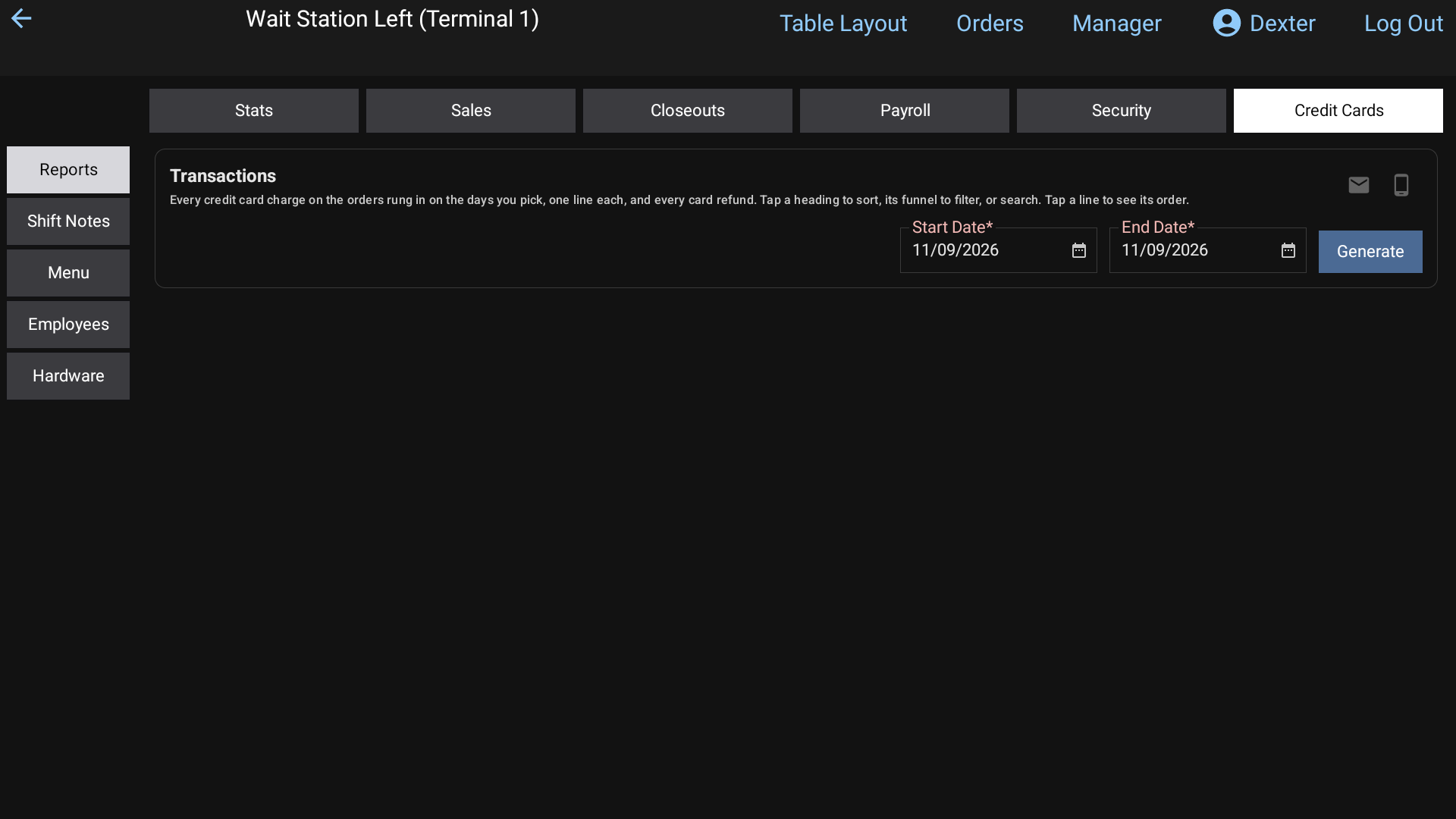 Manager > Reports > Credit Cards on the POS: Transactions with its dates and Generate
Transactions
Transactions lists every credit card charge on the orders rung in on your dates, one line each, and every card refund as a negative line.
- Pick a Start date and End date.
- Click Generate.
The columns are Order #, Date, Order Type, Status, Subtotal, TIPS/GRATS, Total, PayType, Last4, Guest#, Employee, Open Date/Time, Closed Date/Time and Guest Name.
- Subtotal is what went on the card before dual pricing, gratuity and tip.
- TIPS/GRATS is the tip plus any auto-gratuity.
- Total is the card's whole charge.
- Closed Date/Time is when the card was run.
To find a charge, type in the search box (the last 4 digits, an order number, an employee), or click a column's funnel to show only some of its values. Click a column's name to sort by it.
Fix a tip or refund a card
In the back office, click a line to see its order as a receipt. Under it:
- + Add Tip: choose the card if there's more than one, type the Tip $ and click Save.
- Refund: tick the items (and the tip, if you want) and click Refund. See Refunds.
From the back office, a terminal with the card reader runs the tip or refund and sends back the result. The window shows Processing... until it's done.
Credit Card Logs
In the back office, below Transactions, Credit Card Logs shows every request sent to the card processor and every answer that came back for one day: sales, tips, voids, refunds, batch work and card reader setup, in the order they happened. It's useful when a charge needs looking into.
- Pick the Date.
- Click Load.
The log shows 25 lines at a time; scroll inside it for the rest. The icons save it as a .txt file, print it, email it, or text a link to it.
Good to know
- The Daily / Weekly / Monthly Report also has a Credit Cards table with each card brand's total. See Daily report.
- Every card payment also shows in the Sales & Orders Journal. See Reports.