Getting Started › Your people
Enter your employees
Add each employee in the back office with their name, 4-digit POS PIN, jobs and pay rate.
Each person who uses the POS needs an employee record. It holds their name, the 4-digit PIN they sign in with, and the jobs they work with the pay rate for each.
Add an employee
- In the back office, go to Employees > Employees.
- Click + Add Employee.
- Fill in the form:
| Field | What to enter |
|---|---|
| First Name * | Required. |
| Last Name | Optional. |
| Nickname | Optional. When set, it shows on receipts and kitchen screens instead of the first name. |
| Payroll ID | Optional. The ID your payroll company uses for this person. |
| Email Address | Optional. |
| Phone Number | Optional. |
| Login Pin * (4 digits) | Required. The PIN they type to sign in on the POS. Exactly 4 digits, and different from every other employee's PIN. |
| Hired Date | Starts as today. Change it if they started earlier. |
| Group | Optional. Put them in one or more employee groups, if you use them. |
- Under Jobs, click + Add Job and pick a job from the list. The wage beside it fills in from the job's Default Pay Rate. Change it if this person is paid differently.
- If they work more than one job (say, Server and Bartender), click + Add Job again for each one, each with its own wage. To take a job off, click the ✕ beside it.
- Click Save.
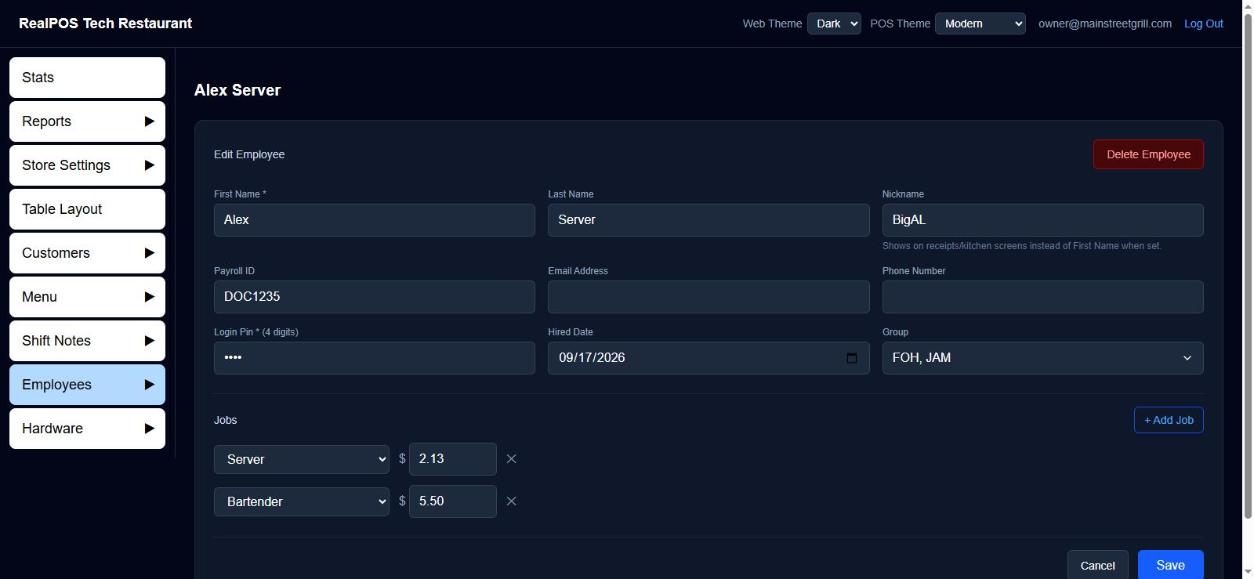 Adding an employee: name, PIN and jobs
Give the new employee their PIN. They can sign in on the POS right after the terminal next syncs.
Find, change or remove an employee
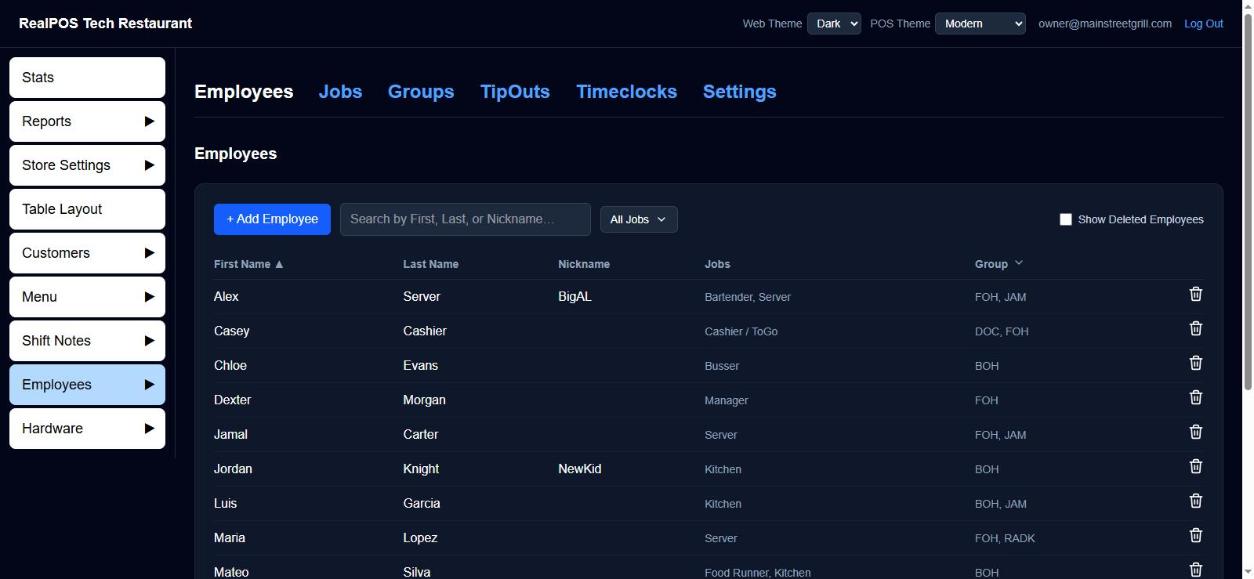 The Employees list
- Find someone: type in Search by First, Last, or Nickname…, or narrow the list by job or group. Click a column heading to sort by it.
- Change someone: click their name, make your changes and click Save.
- Remove someone who has left: click the trash icon beside them on the list, or open them and click Delete Employee, then Delete. They are hidden, not erased: their past orders, timeclock entries and reports stay as they were.
- Bring someone back: check Show Deleted Employees and click the green + beside them.
Good to know
- If you see "That PIN is already in use by another employee.", someone (possibly a removed employee) already has that PIN. Choose another.
- Pay rates and payroll. The wage on each job is that person's hourly wage when they work that job. Set your pay period, overtime rules and tip settings under Employees > Settings (the Payroll Settings page). See Payroll.
- On the POS too. Managers can also add and edit employees on a POS terminal, in the Manager menu, if their job has the Employees permission. Wages there are hidden unless the job also has See Wages.
- Your first manager is already there. Your dealer created your first manager employee when your restaurant was set up. Check their details and change the PIN if you like.