Take a payment
Close out a check with Quick Cash, Quick Card, or the full payment screen, including split tenders, gift cards and tax exempt.
Under the ticket in every order there are three ways to pay:
- Quick Cash: the guest pays the whole check in cash. One tap closes it. See Cash payments.
- Quick Card: the whole balance goes on one card. See Card payments.
- $ Pay $: opens the full payment screen, for anything else. That means part cash and part card, more than one card, gift cards, a typed amount, and so on.
All three send any items you haven't sent to the kitchen yet.
The payment screen
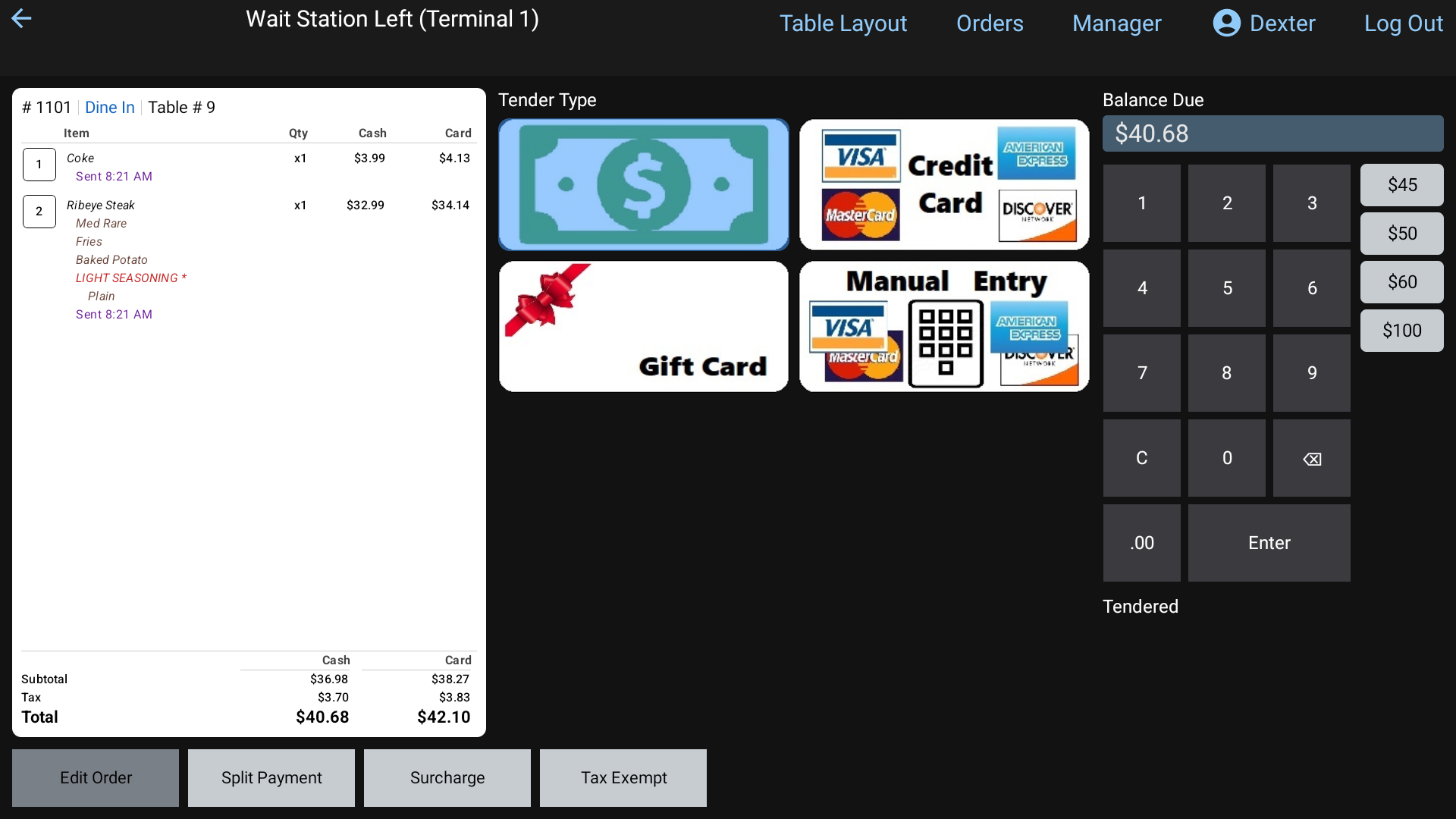 The payment screen: ticket on the left, tender types in the middle, Balance Due and the keypad on the right
- Left: the ticket. You can read it here, but you can't change it. Tap Edit Order at the bottom to go back into the order.
- Middle: Tender Type, one button for each way your restaurant takes payment. The selected one is shaded blue. Cash is selected when you arrive.
- Right: Balance Due, the keypad, quick cash amounts like $20 and $50, and Tendered, the list of payments taken so far.
Pay the whole balance
- Tap the tender type.
- Balance Due already shows the full amount. Tap Enter.
Pay part of it (split tender)
- Tap the tender type.
- Type the amount for this payment. Numbers fill in from the right, so
2,0,0,0is $20.00. .00 adds whole dollars. - Tap Enter. The payment shows under Tendered, and Balance Due drops. If your restaurant prints receipts for that tender, a receipt for this payment prints, showing what's still owed.
- Repeat with the next tender until the balance is $0.
When the last payment covers the check, the change screen shows Amount Due, Tendered and Change Due. Tap Done. The check closes and you go back to where you started.
Split the payment evenly
- Tap Split Payment.
- Type how many ways, for example
3, and tap Enter. - Balance Due now shows one share. Take each share with any tender. The last share picks up any odd cent.
Gift cards
- Tap the gift card tender.
- Type the card number on Gift Card Number and tap Enter.
- RealPOS takes whatever the card can cover, up to what's owed, straight away. If the card has money left over, it stays on the card. If it doesn't cover the whole check, take the rest with another tender.
If you typed an amount before tapping the gift card tender, it takes that amount instead. Card not found means the number is wrong. This gift card has no balance left. means the card is empty.
Take a payment back off
Tap the payment in the Tendered list. RealPOS asks "This will void and remove this tender. Are you sure you wish to do this?" Tap Yes. You'll see Tender Removed and the balance goes back up.
Other buttons
- Surcharge adds a charge to the check. Tap a named surcharge, or type a % or $ amount and tap OK. A typed one then asks Is this surcharge taxable? Tap Non-Taxable or Taxable.
- Tax Exempt takes all the tax off the order. Type a note for the receipt (like the group's name or tax ID) and tap Done. The button then reads Tax Exempt: ON. Tap it again to put the tax back.
When a manager has to approve it
- Taking payment needs the Cash Out Order permission. Without it, Quick Cash, Quick Card and $ Pay $ ask for a manager's PIN.
- Some tender types are only for certain jobs. If yours isn't one, you'll see An override is required to use (tender). A manager types their PIN.
Good to know
- Cashing out another server's order? When cash was taken, RealPOS reminds you: Please hand the $X to (server). The sale and tips stay with that server.
- Whether a receipt prints by itself, and how many copies, depends on how your manager set up each tender. See Receipts.
- Need to give money back after a check is closed? That's a refund. Ask a manager. Managers can read Refunds.