Employee Manual › End of shift
Your shift closeout
Print your Shift Report at the end of your shift, see the cash you owe, and email it if you need to.
At the end of your shift you print your Shift Report. It shows your sales, payments and tips, and how much cash you hand in.
Before you start
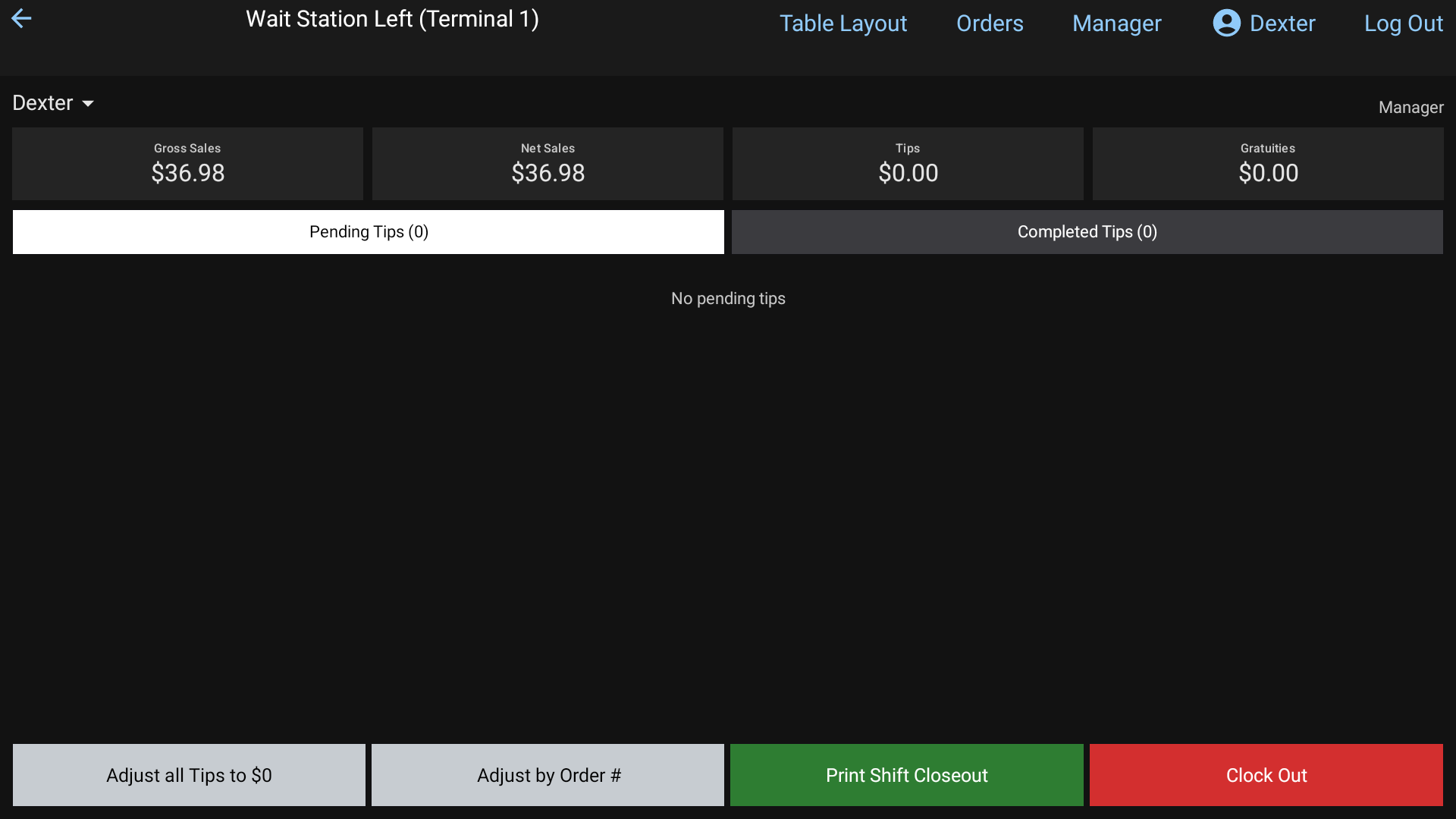
Your closeout stays locked until:
- every check of yours is closed. If one is still open, the button reads You Have Open Orders. Tap it to go to Orders > All Orders and finish them.
- every card tip is entered. See Tips.
Print your closeout
- Tap your name at the top right to open your Employee Menu.
- Tap the green Print Shift Closeout button.
- Cash Tips asks you to Enter your cash tips. Type the cash tips you made this shift and tap Print Shift Closeout.
- Your report shows on screen, like a receipt. Scroll to check it.
- Tap Print at the bottom to print it.
 The Shift Report on screen
To email it instead, tap the envelope icon at the top right, type an address (or tap one under Recent) and tap Send. Tap the back arrow at the top left to close the report without printing.
What's on the report
- Your name, job, and the business date
- Gross Sales by Department, then any Discounts and Refunds, and Net Sales
- Credit Cards, including tips and gratuities
- Any Voids and Paid In / Out
- Tax Details
- Payments Summary: cash, credit cards and gift cards
- Cash Breakdown: the cash you took in, with any card tips and gratuities paid out to you, cash refunds and paid outs taken off
The last line, Total Cash To Drop, is printed large. That's the cash you hand in.
Then clock out
Tap Clock Out. The cash tips you just typed are already filled in, so just tap Clock Out again. See Clock in and out.
Good to know
- The report covers your current shift, from when you clocked in.
- You can print it again. Your cash tips can be changed until you clock out.