Employee Manual › Taking orders
Change an item's price
Change the price of one item on one ticket, without changing the menu.
Change Price sets a new price for one item on this ticket only. The menu price doesn't change, and the next guest pays the normal price.
Change the price
- Tap the item on the ticket. Select just one.
- Tap Change Price in the item buttons.
- The pad says This price change is temporary and shows the item's current price, highlighted.
- Type the new price. The first number you type replaces the old price.
- Numbers fill in from the right: type
1,2,5,0for $12.50. - .00 adds whole dollars: type
8, then .00, for $8.00.
- Numbers fill in from the right: type
- Tap Enter.
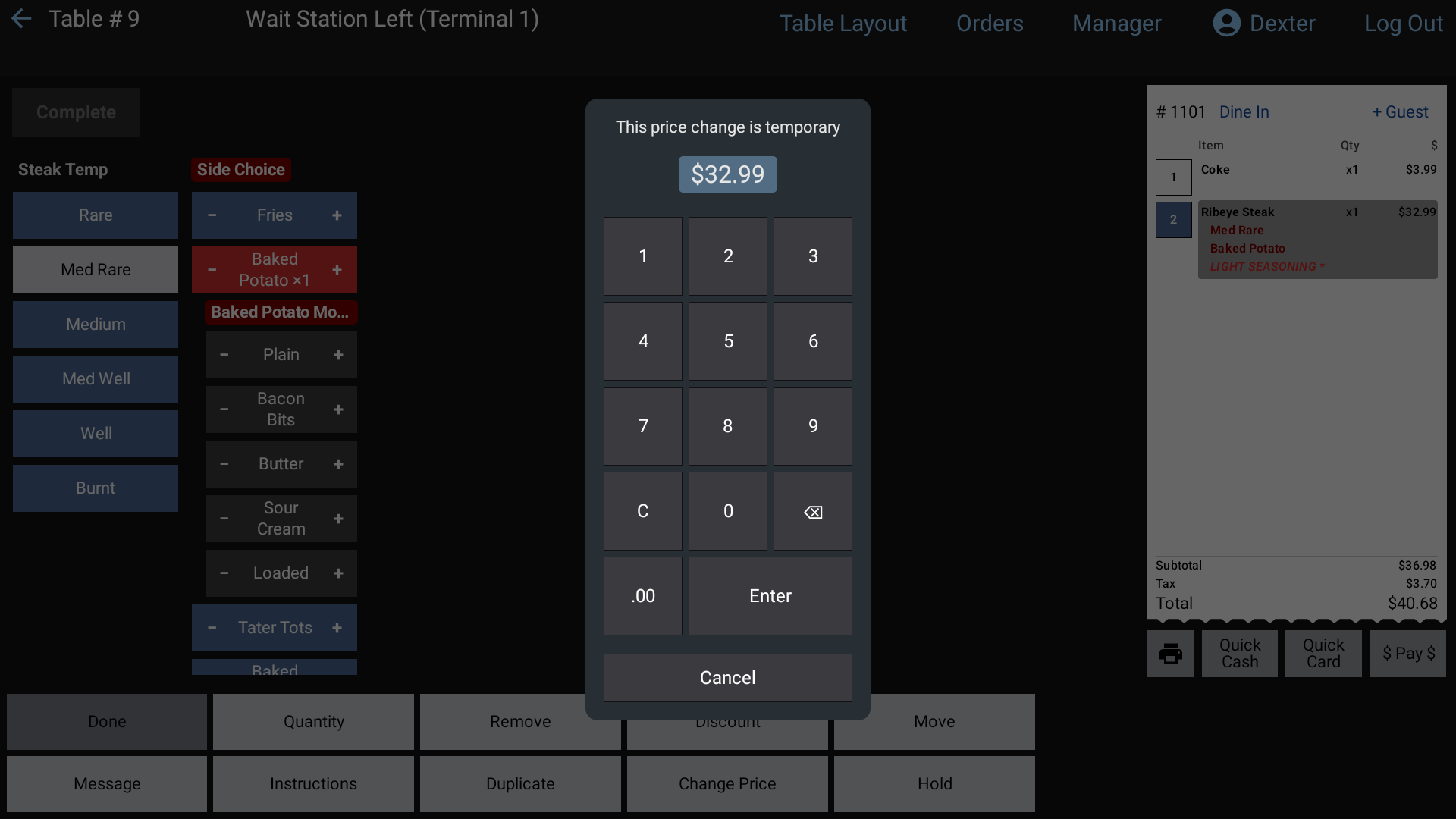 The Change Price pad
You can change the price before or after the item has been sent to the kitchen.
When a manager has to approve it
Change Price needs the Change Price permission. If you don't have it, you'll see An override is required to perform this function. A manager types their 4-digit PIN, then the price pad opens.
Good to know
- To take money off an item, you can also use a discount. Ask your manager which one your restaurant wants. See Apply a discount.
- Some items ask for a price every time you ring them in (open price items). See Add items and modifiers.
- To change an item's menu price for good, ask a manager. Managers can read Price changes and 86.