Apply a discount
Take money off a whole order, one seat, or selected items, with a named discount or a typed percent or dollar amount.
You can discount a whole order, one seat, or just certain items. Each way opens the same discount window.
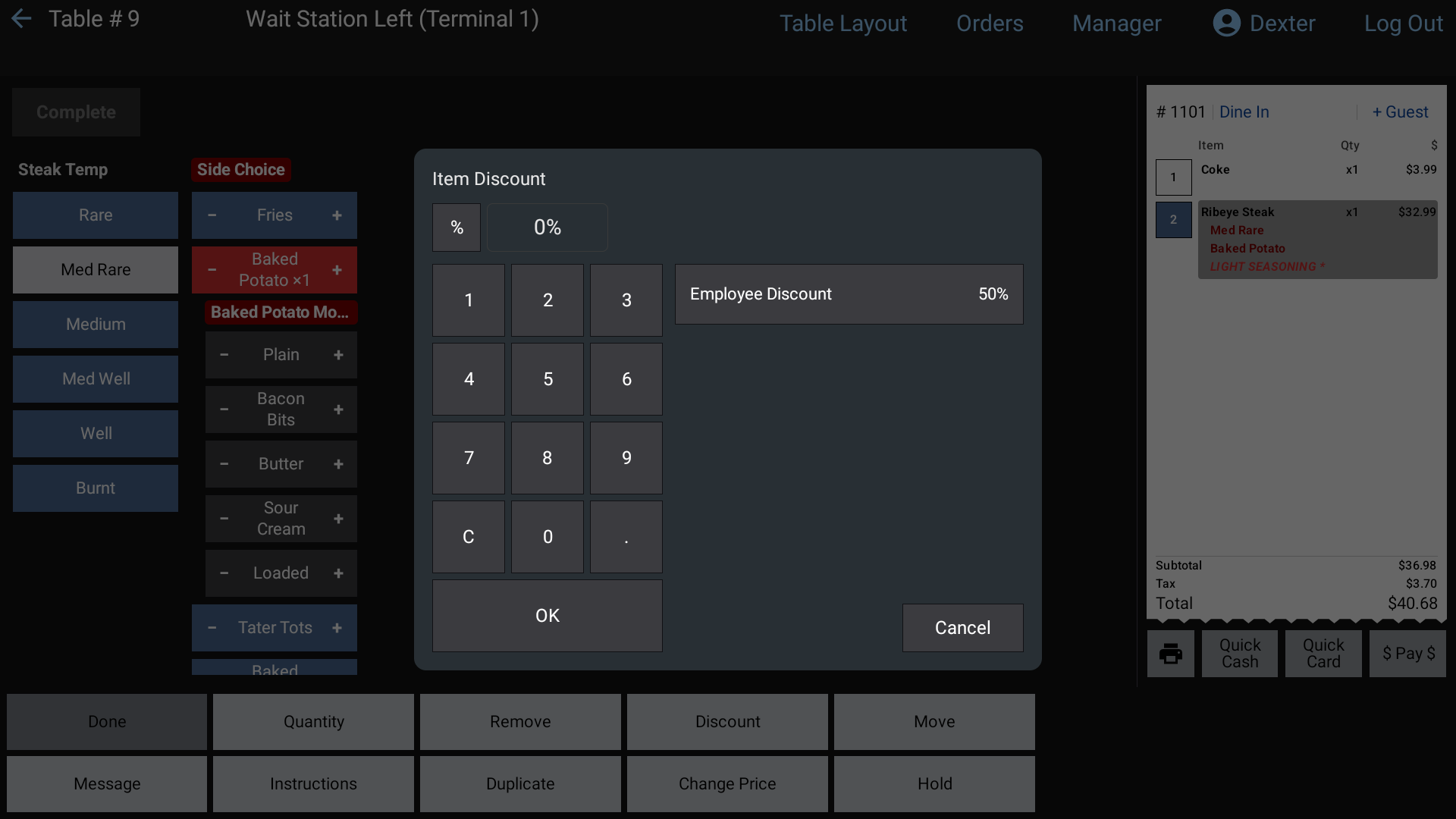 The discount window: percent or dollar pad on the left, named discounts on the right
Discount the whole order
- In the order, with nothing selected on the ticket, tap Discount in the bottom row.
- Pick a discount (see below).
The discount shows in green under the items, and in Discounts in the totals.
Discount some items
- Tap the item(s) on the ticket to select them.
- Tap Discount in the item buttons. The window is called Item Discount.
- Pick a discount.
The discount shows in green under each item.
Discount one seat
Press and hold the seat's square on the ticket, then tap Discount. Every item on that seat is selected for you. See Seats.
Pick a discount
Named discounts are the blue buttons on the right. Each shows its name and its amount. Tap one and it's applied.
Typing your own (if your restaurant allows it):
- The square button beside the amount box picks % or $. Tap it to switch.
- Type the amount. Use . for cents or a part of a percent.
- Tap OK.
To take a discount off: open the same window again and tap Remove.
When a manager has to approve it
- Secure named discounts need the Discounts permission.
- Typing your own amount needs the Open Discounts permission.
If you don't have the permission, you'll see An override is required to perform this function. A manager types their PIN and the discount goes on.
Good to know
- This item is not discountable: some items are set to never take a discount. If you select a mix, the discount goes on the items that can take one and skips the rest.
- If you only see the named buttons and no number pad, your restaurant has typed-in discounts turned off.
- A surcharge or gratuity is different from a discount. Gratuity is under Tips.