The kitchen screen (KDS)
Read kitchen tickets, bump items and tickets, recall a ticket, and run the Expo screen.
The kitchen screen shows the orders as they're sent from the POS. There's no sign-in. Each screen is set up for one station (like Grill or Fry) or as the Expo screen.
The top left shows the screen's name, the app version, and what kind of screen it is: Station, Master Expo or Standalone.
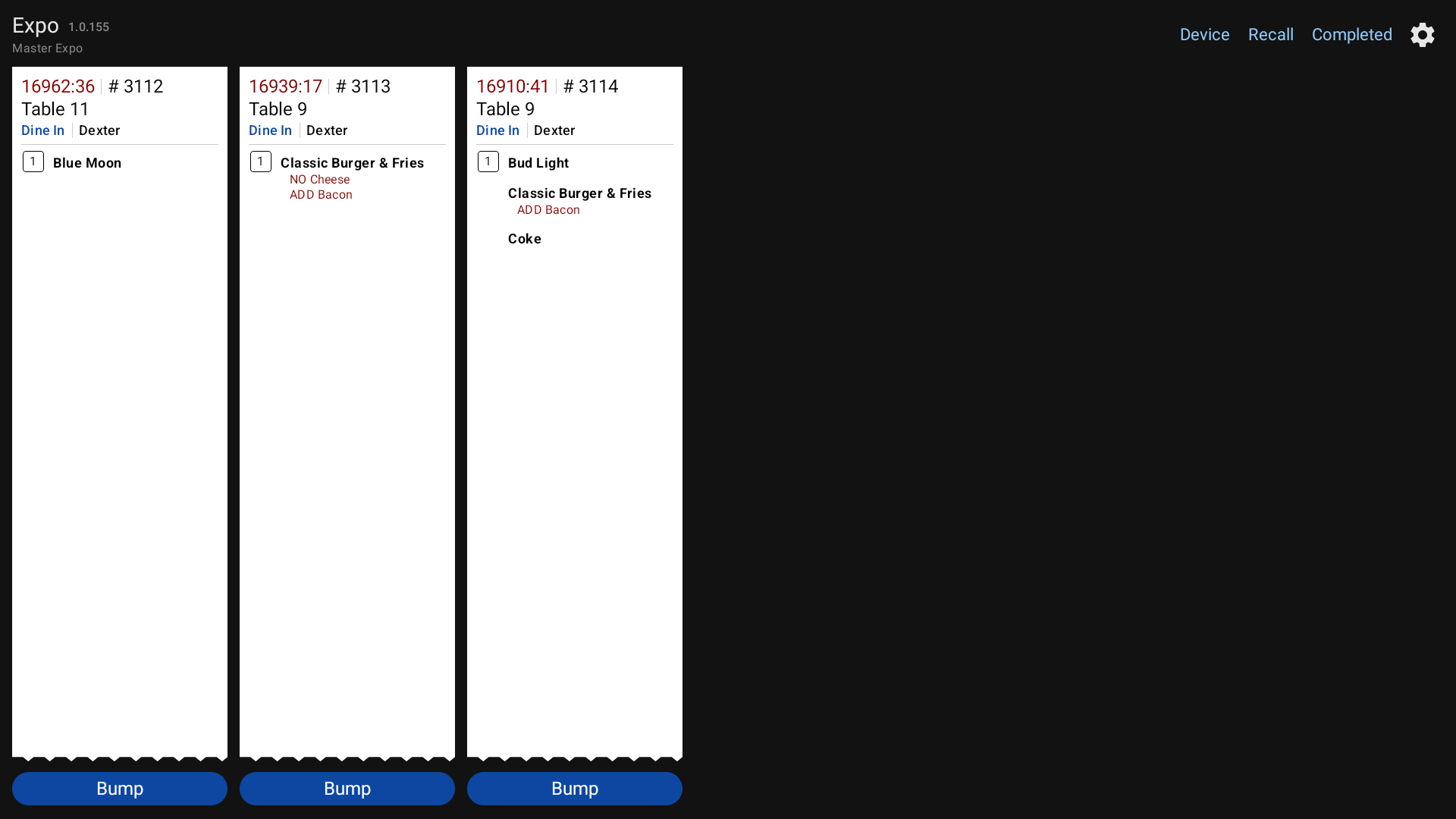 A kitchen station screen
Read a ticket
Tickets line up left to right, oldest first. Long tickets carry on into a second column.
At the top of each ticket:
- The timer, counting up from when it was sent. It turns orange at the ticket time warning and dark red at the ticket time max.
- # and the order number
- Table and its number, or the order type (like ToGo) if there's no table
- the order type and the server
- Guest: and the name, if one was entered
Under that, the items, grouped by seat. The seat number is in a small box beside each seat's first item.
- Bold is the item.
- Dark red lines under it are its modifiers.
- Red lines ending in
*are messages and special instructions. Read these carefully.
A red border around the whole ticket means a ToGo or Delivery order.
Added items: if the server sends more items to an order later, they come as a new ticket headed in dark red, for example *CHANGES TO ORDER # 1042*. Tap Merge With Original? under it to fold it into the first ticket.
On a station screen: bump items
Tap an item when it's done. It darkens. Tap it again if you bumped it by mistake.
When every item on the ticket is done, the ticket leaves your screen by itself.
On the Expo screen
Master Expo shows the whole order from every station. As each station bumps its items, they darken here too, so you can see what's still cooking.
When the order is complete and ready to go, tap the blue Bump under the ticket. A gray ring around Bump means every item has been bumped by its station. Bumping on Expo also finishes the ticket on the station screens.
On Expo you don't tap single items. You just watch them and bump the whole ticket.
When Expo bumps an order, the table turns purple (Order Ready) on the server's floor plan.
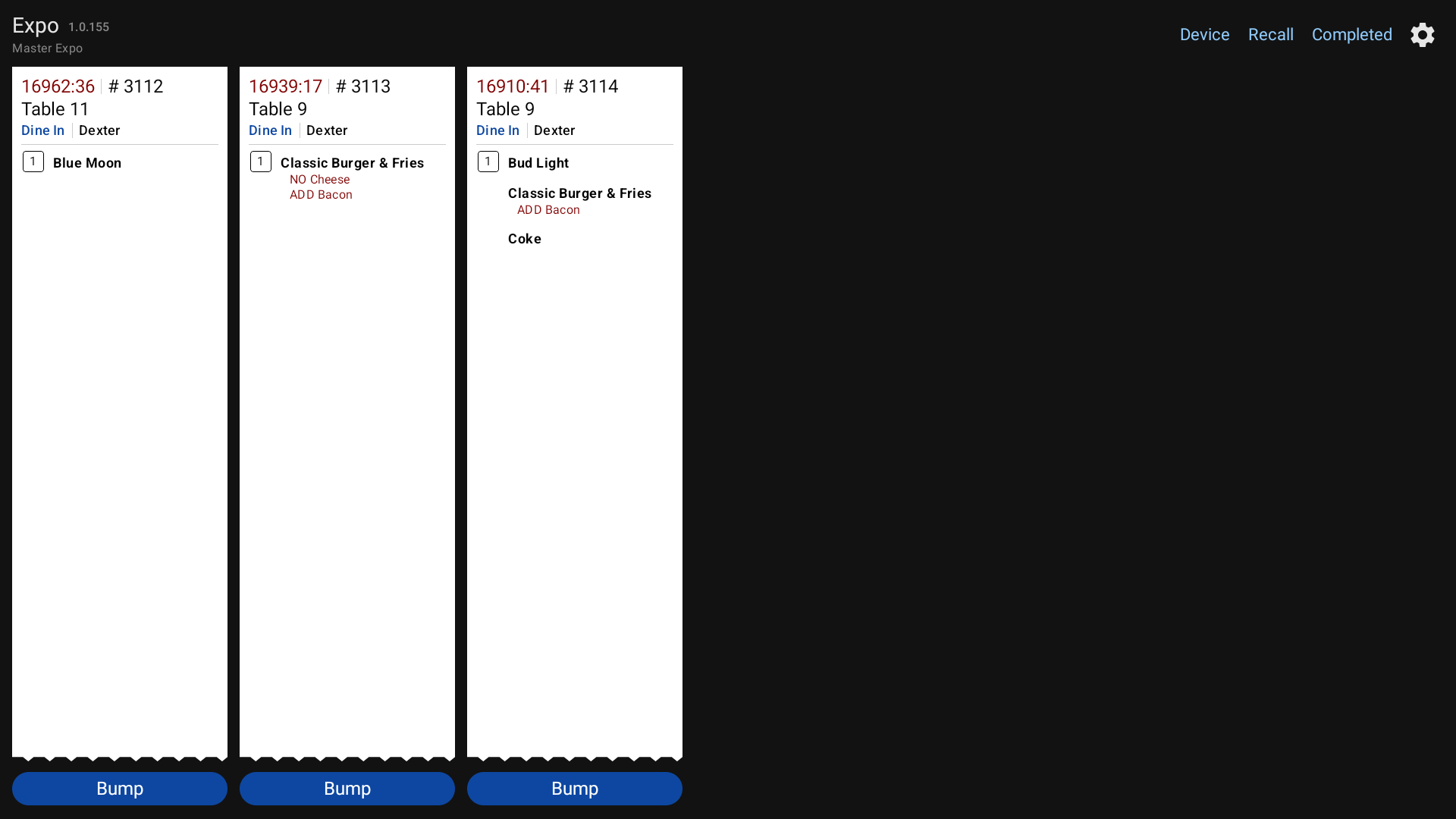 The Expo screen
Standalone screens
A Standalone screen doesn't go through Expo. You can still tap items one by one, and each ticket has its own Bump button to finish the whole ticket.
Recall a ticket
- Recall at the top brings back the last ticket you finished on this screen.
- Completed opens Completed Today, every ticket this screen finished today. Tap Recall under one to bring it back.
The recalled ticket goes to the front. Recalling only affects the screen you're on.
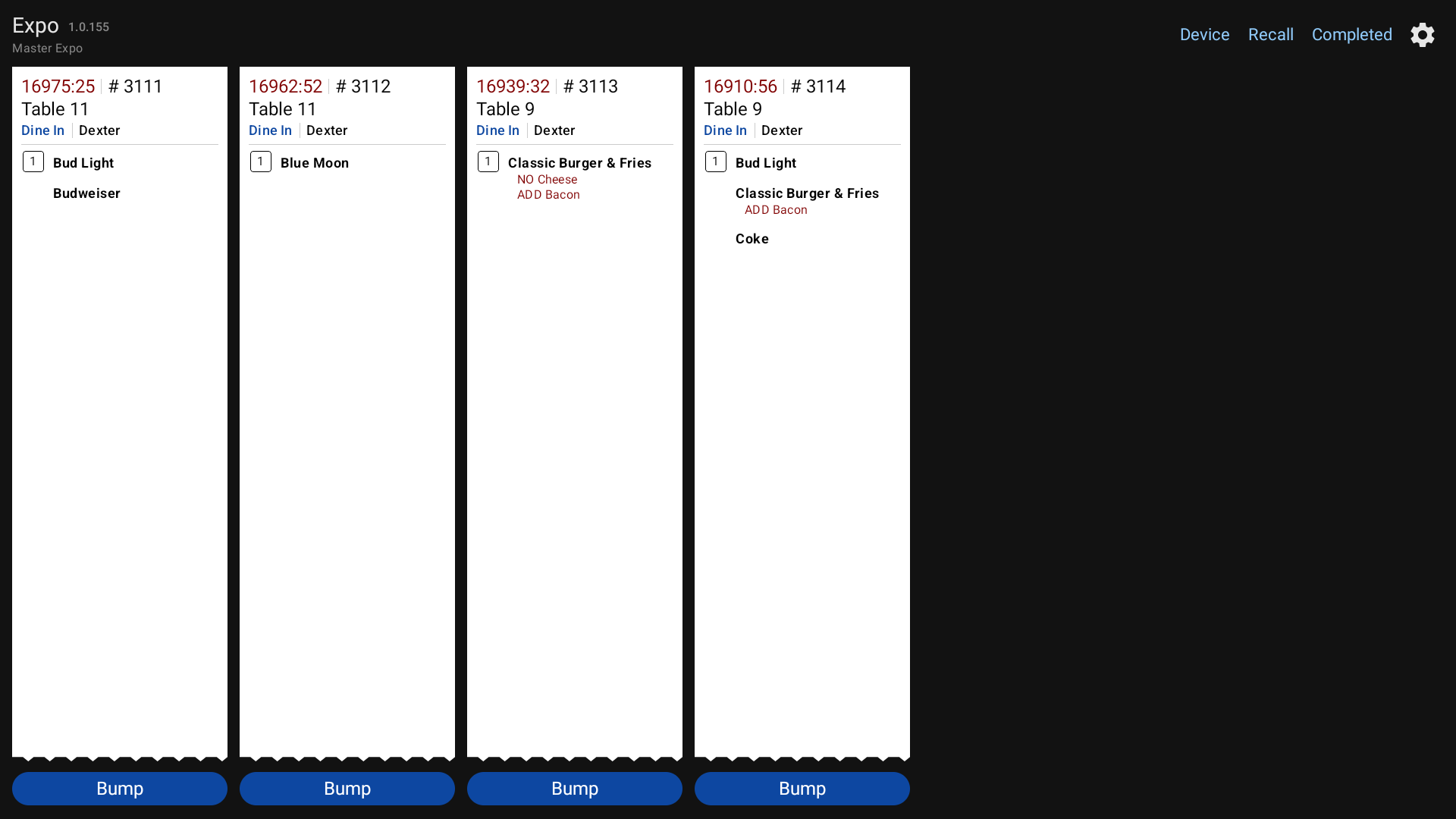 A recalled ticket (# 3111) back at the front, with Recall and Completed at the top right
Screen settings
Tap the gear at the top right to open Kitchen Screen Settings:
- Font Size: slide toward Smaller or Larger.
- Ticket Time Warning: the minutes before the timer turns orange (starts at 15).
- Ticket Time Max: the minutes before it turns dark red (starts at 20).
Tap a number, type the minutes and tap Enter. Tap Done to close. Each screen keeps its own settings.
Good to know
- Device at the top right is for setting up which screen this is. Leave it to a manager.
- If a server says their order didn't reach you, check Completed first. It may have been bumped by mistake.
- If the POS can't reach a kitchen screen, the server sees a red warning when they send.