Employee Manual › Checks & payment
Cash payments
Take cash with one tap, or use the payment screen to work out the guest's change.
The guest pays the exact amount: Quick Cash
- In the order, tap Quick Cash under the ticket.
- The check is paid in full in cash and closed. You go back to the Table Layout (or the tab you came from).
Quick Cash doesn't work out change. Use it when the guest hands you the exact amount, or when you'll count the change yourself.
The guest needs change: the payment screen
In the order, tap $ Pay $.
Cash is already selected under Tender Type.
Enter what the guest handed you:
- tap a quick amount beside the keypad, like $20, $50 or $100, or
- type the amount on the keypad (
4,0,0,0is $40.00).
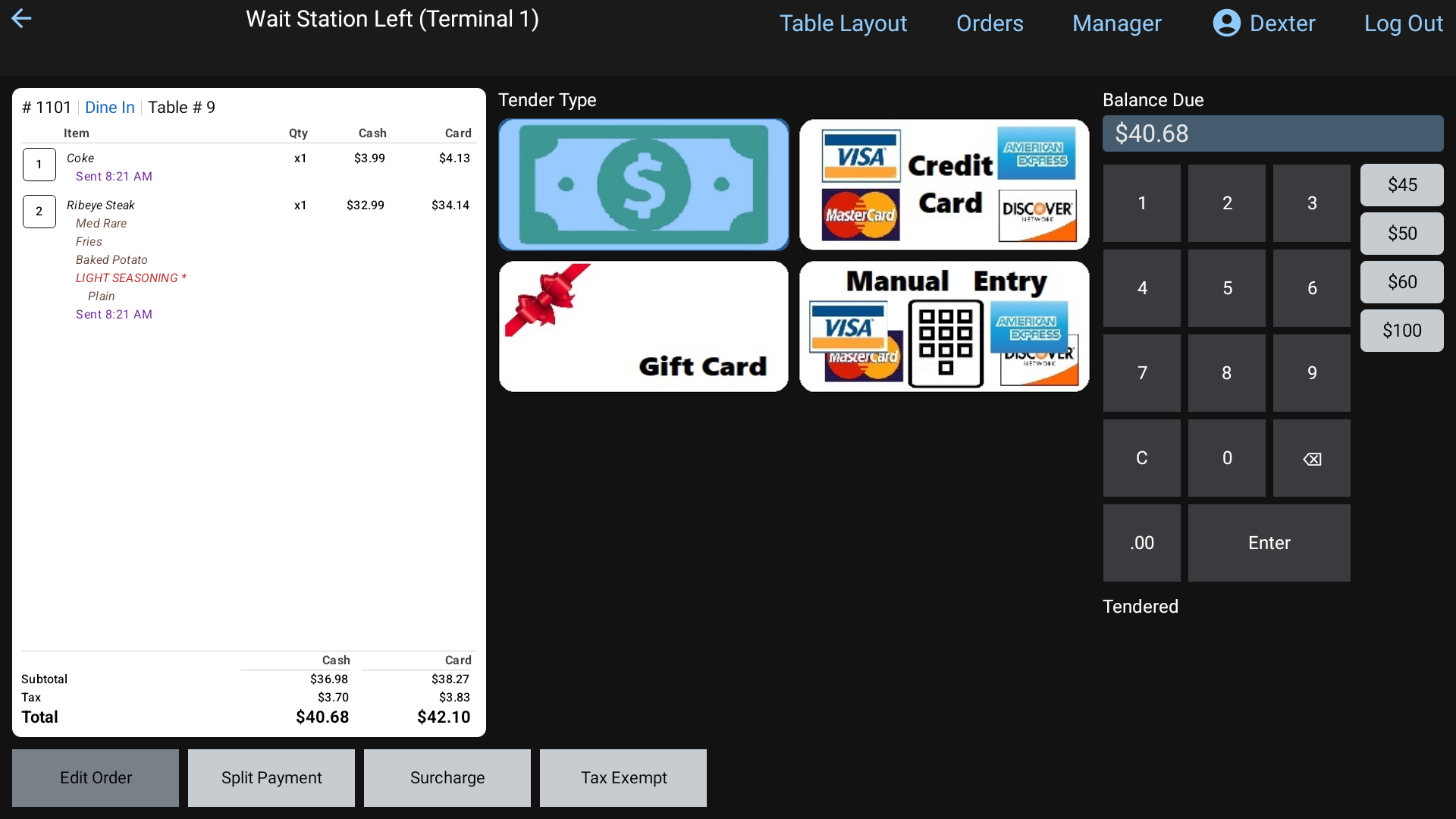 The payment screen with Cash picked under Tender Type, the quick amounts beside the keypad
Tap Enter.
The change screen shows Amount Due, Tendered and Change Due in large type. Give the guest the Change Due.
Tap Done.
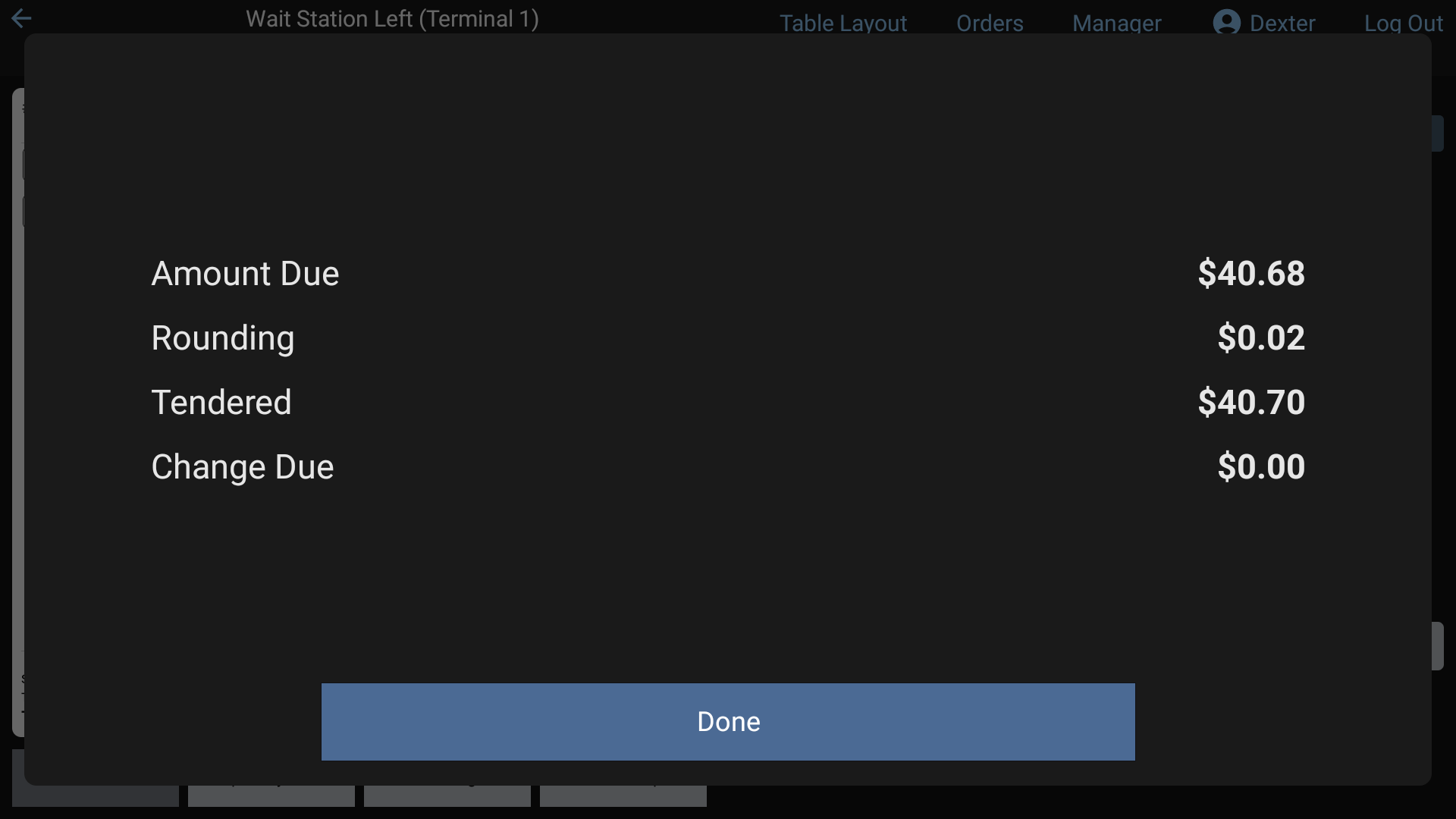 The change screen after a cash payment
Part cash, part card
Type the cash amount and tap Enter. The rest stays as Balance Due. Then pick the card tender for the remainder. See Take a payment.
Good to know
- Rounding. If your restaurant rounds cash totals, a Rounding line shows on the change screen. The items themselves keep their prices.
- Someone else's check. If you take cash for another server's order, RealPOS reminds you: Please hand the $X to (server).
- At the end of your shift, your closeout shows how much cash you owe the house. See Your shift closeout.