Employee Manual › Taking orders
Special instructions and messages
Tell the kitchen how to make an item with a typed message or a ready-made instruction.
There are two ways to add a note to an item for the kitchen:
- Instructions are ready-made notes your manager set up, like No Onions or Allergy. They're quick to tap.
- Message lets you type anything you want.
Both show in red on the ticket and on the kitchen screen, with a * after them.
Add them before you send the item. Once an item has been sent, these buttons go away.
Add an instruction
- Tap the item on the ticket to select it. Select just one item.
- Tap Instructions.
- Tap the instruction you want. It's added and the list closes.
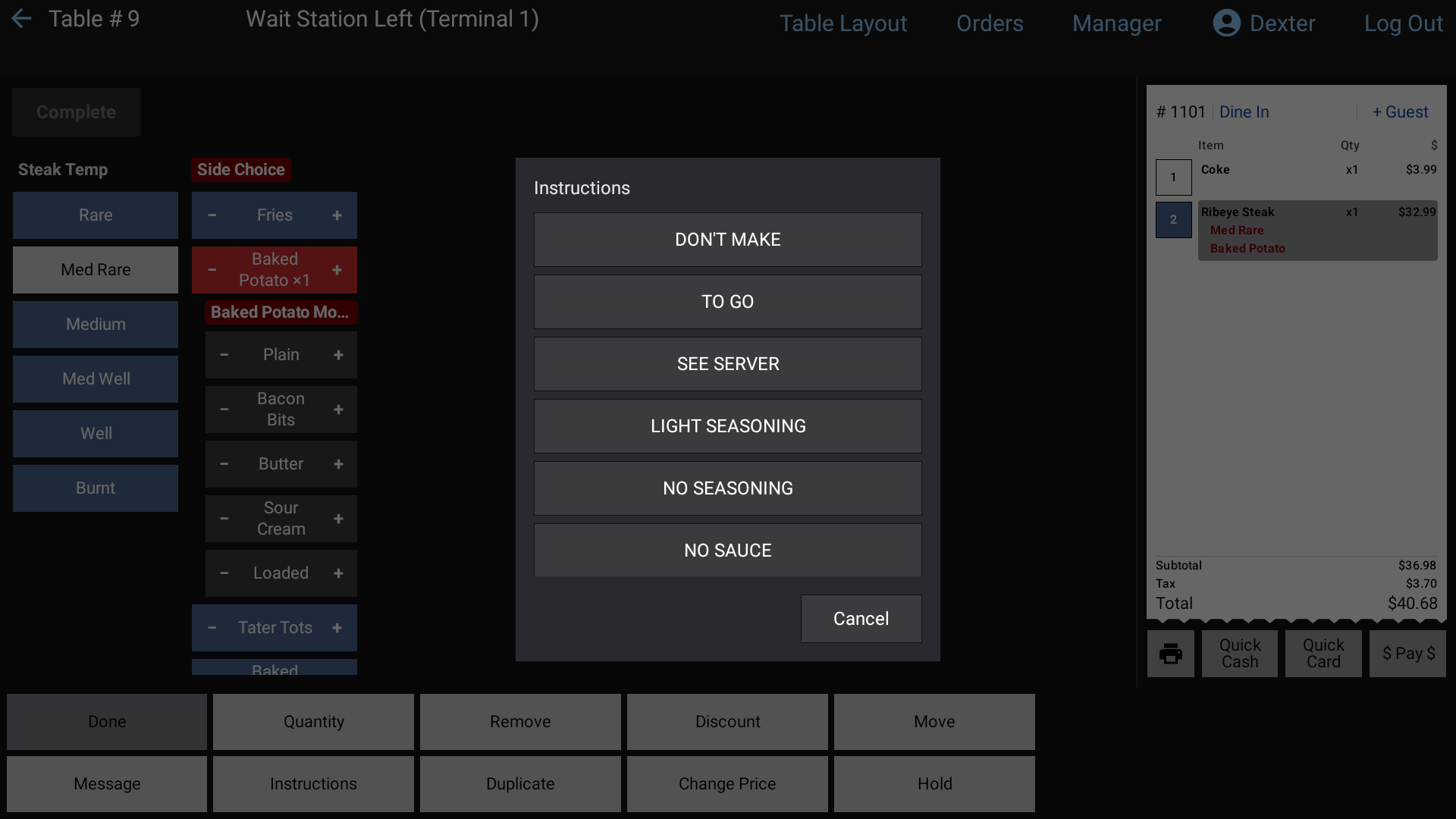 The Instructions list
To add the same instruction twice, open Instructions again and tap the + beside it. To take one off, tap the trash can beside it.
If the list says No instructions configured., your manager hasn't set any up yet. Use Message instead.
Type a message
- Tap the item on the ticket to select it.
- Tap Message.
- Type the note on the keyboard, up to 60 characters.
- Tap Enter.
Messages already on the item are listed on the left of the keyboard:
- Tap one to load it into the box and change it. Then tap Enter.
- Tap its trash can to remove it.
Good to know
- Sent items can't get new messages or instructions. If you forgot one, tell the kitchen another way.
- Modifiers that change the item itself, like a side or temperature, are picked when you ring the item in. See Add items and modifiers.