The floor plan (Table Layout)
Read the table colors, open a table, and use the buttons along the top and bottom of the Table Layout screen.
The Table Layout screen shows your dining room as your manager drew it. You can see which tables are free, whose they are, and how long each has been open.
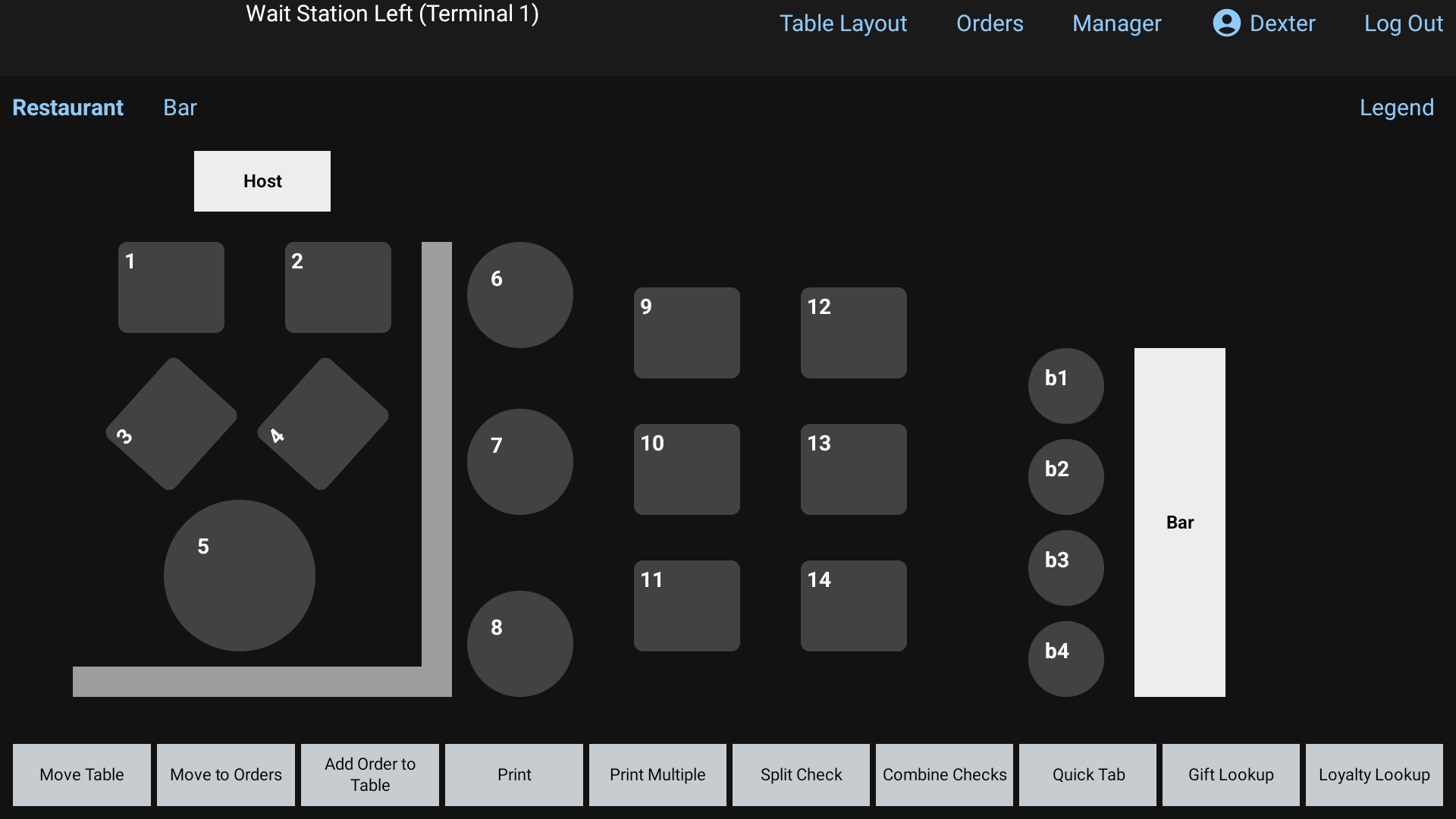 The Table Layout screen
Switch between rooms
If your restaurant has more than one layout (a patio, a bar, a back room), the current one's name shows in bold at the top left. The others are listed beside it. Tap one to switch.
 Layout names across the top of the floor plan
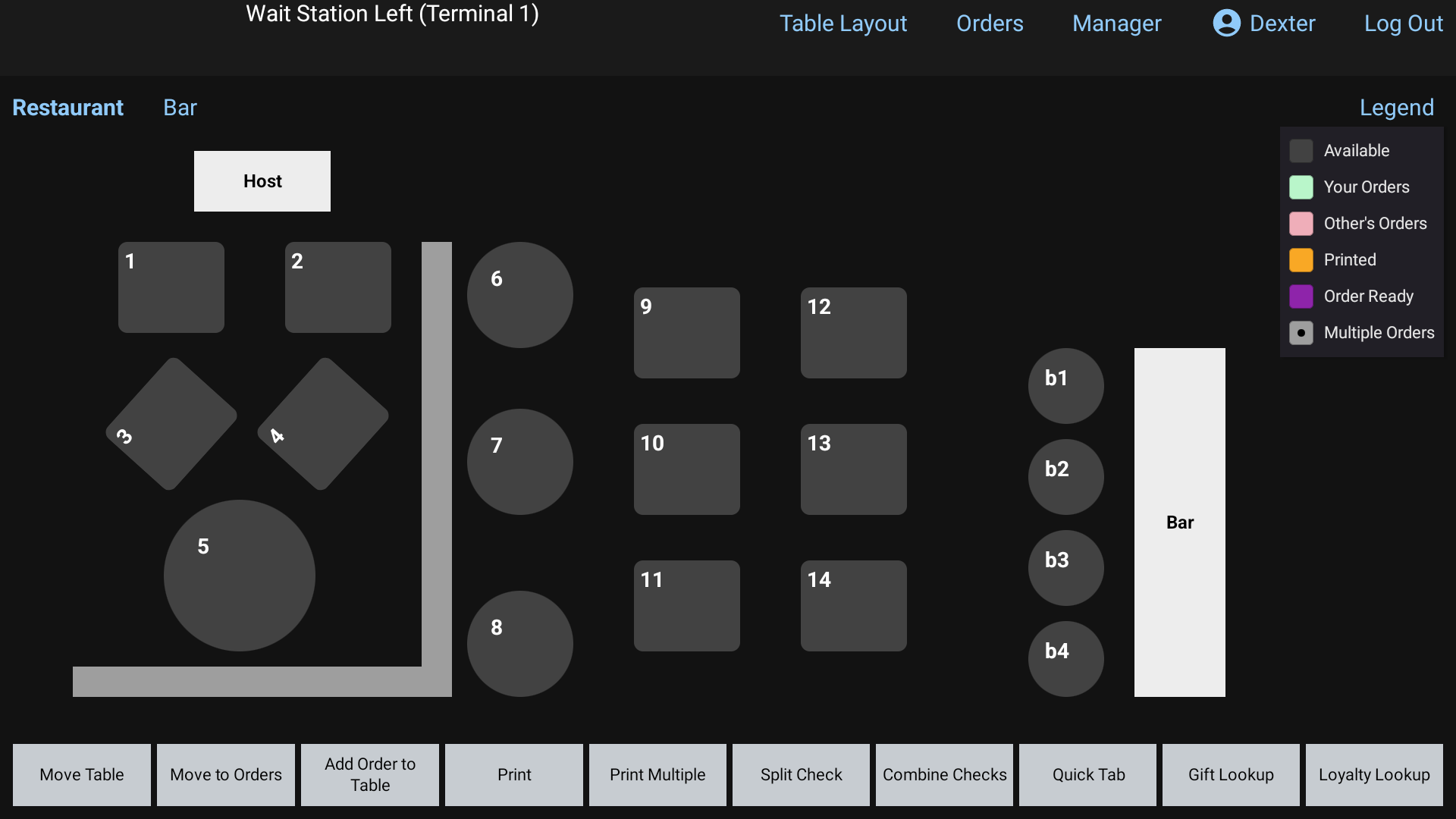
What the table colors mean
Tap Legend at the top right to see this list on the screen.
| Color | Means |
|---|---|
| Dark gray | Available: nobody is seated |
| Light green | Your Orders |
| Pink | Other's Orders: another server's table |
| Yellow | Printed: the check has been printed. The table number is green if it's yours, pink if it's someone else's |
| Purple | Order Ready: the kitchen has finished your order |
A table with more than one order on it shows a small black dot for each order (Multiple Orders).
An open table also shows a timer, the server and the guest's name, if one was entered.
Open a table
- Tap an available (gray) table.
- The Guest count pad opens. Type how many guests and tap Enter.
- The order screen opens for that table. See Start an order.
To get back into a table you already have, just tap it.
Peek at a table without opening it: press and hold a table for about a second. Its ticket pops up. Tap the ticket (Touch to open) to open it, or tap outside to close it.
Someone else's table
If you tap another server's table, you'll see something like Table 5 belongs to Sam. Only managers, and staff with the "See All Staff Orders" permission, can open other people's tables.
The buttons along the bottom
Tap a button first, then tap the table it should work on. While a button is waiting for you to tap a table, it turns orange and its label changes. Tap it again to cancel.
| Button | What it does |
|---|---|
| Move Table | Move an order to a different table. See Transfer or move an order |
| Move to Orders | Take an order off its table and put it under an Order Type, like ToGo |
| Add Order to Table | Start a second, separate order on a table that already has one |
| Print the check for one table | |
| Print Multiple | Tap several tables, then tap Complete to print all their checks |
| Split Check | Open the Split Check screen for a table. See Split a check |
| Combine Checks | Tap several tables, then Complete, to put their checks together |
| Quick Tab | Pick an Order Type and open its Quick Tab. See Quick Tab |
| Gift Lookup / Loyalty Lookup | Look up a gift card balance or a loyalty member |
The bar across the top
These buttons are at the top of almost every screen:
- Table Layout brings you back to this screen from anywhere.
- Orders opens the Orders screen. See Find an order, or reopen a check.
- Manager opens the Manager menu. If you're not a manager, it asks for a manager's PIN.
- Your name opens your Employee Menu, where you enter tips and clock out.
- Log Out signs you out. You stay on the clock.
When you're in an order, the top left also shows Table # with the table name.
Good to know
- If you leave an order that has items you haven't sent yet, RealPOS asks Cancel order? first. See Send to the kitchen.
- A table with more than one order opens a short list of its tickets. Tap the one you want. If only one of them is yours, it opens straight away.