Employee Manual › Taking orders
Quick Tab
Run a bar or counter fast with Quick Tab, a full-screen grid of one order type's open orders.
Quick Tab shows all the open orders of one order type as big tiles. You can see a lot at a glance. It's made for a busy bar or counter. Some terminals open on Quick Tab as soon as you sign in.
 A Quick Tab screen
Open Quick Tab
- From the Table Layout: tap Quick Tab at the bottom, then pick the order type.
- From Orders: on an order type's tab, tap Quick Tab at the bottom. On All Orders it asks which type first.
The heading tells you which type you're looking at, for example Bar — Quick Tab.
Use it
- Open an order: tap its tile.
- Peek at an order: press and hold a tile for about a second.
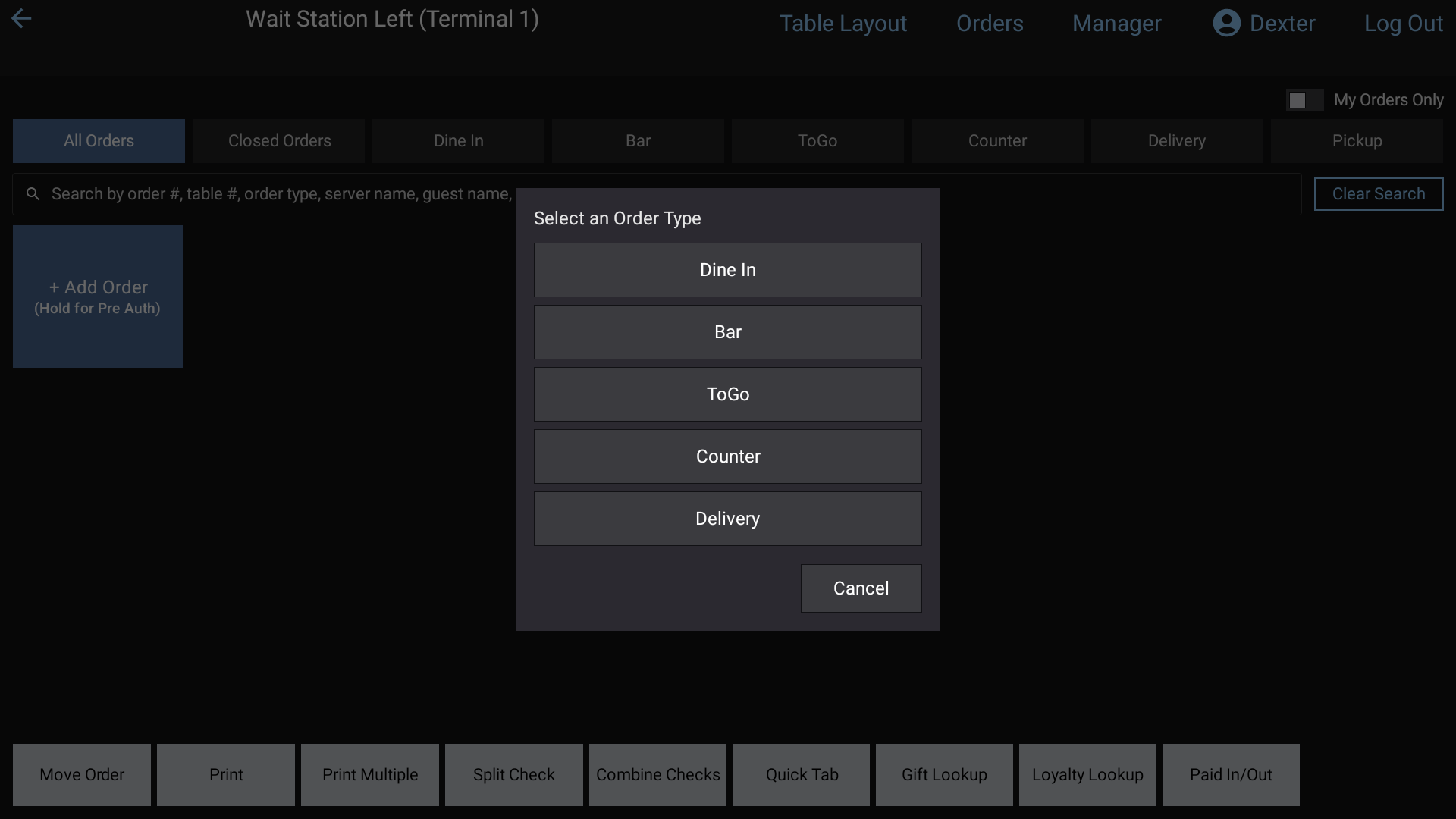
- Start a new order: tap the blue + Add Order button at the bottom. On Quick Tab, even Dine In orders start without a table.
- Find an order: tap the search box and type an order number, table, server, guest name or payment type. Clear Search shows them all again.
When there are more tiles than fit on the screen, swipe to the next page.
After you Send or pay an order you opened here, you come back to this Quick Tab.
The bottom buttons
| Button | What it does |
|---|---|
| Close | Leave Quick Tab for this type's tab on the Orders screen |
| + Add Order | Start a new order of this type |
| Move to Orders | Tap an order, then pick a different order type for it |
| Move to Layout | Tap an order, then tap a table on the Table Layout to seat it there. It keeps its order type |
| Print / Print Multiple | Print one check, or tap several and then Complete |
| Split Check / Combine Checks | See Split a check |
| Gift Lookup / Loyalty Lookup | Look up a gift card or a loyalty member |
Good to know
- Quick Tab only shows orders that aren't on a table. Once you move an order to a table, it leaves this screen.
- Managers and staff with "See All Staff Orders" get a My Orders Only switch at the top right. Everyone else sees only their own orders.
- If your restaurant uses Pre Auth, press and hold + Add Order to open the new order on a card. See Card payments.