Split a check
Split one order into separate checks by item or by seat, or put several tables' checks together.
Use Split Check when guests want to pay separately. You move items between checks, then save it. Each check can then be paid on its own.
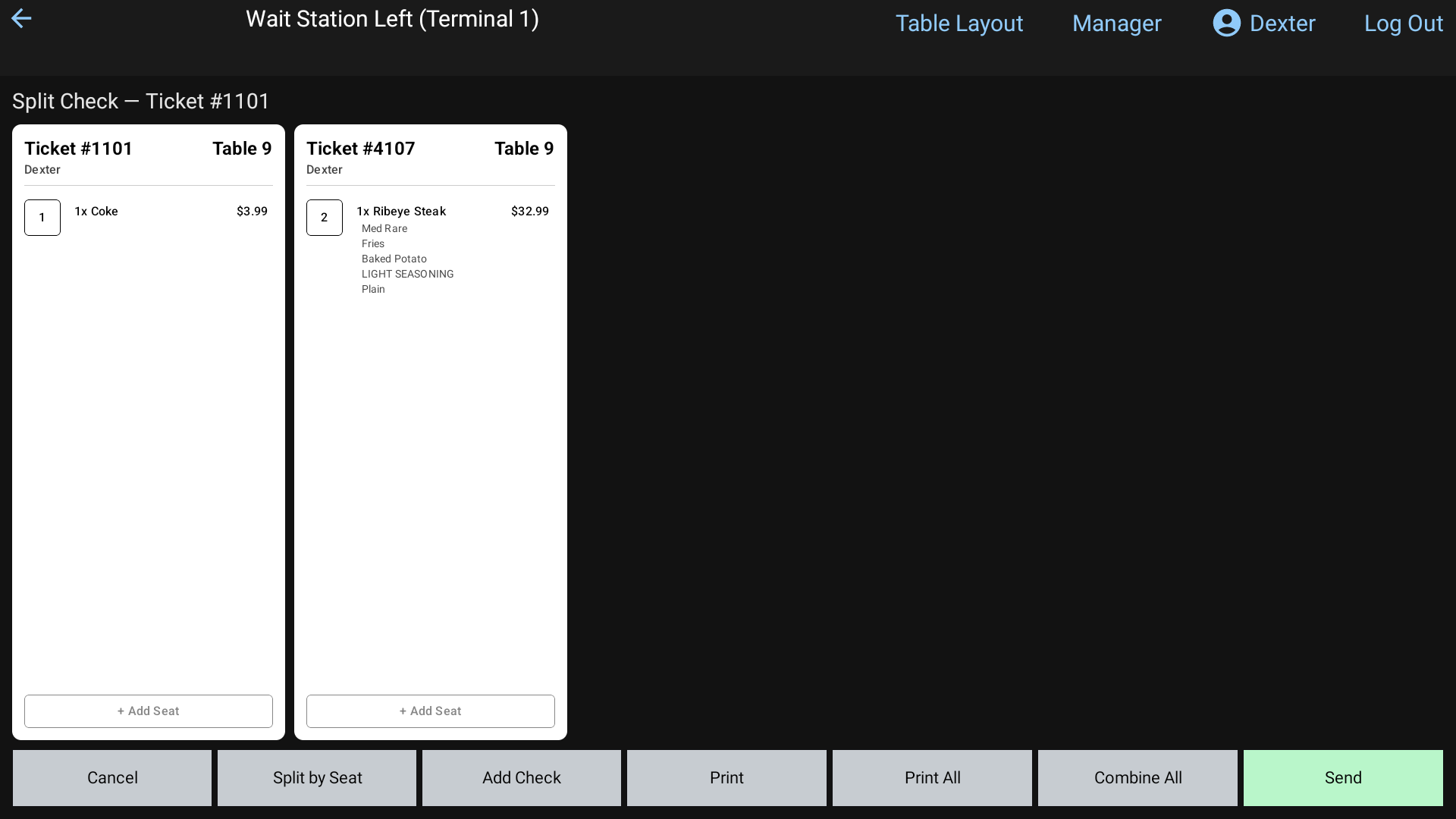 The Split Check screen with two checks side by side
Open Split Check
Any of these work:
- In the order, tap Split Check in the bottom row.
- On the Table Layout, tap Split Check, then tap the table.
- On the Orders screen or Quick Tab, tap Split Check, then tap the order.
The screen shows Split Check — Ticket # and the order number. The original check is on the left, with an empty check beside it.
Move items between checks
- Tap an item on one check. It turns blue. Tap more items to select them too.
- Tap the other check (a blank part of it). The items move there.
Move a whole seat: tap the seat's number square, then tap the other check. The seat keeps its number.
Move items onto a certain seat: select items, then tap a seat square on the other check.
The buttons
| Button | What it does |
|---|---|
| Split by Seat | Makes one check for each seat, in one tap |
| Add Check | Adds another empty check at the end. Swipe left to see more checks |
| + Add Seat | (at the bottom of each check) Adds an empty seat on that check, to move items onto |
| Combine All | Puts everything back on the first check and starts over |
| Prints the check you tapped last (the one with the blue border) | |
| Print All | Prints every check and saves the split |
| Send | Saves the split without printing |
| Cancel | Throws away your changes. Nothing is saved |
Nothing changes until you tap Send or Print All. If you haven't moved anything onto a second check, you'll see Move items into at least 2 checks before sending.
Pay a split check
After a table is split, tapping it on the Table Layout opens Checks on this table. Each check is listed with its ticket number and total. Tap one to pay it. Press and hold a row to peek at that check first.
On the Orders screen, each check has its own square with a yellow border.
Combine checks
To put several tables (or orders) onto one check:
- On the Table Layout, tap Combine Checks. On the Orders screen, it's the same button.
- Tap each table or order you want together. Tap one again to take it out.
- Tap Complete. They open side by side on the Split Check screen.
- Tap Combine All to put everything on the first check, or move items however the guests want.
- Tap Send.
Good to know
- Splitting from inside an order needs the Split Check permission. If you don't have it, a manager types their PIN.
- To split one payment evenly instead (like 3 cards for one bill), use Split Payment on the payment screen. See Take a payment.
- To share one item between guests, use Split Item. See Add items and modifiers.