Start an order
Open a new order from a table, an Order Type tab, or Quick Tab, and find your way around the order screen.
There are three ways to start an order. Use the one that fits how you're serving the guest.
From a table (dine in)
On the Table Layout screen, tap an available table.
Type the number of guests on the Guest count pad and tap Enter.
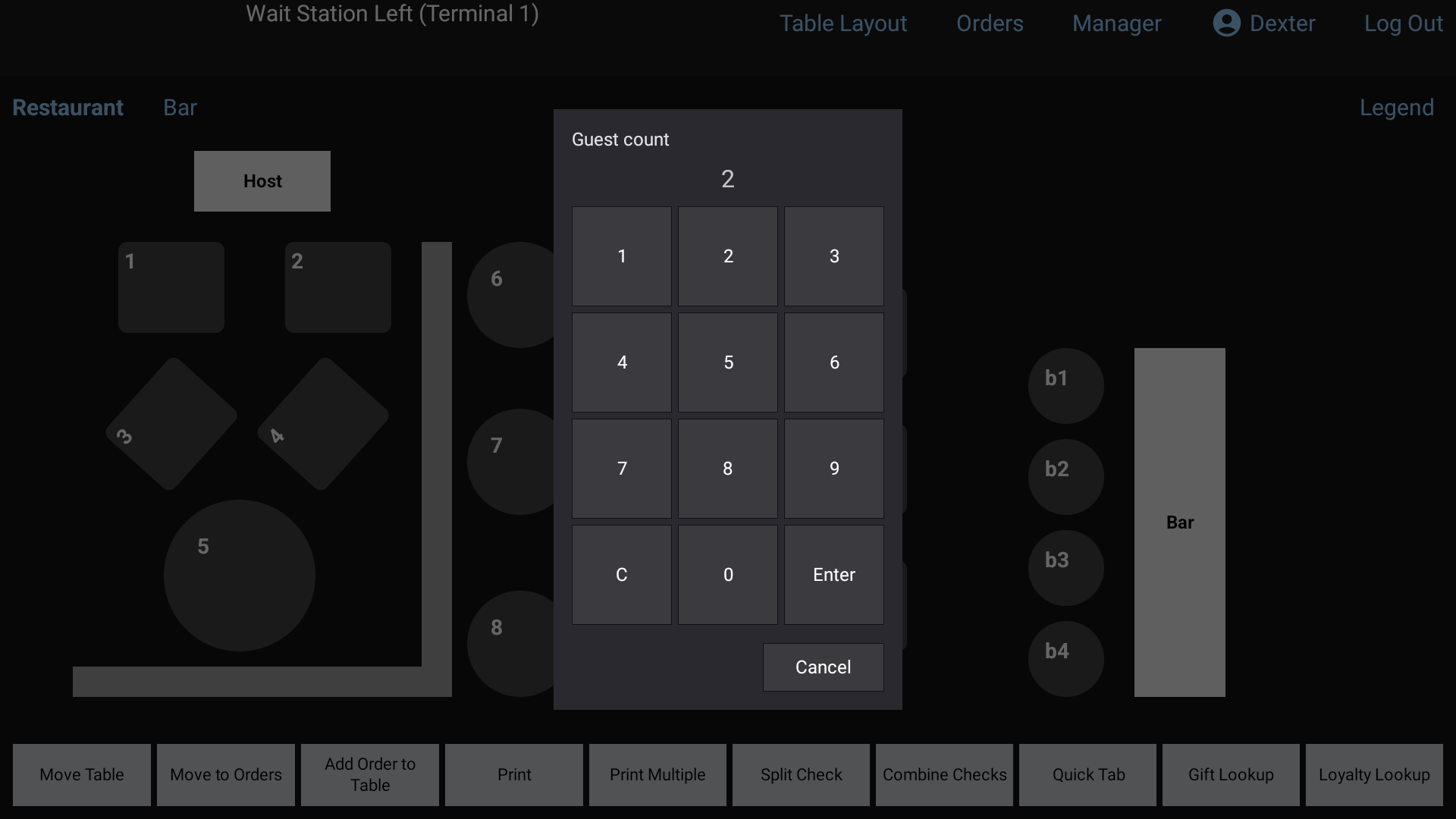 The Guest count pad over the Table Layout: type the number of guests, then tap Enter
The order screen opens with one seat for each guest.
See The floor plan.
From an Order Type tab (ToGo, Delivery, Bar...)
- Tap Orders at the top of the screen.
- Tap the tab for the order type, for example ToGo.
- Tap the blue + Add Order square.
If you tap + Add Order on All Orders, RealPOS asks you to Select an Order Type first. On the Dine In tab, it takes you back to the Table Layout to pick a table. See Order types.
From Quick Tab
On a Quick Tab screen, tap + Add Order in the bottom bar. See Quick Tab.
Find your way around the order screen
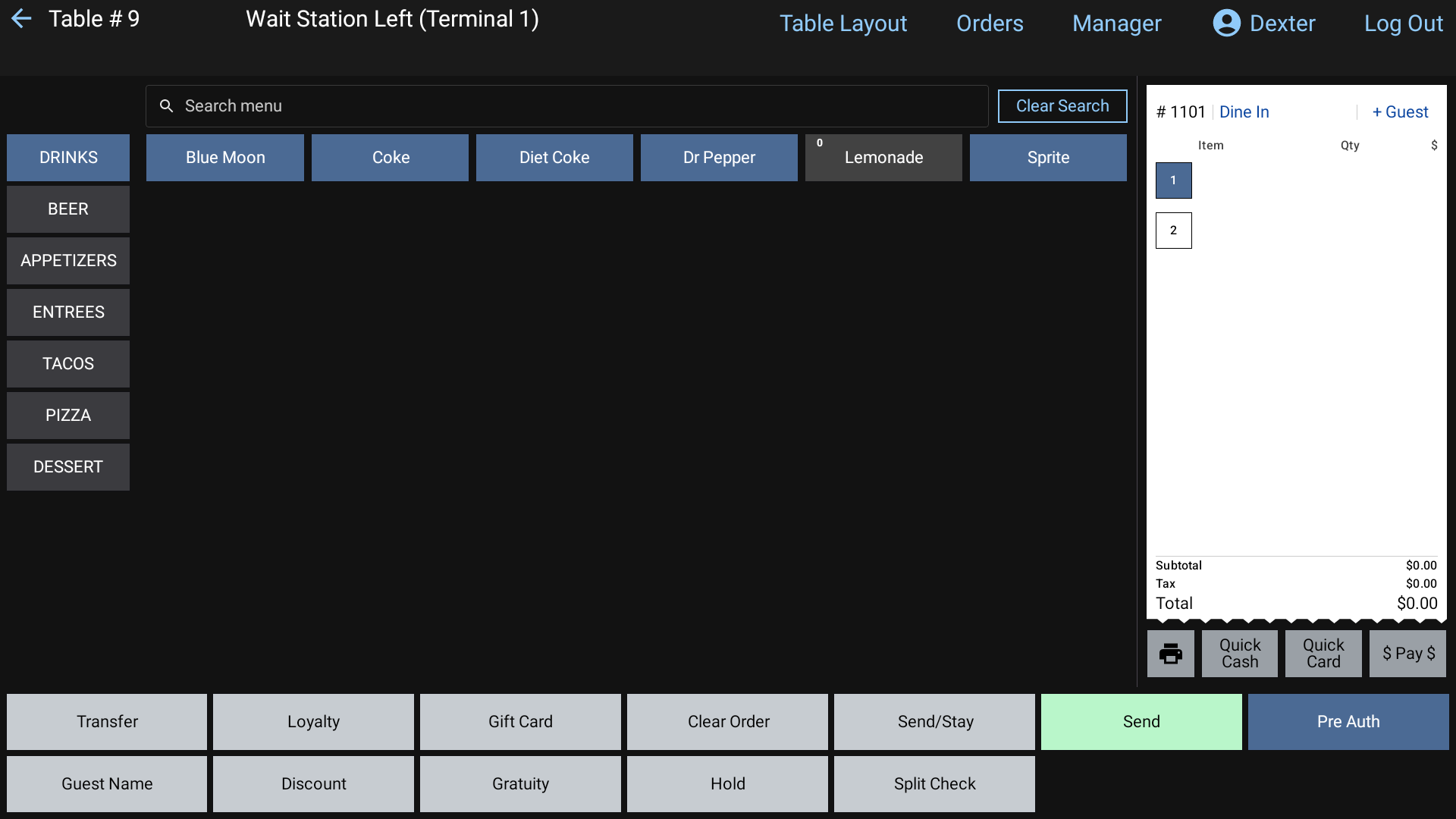 The order screen: departments on the left, items in the middle, the ticket on the right
- Departments run down the left side. Tap one to see its items.
- Items fill the middle. Tap an item to add it to the ticket. Use Search menu above the items to find one by name or barcode, and Clear Search to go back.
- The ticket is on the right. At the top it shows the order number, the order type (tap it to change it), the guest name, and + Guest to add a seat.
- Totals sit at the bottom of the ticket: Subtotal, Tax and Total, plus any discounts, surcharge or gratuity.
- Pay buttons are under the ticket: a printer icon to print the check, then Quick Cash, Quick Card and $ Pay $. See Take a payment.
- Function buttons run along the bottom: Transfer, Loyalty, Gift Card, Clear Order, Send/Stay, Send, Void Order, Guest Name, Discount, Gratuity, Hold and Split Check.
Tap an item on the ticket to select it, and the bottom row changes to item buttons, like Quantity, Void Item and Change Price. Tap Done to go back. See Add items and modifiers.
Add a guest name
Tap Guest Name, type the name on the keyboard and tap Enter. The name shows on the ticket, on the order's square, and on the kitchen screen.
Good to know
- "(name) has this order open on (terminal)". Only one terminal can have an order open at a time. Tap OK and try again once they've closed it.
- Second order on a table. To start a separate ticket on a table that already has one, use Add Order to Table on the Table Layout screen, then tap the table.
- Pre Auth. If your restaurant uses card pre-authorization, there's a Pre Auth button in the order. On an Orders tab you can also press and hold + Add Order (it says (Hold for Pre Auth)) to start an order on a card. See Card payments.