Sign in with your PIN
Sign in to a RealPOS terminal with your 4-digit PIN, and what you see on the sign-in screen.
Every RealPOS terminal opens on the sign-in screen. You sign in with your own 4-digit PIN. Your manager gives you your PIN.
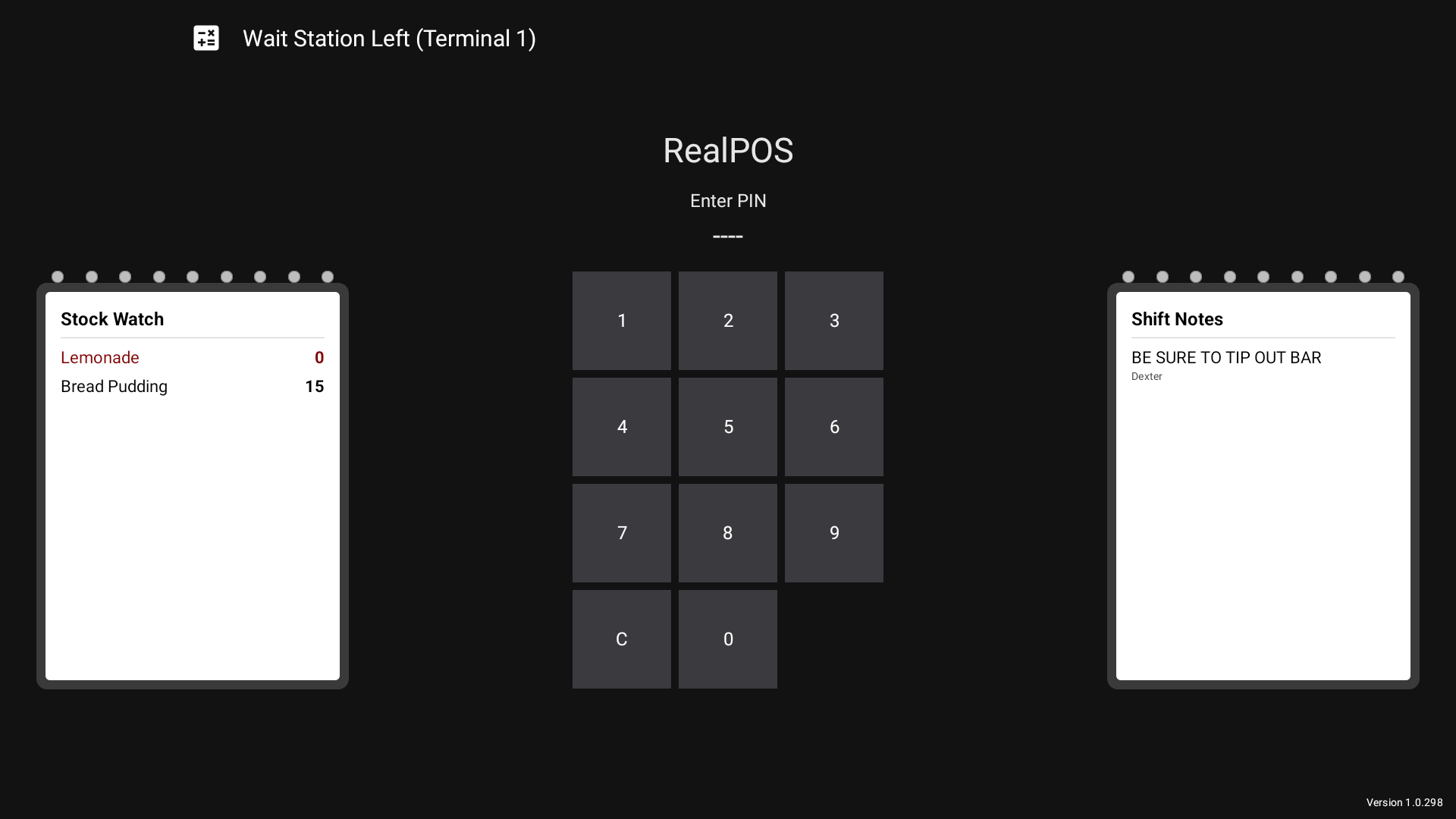 The sign-in screen with the PIN pad in the middle
Sign in
- On the POS, find the Enter PIN pad in the middle of the screen.
- Tap your 4 digits. The screen shows a
*for each one. - That's it. As soon as the 4th digit goes in, you're signed in. There is no Enter key.
Made a mistake? Tap C to clear and start again.
If the PIN is wrong you'll see Invalid PIN in red. The pad clears itself, so you can type the right one straight away.
Where you land
Where you land depends on how your manager set up this terminal. It could be:
- the Table Layout (floor plan), for table service
- one Order Type's tab on the Orders screen, like a ToGo counter
- a Quick Tab screen, for a fast bar or counter
See The floor plan, Order types and Quick Tab.
Notes you must read
Sometimes a manager leaves a note just for you. When you sign in it pops up as Note from (their name). The Dismiss button counts down for a few seconds first, so take a moment to read it. If you have more than one note, they show one after the other.
Signing in also clocks you in
Your first sign-in of the shift clocks you in for the day. You don't need a separate clock-in step. See Clock in and out.
Log out
Tap Log Out at the top right of any screen. Logging out does not clock you out. You stay on the clock until you clock out.
Some terminals also log you out by themselves when nobody touches them for a while. See Automatic sign-out.
Good to know
- The rest of the sign-in screen. You can see these without signing in:
- Stock Watch and Shift Notes, two notepads beside the PIN pad. See Stock Watch and Shift Notes.
- A list of tables that have been open 2 minutes or longer, shown as Table #: and a timer. The timer turns yellow at 2 minutes and red at 10 minutes. Tap the list to pause or restart its scrolling.
- Pickup orders, if your restaurant uses them. Read about them in Order types.
- "Updating RealPOS". This means a new version is installing. Sign-in opens again once it's done. If the update fails, a Sign in anyway for now button shows up.
- The terminal's name is at the top of the screen. If it turns pink, the internet is down and card payments are being stored to send later. See Card payments.
- A red message beside the terminal name that says "This terminal can not communicate with the others" means this terminal has lost touch with the rest of the restaurant. It still works, but only use it if you have to. Tell a manager.