Order types (Dine In, ToGo and more)
Use the Orders screen's tabs for each order type, change an order's type, and handle pickup orders.
Every order has an order type, like Dine In, ToGo or Delivery. Your manager chooses which types your restaurant uses. Dine In orders usually sit on a table. The others live on their own tabs on the Orders screen.
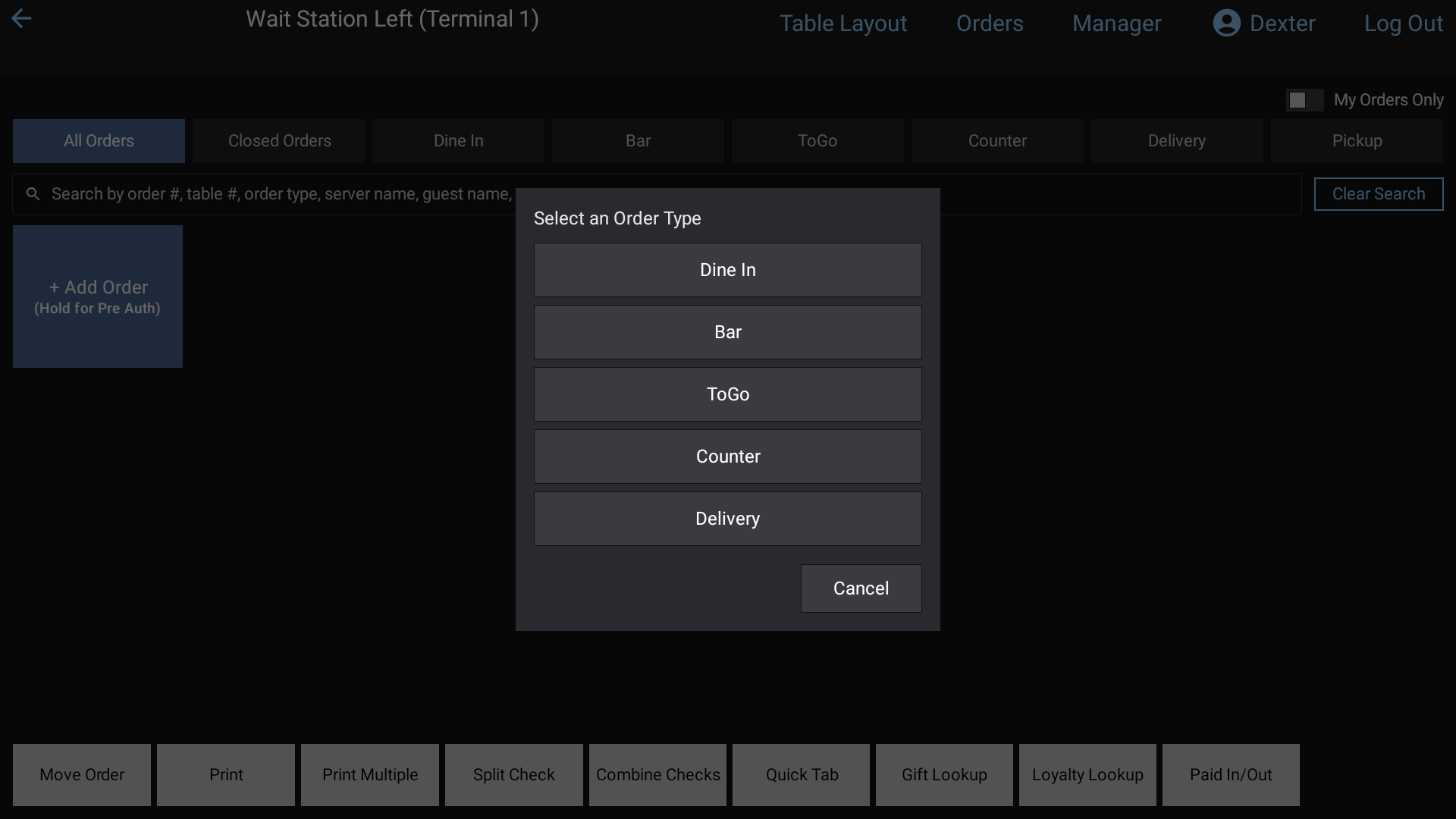 The Orders screen with a tab for each order type
The Orders screen tabs
Tap Orders at the top of the screen. Along the top you'll see:
- All Orders: every open order you can see
- Closed Orders: today's paid and voided checks. See Find an order, or reopen a check
- one tab for each order type
- Pickup, at the far right, if your restaurant uses pickup orders
Each open order is a square showing its order number, its table or type, the server, the guest name, when it was opened (Open:) and the total. Tap a square to open the order. Press and hold one for about a second to peek at the ticket.
A thick yellow border means the order has been split.
Start an order of a type
- Tap the order type's tab.
- Tap + Add Order.
The new order is tagged with that type. When you Send or pay, you come back to the same tab.
Change an order's type
- In the order, tap the order type at the top of the ticket (it's blue, next to the order number).
- The Order type list opens, with the current one marked (current).
- Tap the new type.
Orders that need a guest name
Some order types need a guest name, for example ToGo. When you tap Send, print the check or pay, a Guest Name Required keyboard opens if the order doesn't have one yet. Type the name and tap Enter. RealPOS then carries on with what you were doing.
Adding a loyalty member to the order counts as a name.
Pickup orders
Your manager can set some order types to show on the sign-in screen until the guest picks them up.
- On the sign-in screen, these orders are listed by type, guest name and a timer since the order was sent. A paid order waiting for pickup shows a purple timer.
- On the Pickup tab of the Orders screen, open orders are orange squares and paid orders waiting for the guest are purple.
When the guest picks up a paid order:
- Go to Orders > Pickup.
- Tap the purple Pickup button at the bottom left.
- Tap the guest's purple square. It's cleared from the board.
Shortcut from the sign-in screen: press and hold the pickup list. Enter PIN for Pickup opens. Type your PIN and you go straight to the Pickup tab.
On the Pickup tab, tapping an open square takes you straight to its payment screen.
Good to know
- Your terminal's default order type decides where you land when you sign in. A manager sets it.
- If an order type is set to print in red, its name shows in red on the order squares and on the kitchen screen.
- Staff who aren't managers see only their own orders on these tabs. Managers and staff with "See All Staff Orders" see everyone's, and can switch on My Orders Only.