Add items and modifiers
Ring in items, pick their modifiers, and change the quantity, remove or copy an item on the ticket.
Add an item
- Tap a department on the left.
- Tap the item. It's added to the ticket for the seat that's currently selected. A message like Added Cheeseburger flashes on the screen.
Searching instead: tap Search menu, type part of the name (or scan the barcode), then tap the item or Done. Clear Search puts the full menu back.
An item button with a small orange number in the corner has that many left. A dark gray button is out of stock and can't be rung in.
Pick modifiers
Some items have modifier choices, like a temperature or a side. When you tap one of these, the menu turns into the choice screen. The ticket stays on the right.
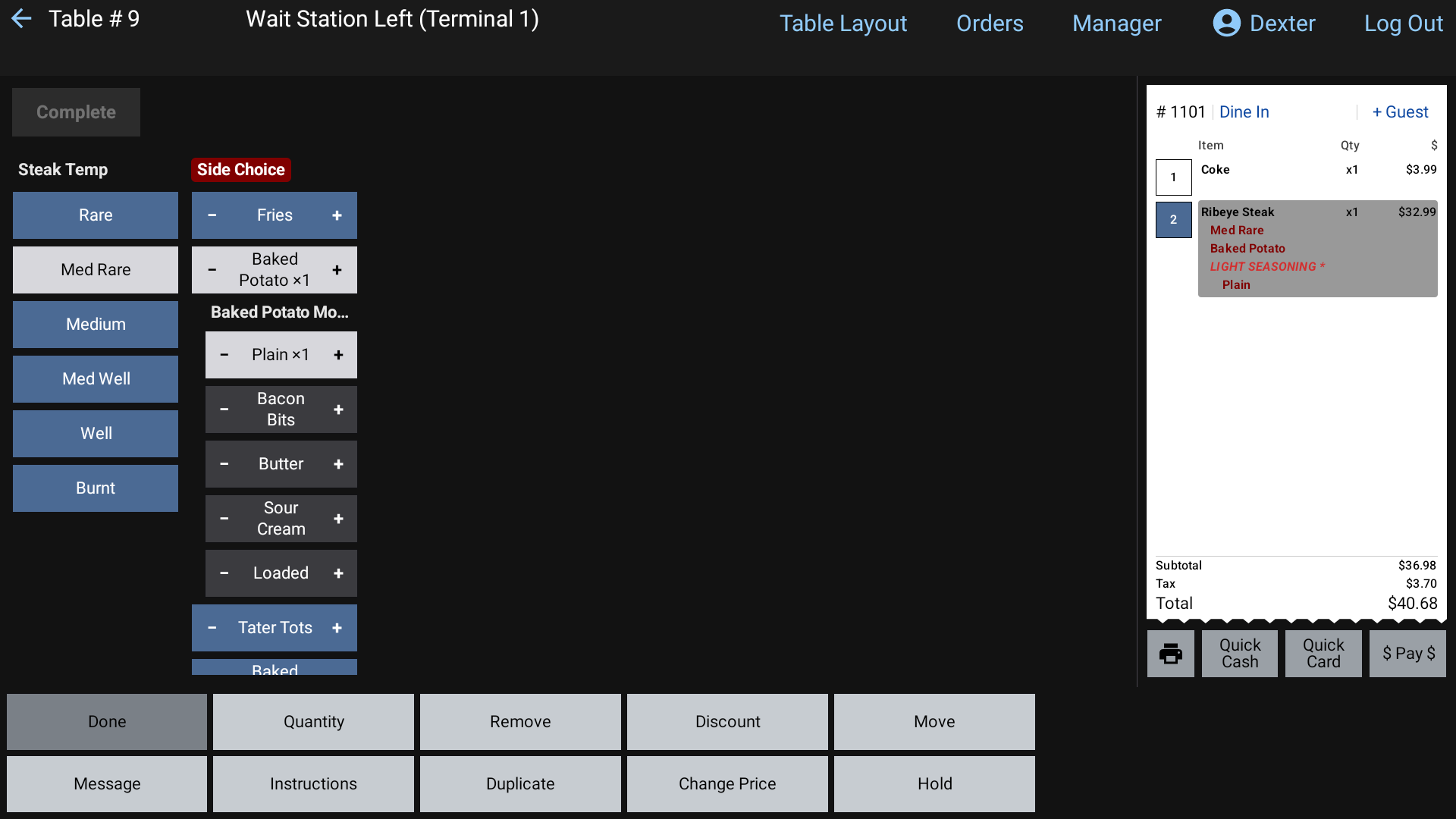 Picking modifiers, with the orange Complete button at the top left
- Each group of choices has its own column, with its name on top.
- Tap a choice to pick it. Tap it again to take it off. Picked choices are highlighted.
- A group name in a dark red box is required. Pick what it needs. Once that's done, the box goes away.
- When a group lets you pick the same thing more than once, its button has − and + halves. Tap the right half to add one more and the left half to take one off. The count shows as ×2, ×3.
- Some choices open more choices under them. A picked choice turns red until its own required choices are made.
- Tap the orange Complete button at the top left when you're done.
Complete stays grayed out until every required group is filled. The choices go onto the ticket as you tap them, so you can watch it build up.
To change an item's modifiers later, tap the item on the ticket. You can only do this before it's sent to the kitchen.
Items that ask for a price or a weight
- Open price items pop up a price pad first. Type the price and tap Enter. The .00 key adds whole dollars.
- Sold by weight items pop up a weight pad, for example Salmon x Lb. Type the weight and tap Enter. The price is worked out from the weight.
Change, remove or copy an item
Tap an item on the ticket to select it (tap more items to select several). The bottom buttons change to item buttons:
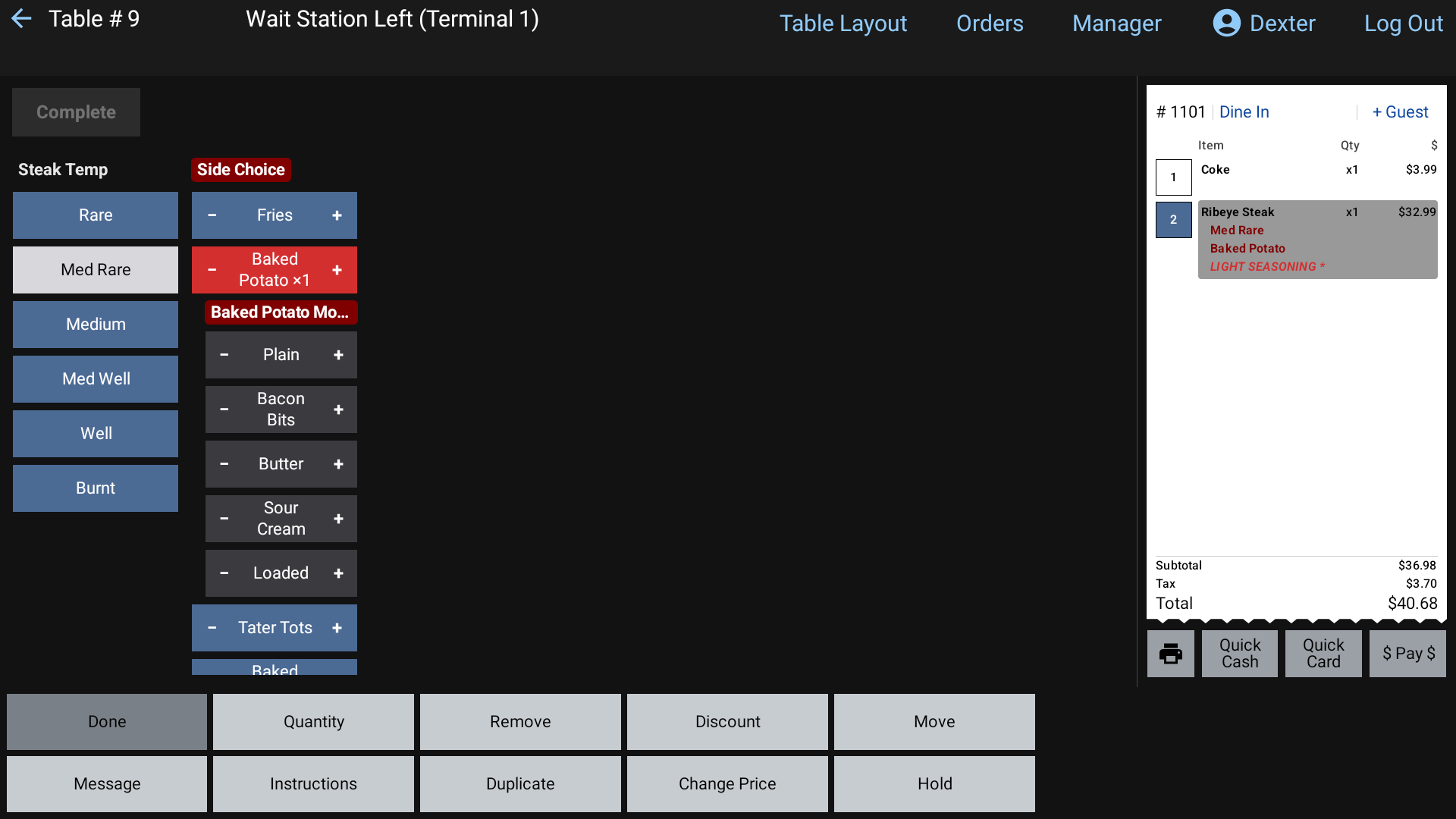 The item buttons after selecting a line on the ticket
| Button | What it does |
|---|---|
| Done | Unselect and go back to the order buttons |
| Quantity | Type a new quantity (only before it's sent) |
| Remove | Take an item off the ticket before it's sent |
| Discount | Discount the selected item(s). See Apply a discount |
| Split Item | Share one item across several guests (after it's sent) |
| Move | Move the item(s) to another seat. See Seats |
| Message / Instructions | Add a note for the kitchen. See Special instructions |
| Duplicate | Add a copy of the item, then pick a seat for the copy |
| Void Item | Take off an item that's already been sent. See Void an item |
| Change Price | Change this item's price on this ticket only. See Change an item's price |
| Hold / Fire | Hold items back from the kitchen, or release them. See Send to the kitchen |
Only the buttons that make sense for what you selected show up.
How to read the ticket
- Bold items haven't been sent to the kitchen yet.
- Italic items have been sent. They show Sent and the time underneath.
- Modifiers show in dark red under their item. Their prices are in the price column.
- Messages and instructions show in red, with a
*. - An item on hold is blue, with a
*.
Good to know
- Clear Order removes every item that hasn't been sent yet. It asks Clear order? first. You may need a manager's PIN.
- Split Item asks How many guests are splitting this item? It only works on a single item that's been sent.