Using the handheld
Take orders at the table on the 6-inch handheld, send them to the kitchen, and take cash or card payments.
The handheld is a small, phone-sized version of the POS for taking orders at the table. It uses the same menu, tables and orders as the terminals. An order you start on the handheld can be finished on a terminal, and the other way round.
Sign in
- Type your 4-digit PIN on the Enter PIN pad. You're in as soon as the 4th digit goes in.
- Signing in clocks you in, just like on a terminal.
Before you sign in, scroll down under the pad (Scroll for Stock Watch and Shift Notes) to read the stock counts and the manager's notes.
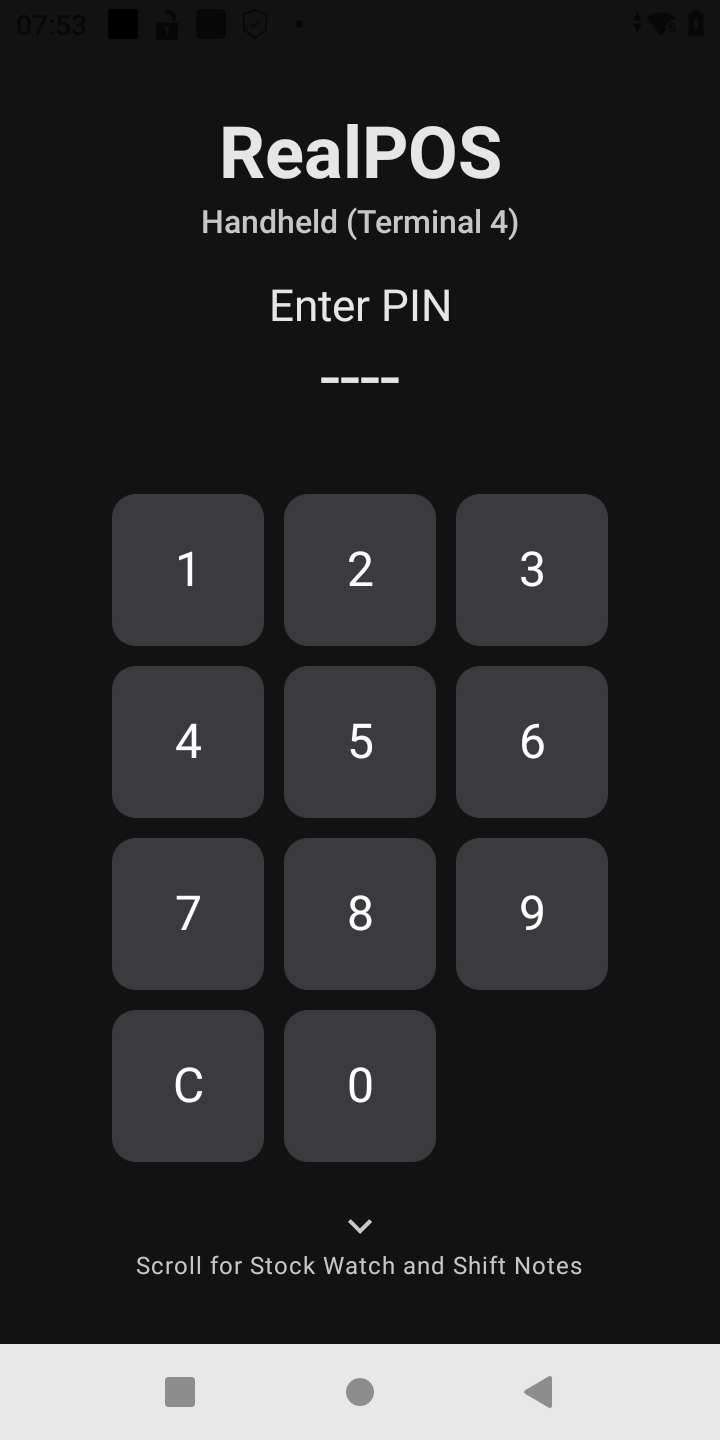 The handheld sign-in screen
Tables
After you sign in you see Tables: every table as a square, three across. If there's more than one layout, tap its name at the top to switch.
| Square | Means |
|---|---|
| Dark gray, with its seat count | Free |
| Blue | Yours |
| Brown | Another server's |
| Purple-blue | Split into more than one check |
| Yellow border | The check has been printed |
An open table shows the guest or server name and how many minutes it's been open.
- Free table: tap it. How many guests? opens. Type the number and tap Open.
- Your table: tap it to open the order. If it has more than one order, Choose an order lists them.
Take the order
The bottom bar has Menu, Ticket and Send.
On Menu:
- Seat: tap a seat number for the next items. + adds a seat.
- Tap a department along the top, or type in Search menu.
- Tap items to add them. Items show two across. A gray one is out of stock. An orange number shows how many are left.
- Items with choices open the modifier screen. Pick what's needed, then tap Complete. See Add items and modifiers.
On Ticket:
- You see everything by seat, with the totals. Items show Sent or On hold under them once they've gone.
- Tap an item to select it. Then tap Remove (before it's sent), Quantity, or Done.
Tap Send to send new items to the kitchen. You go back to Tables.
Take payment
On the Ticket view:
- Print Check prints the check.
- Cash asks Take cash? and shows the total. Tap the Cash button to close the order as paid in cash. Count the change yourself.
- Card asks Charge card? Tap Charge card. The guest uses the card on the handheld. The Card button only works if a card reader is set up for this handheld.
If a card only covers part of the check, Partial approval tells you what's still owed. The order stays open. Take the rest with Cash or Card.
The card tip goes in later from a terminal's Employee Menu. See Tips.
Leaving an order
Tap the back arrow. If there are items you haven't sent, Cancel order? warns "Items that were not sent will be lost." Tap Yes, cancel to throw them away, or No to stay.
Your account, clocking out and logging out
Tap the person icon at the top right. My Account shows whether you're clocked in.
- Clock Out ends your shift and signs you out. It's grayed out while you have open checks (Close your open checks before clocking out.). The handheld doesn't ask for cash tips. If you need to enter cash tips or print your closeout, clock out on a terminal instead. See Your shift closeout.
- Log Out signs you out but keeps you on the clock.
Good to know
- Discounts, voids, split checks, transfers and the full payment screen are on the terminals, not the handheld.
- "(name) has this order open on (terminal)" means someone else has the order open. Tap OK and try again later.
- Tapping another server's table shows who it belongs to, like Table 5 belongs to Sam.
- If the order type needs a guest name, Guest name asks for one when you send or pay. Type it and tap OK.
- The handheld can sign you out by itself after a while, but never while an order is open. See Automatic sign-out.