Knowledge Base › Menu
Change a price for one guest, or for good
The difference between Change Price on a ticket (this order only) and the permanent price editor.
- Just this order: tap the item on the ticket, then Change Price. Only that line changes.
- From now on: press and hold the item's button on the menu for about two seconds, change Price, and tap Save.
One guest, one order
- Tap the item on the ticket to select it.
- Tap Change Price. The window says This price change is temporary.
- Type the new price and press Enter.
Needs the Change Price permission; without it, the POS asks for a manager's override PIN.
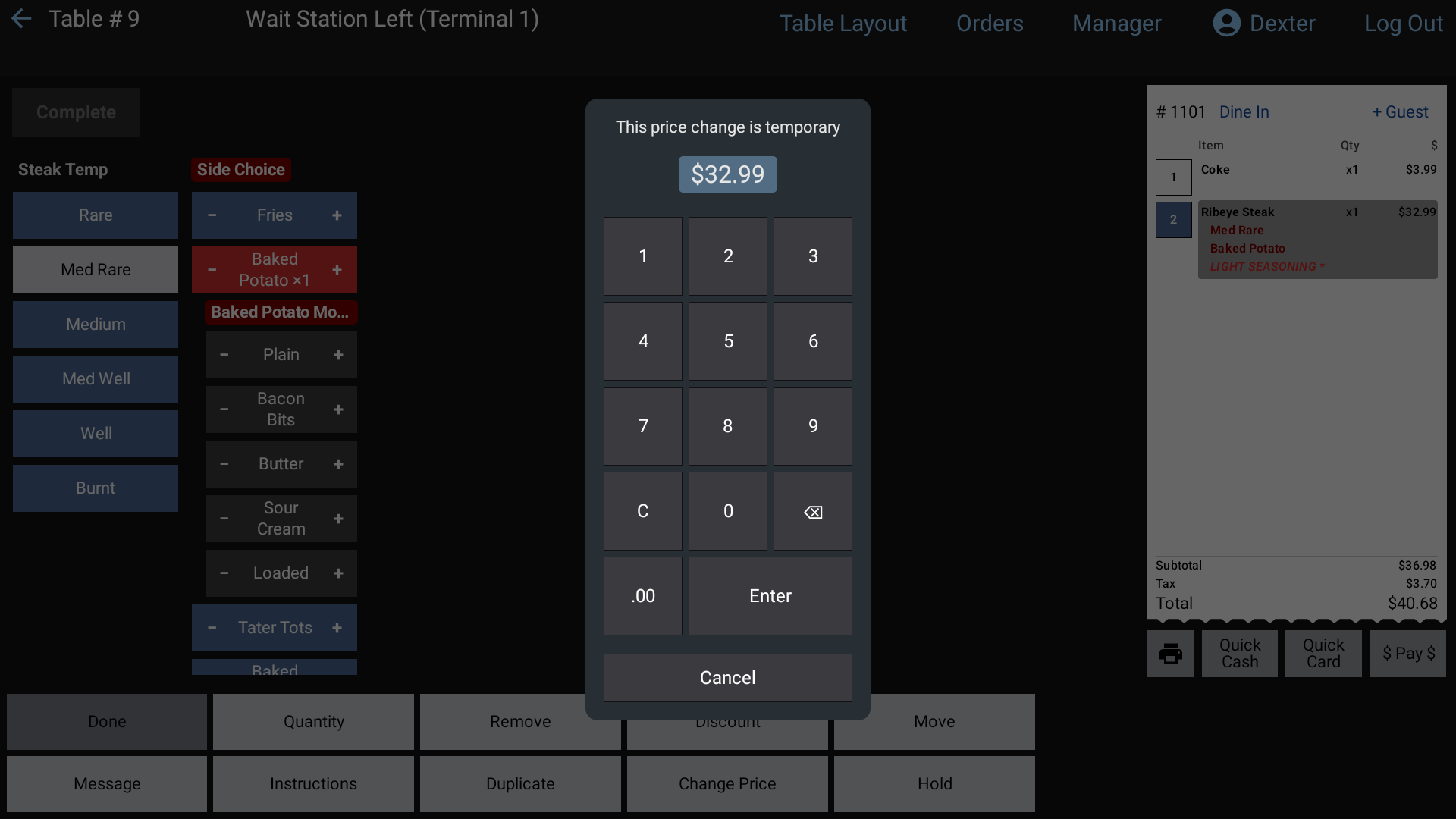 Change Price on a ticket line
Permanently
- On the order screen, press and hold the item's button.
- Tap the Price box and type the new price. Under These price changes are permanent. you'll also see a box for each price schedule the item has.
- Tap Save.
The new price is saved on that terminal straight away and sent to the back office and the other terminals. If it says Saved on this register — couldn't reach the back office, the change is only on that terminal; make it again in the back office (Menu > Items).
Why a price looks different than expected
- An item with Price Schedules (on its back office page) uses the schedule's price during that schedule's times. If more than one applies, the lowest price wins.
- The price is set when the item is rung in. Items already on an open ticket keep their price when the menu price changes.
Related: Price changes and 86, Schedules.