Refund a card payment or an order
Refund items from a paid order back to the card, cash or gift card it was paid with, or give a refund that isn't tied to an order.
On the POS, go to Orders > Closed Orders and tap Refund. Choose Refund Order to refund items from an order, or General Refund for an amount not tied to an order.
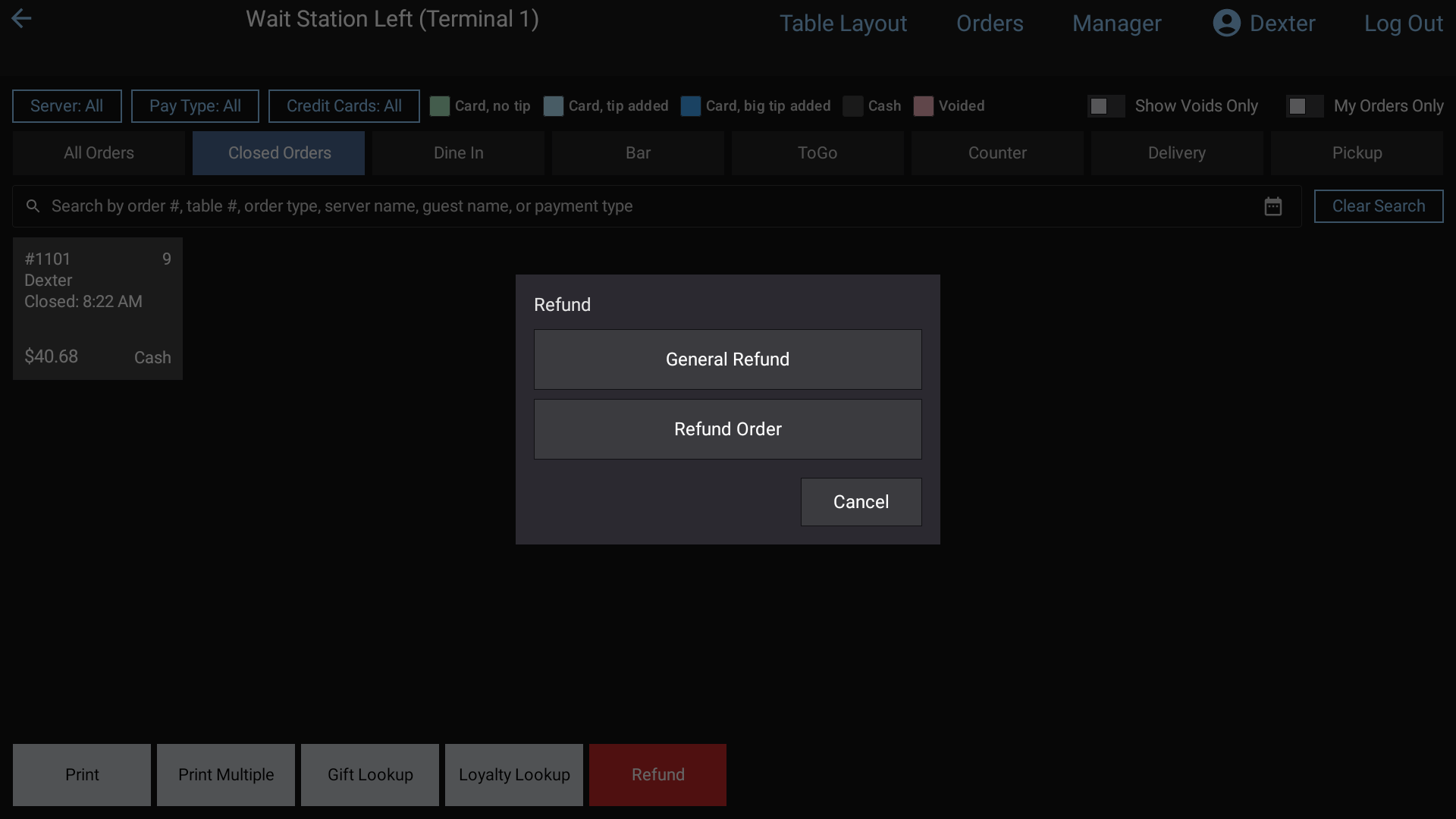 The Refund choice: General Refund or Refund Order
Refund items from an order
Orders > Closed Orders. Use the calendar for an order from an earlier day.
Tap Refund, then Refund Order. The button turns orange: Tap order to refund.
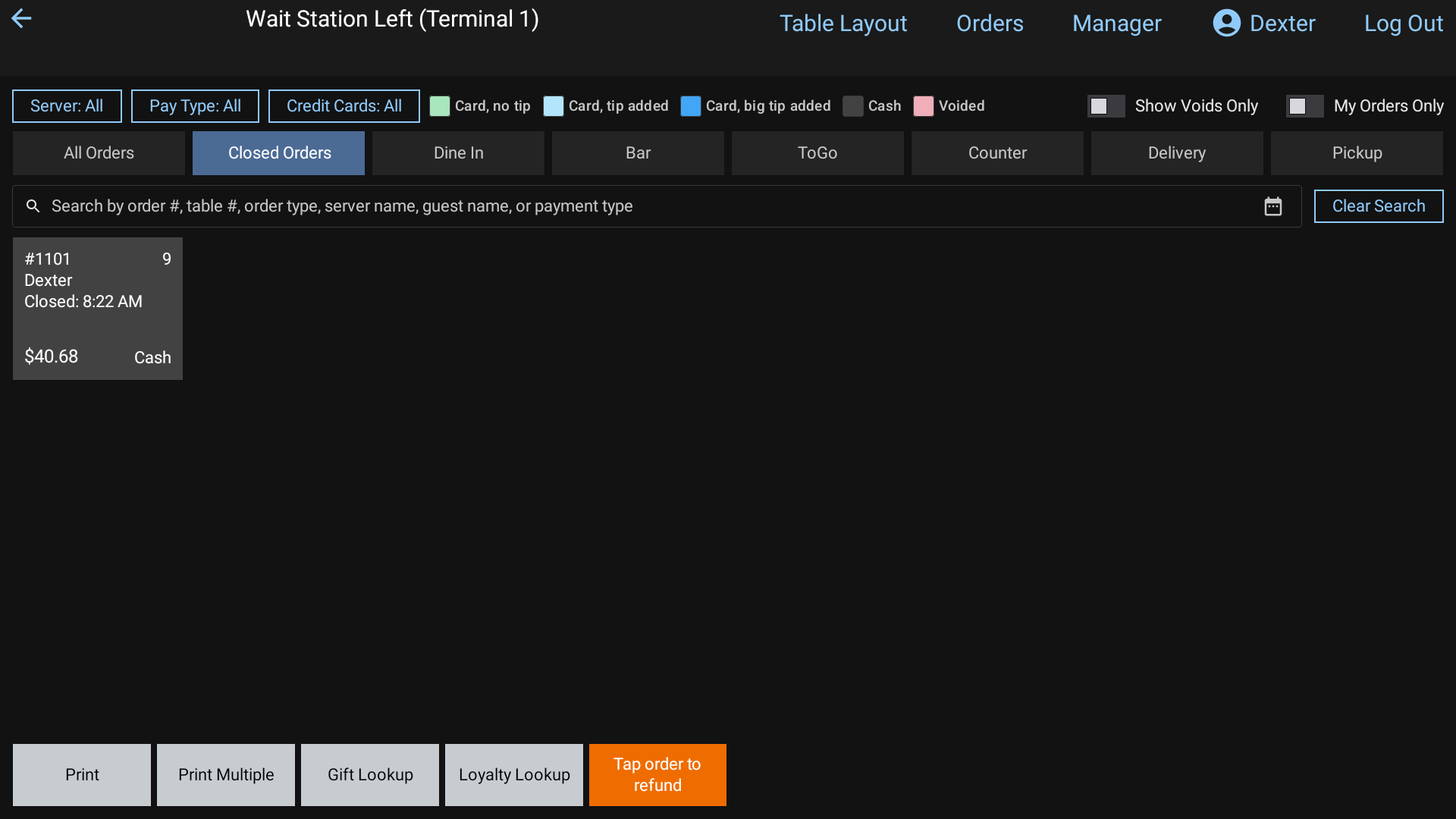 The orange Tap order to refund button on Closed Orders
Tap the order.
Tap the items to refund (or Select All). To refund the tip on a card too, tap the tip line.
Check Total refund and tap Refund.
The money goes back to whatever the check was paid with: price after discounts, plus its tax. A card is refunded without the card being present, and this works for orders from earlier days too.
You can also touch and hold a closed order and tap Refund on its ticket.
Refund an amount with no order
- Orders > Closed Orders > Refund > General Refund.
- Enter the amount and tap Enter.
- Pick how to refund it: Card (the guest inserts, taps or swipes the card on the reader), Card Manual Entry (key the card number on the reader), cash, or gift card (enter the gift card number).
Good to know
- Card refunds need a terminal with a card reader set up.
- Items already refunded show as Already refunded and can't be refunded twice.
- Cash refunds come off the closeout of the employee who did the refund.
- To fix a payment taken a minute ago, reopening the check and removing the payment voids it instead. See Reopen a closed check.
Related: Refunds (manager guide).