Knowledge Base › Orders & checks
Find yesterday's order (or any closed order)
Use Closed Orders, its calendar and the search box to find a paid or voided order from today or an earlier day.
Paid orders are on the POS under Orders > Closed Orders. It shows today's business day; the calendar opens any earlier day.
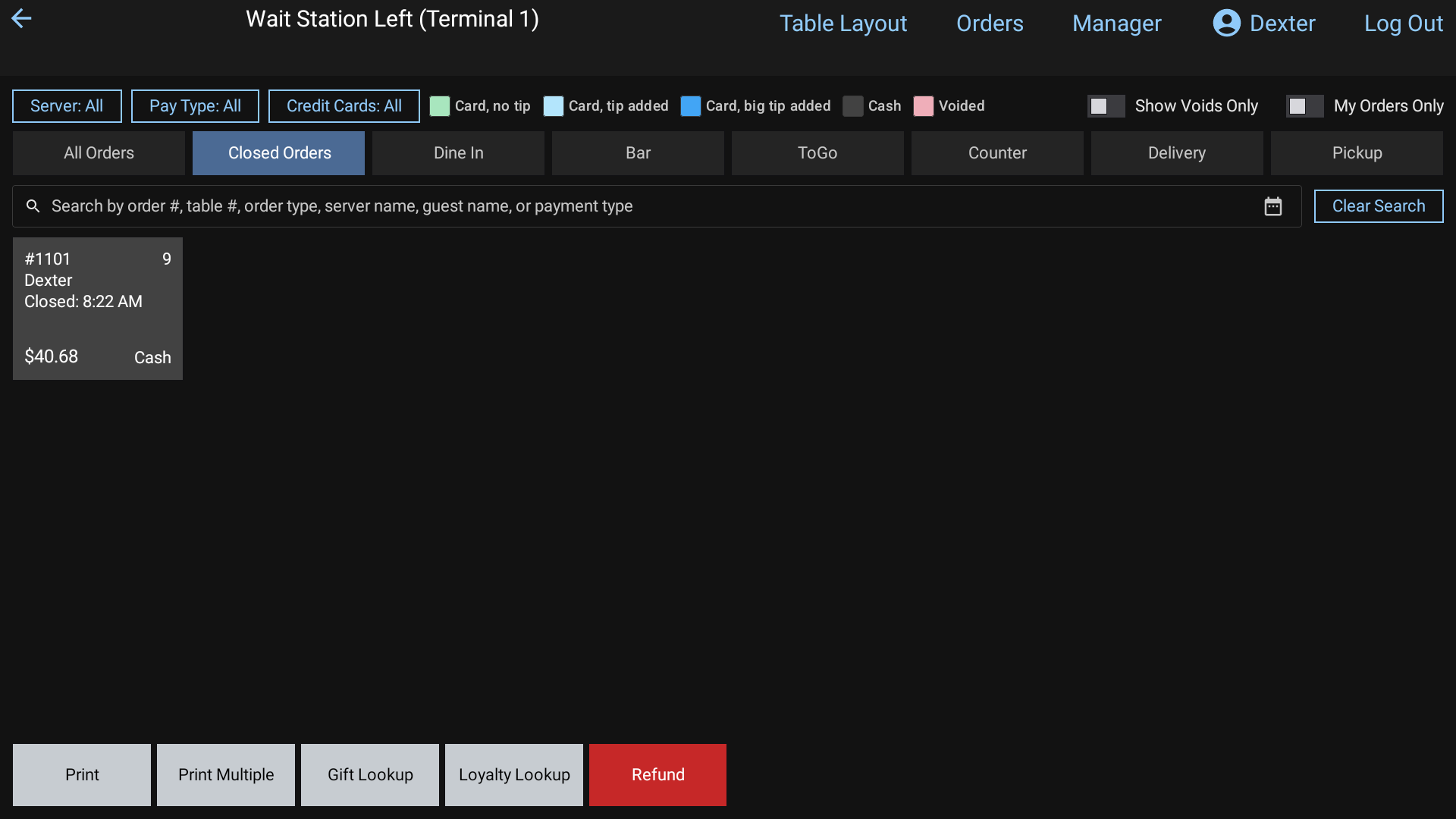 Closed Orders with the calendar button beside the search box
Find an order
- Tap Orders in the top bar, then the Closed Orders tab.
- For an earlier day, tap the calendar beside the search box and pick the date. The screen says Showing closed orders from that day. Tap Back to Today to return.
- To narrow it down, tap the search box and type part of the order number, table, employee name, guest name or payment type.
- Touch and hold an order to see its full ticket.
Good to know
- Voided orders are hidden. Turn on Show Voids Only to see them.
- My Orders Only shows just your own orders. Employees without the See All Staff Orders permission only see their own.
- "Today" follows the restaurant's End of Day Time (back office Store Settings > Store Close), not midnight.
- In the back office, Reports > Sales has the Sales & Orders Journal: pick a date range and click any order to see its receipt.
Related: Reopen a closed check, Reopen or find orders.