Knowledge Base › Staff & time clock
Forgot to clock out, or clocked in under the wrong job
How a manager fixes a time entry (times, job, or a missing shift), and what the pink auto clock-out rows mean.
A manager fixes it in the back office under Employees > Timeclocks: click the entry, change the job or the times, and save. Employees can't edit their own punches; ask a manager.
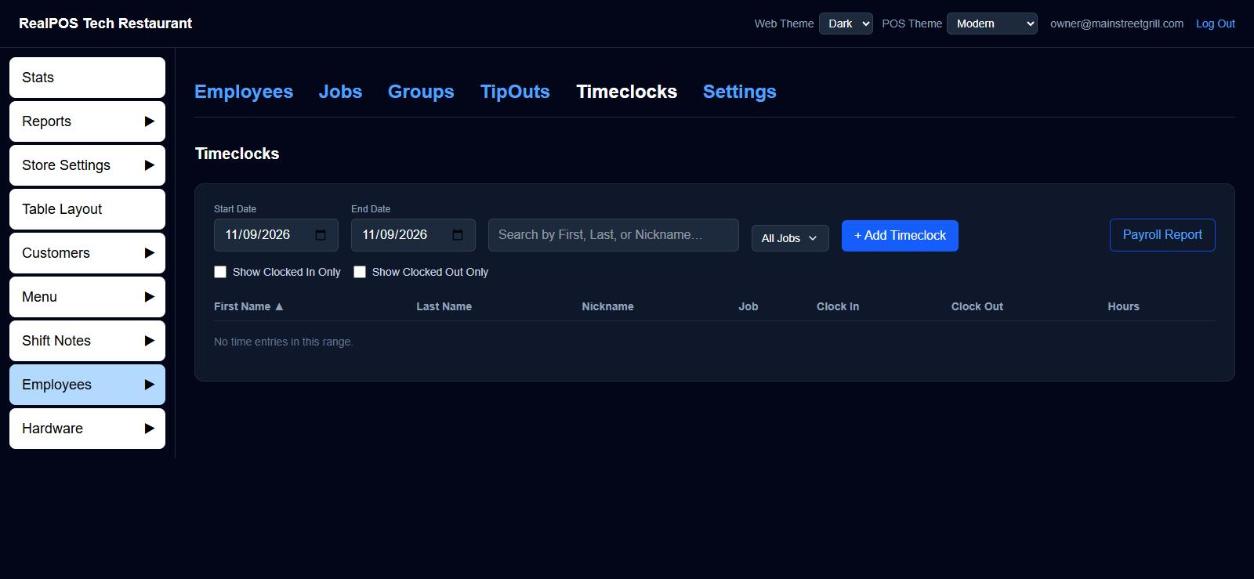 Timeclocks in the back office
Fix an entry
- In the back office, go to Employees > Timeclocks. Set Start Date and End Date to cover the shift.
- Click the entry. Edit Time Entry opens.
- Change Job, Clock In or Clock Out. Untick Still clocked in to give an open shift a clock-out time.
- Click Save. Delete Entry removes a punch made by mistake.
To add a shift that was never punched, click + Add Timeclock.
On the POS, the same edits are under Manager > Employees > Timeclocks.
Pink rows
A pink entry was clocked out automatically at store close because the employee didn't clock out. Its clock-out is the End of Day Time, so check it and correct it. Once you change the clock-out time, the row is no longer pink.
Good to know
- Signing in to the POS clocks an employee in automatically. If they have more than one job, it uses the first job on their employee record. Fix the job afterwards as above.
- This overlaps another time entry for this employee. means the new times run into another shift. Fix that shift first.
- Clock out must be after clock in.
Related: Timeclock (manager guide), Clock in and out.