Knowledge Base › Orders & checks
Reopen a closed check
Reopen a paid check from Closed Orders to change its payment, then close it again.
Tap the paid order on Orders > Closed Orders, then Yes on Reopen This Check?. The check opens on the payment screen with its payments still on it.
Steps
Tap Orders in the top bar, then Closed Orders. Use the calendar for an earlier day.
Tap the order.
On Reopen This Check?, tap Yes.
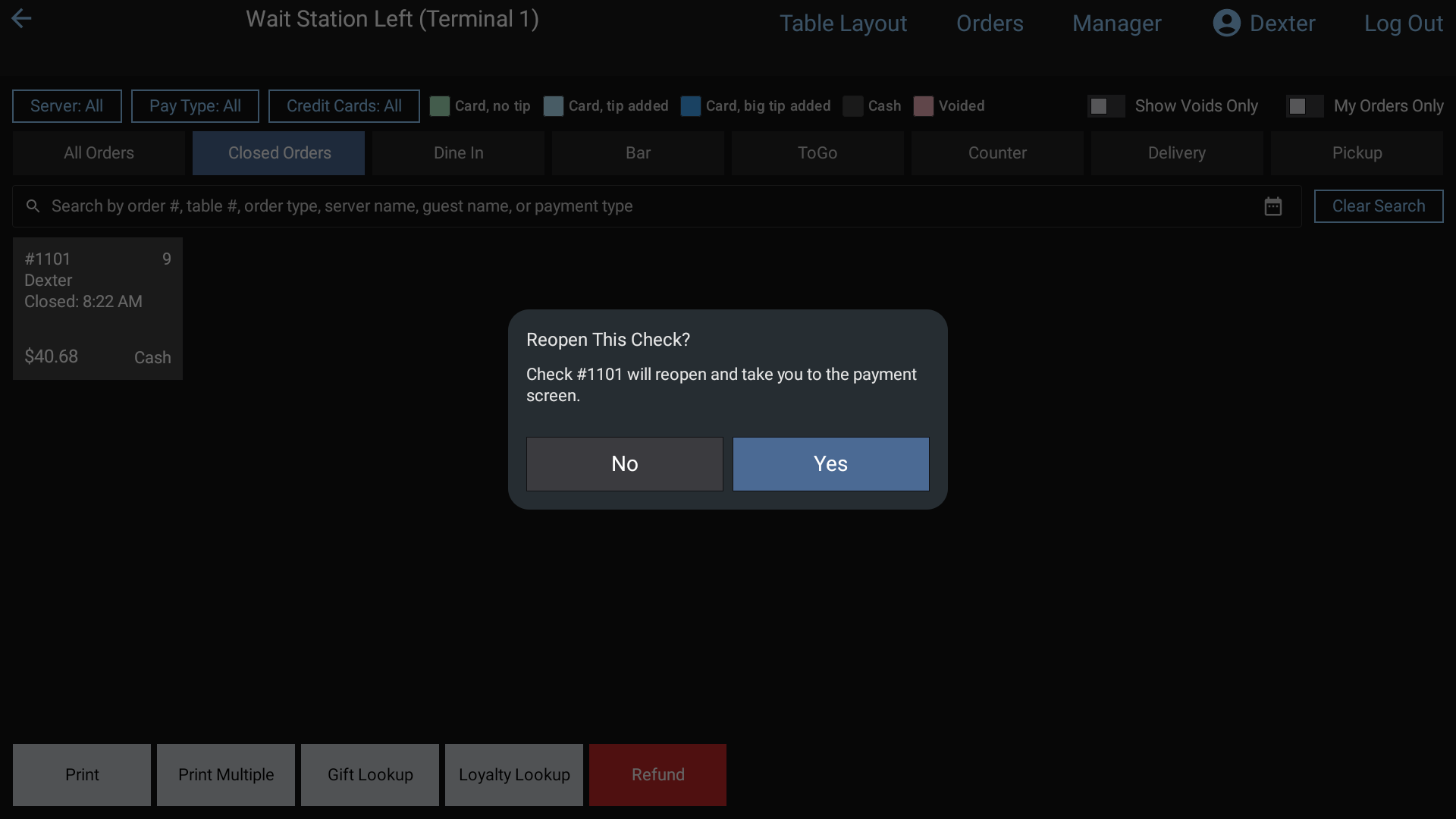 The Reopen This Check? prompt: tap Yes to reopen the check on the payment screen
On the payment screen:
- To keep the payment and close it again, tap Reclose.
- To change the payment, tap the payment under Tendered and answer Yes to "This will void and remove this tender". Then take the new payment. Removing a card payment voids it on the card.
To change the items, tap Edit Order.
Good to know
- Removing a card payment needs a terminal with a card reader set up. If the void doesn't go through, the payment stays on the check.
- Removing a gift card payment puts the money back on the gift card.
- To give money back without reopening, use a refund instead: Refund a card payment or an order.
Related: Find a closed order.