Knowledge Base › Signing in
I can't sign in to the back office
Reset a forgotten back office password from the sign-in page with your email address.
The back office (login.realpos.net) signs you in with your email address and password, not your POS PIN. If you forgot the password, reset it yourself from the sign-in page.
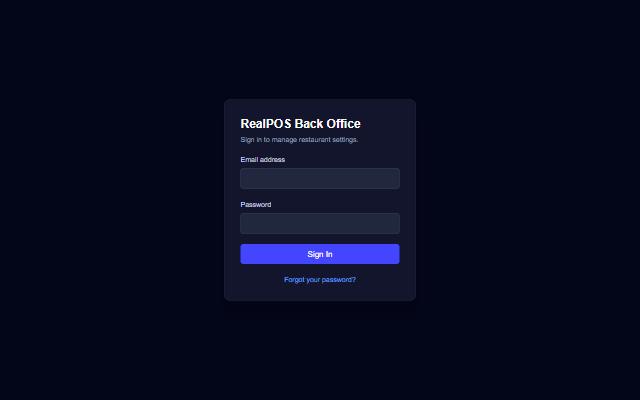 The back office sign-in page
Reset your password
- Go to login.realpos.net and click Forgot your password?
- Enter the email address you sign in with and click Send reset link.
- Open the email and follow the link.
- Type the new password twice and click Save password.
- Sign in with your email address and the new password.
Good to know
- The reset page always gives the same answer, whether or not the address has an account, so it can't be used to find out who has one. If no email arrives, check spam, then check you used the address your account was set up with.
- The link works once and expires after 1 hour. If it says This link has expired, ask for a new one.
- Passwords need at least 8 characters, with a letter, a number and a special character (like ! or #).
- Invalid email or password. means the email or the password is wrong. Check for a typo in the email address first.
- Your POS PIN does not work here, and your back office password does not work on the POS.
Still stuck? Contact your RealPOS dealer or support@bayareapointofsale.com.