Knowledge Base › Updates & devices
Set up a kitchen screen (KDS)
Pair a kitchen display tablet from a POS terminal with Send to KDS Screen. No activation code needed.
Kitchen screens don't need an activation code. Open the RealPOS kitchen app on the tablet, note the address it shows, and send the screen's settings to it from a POS terminal.
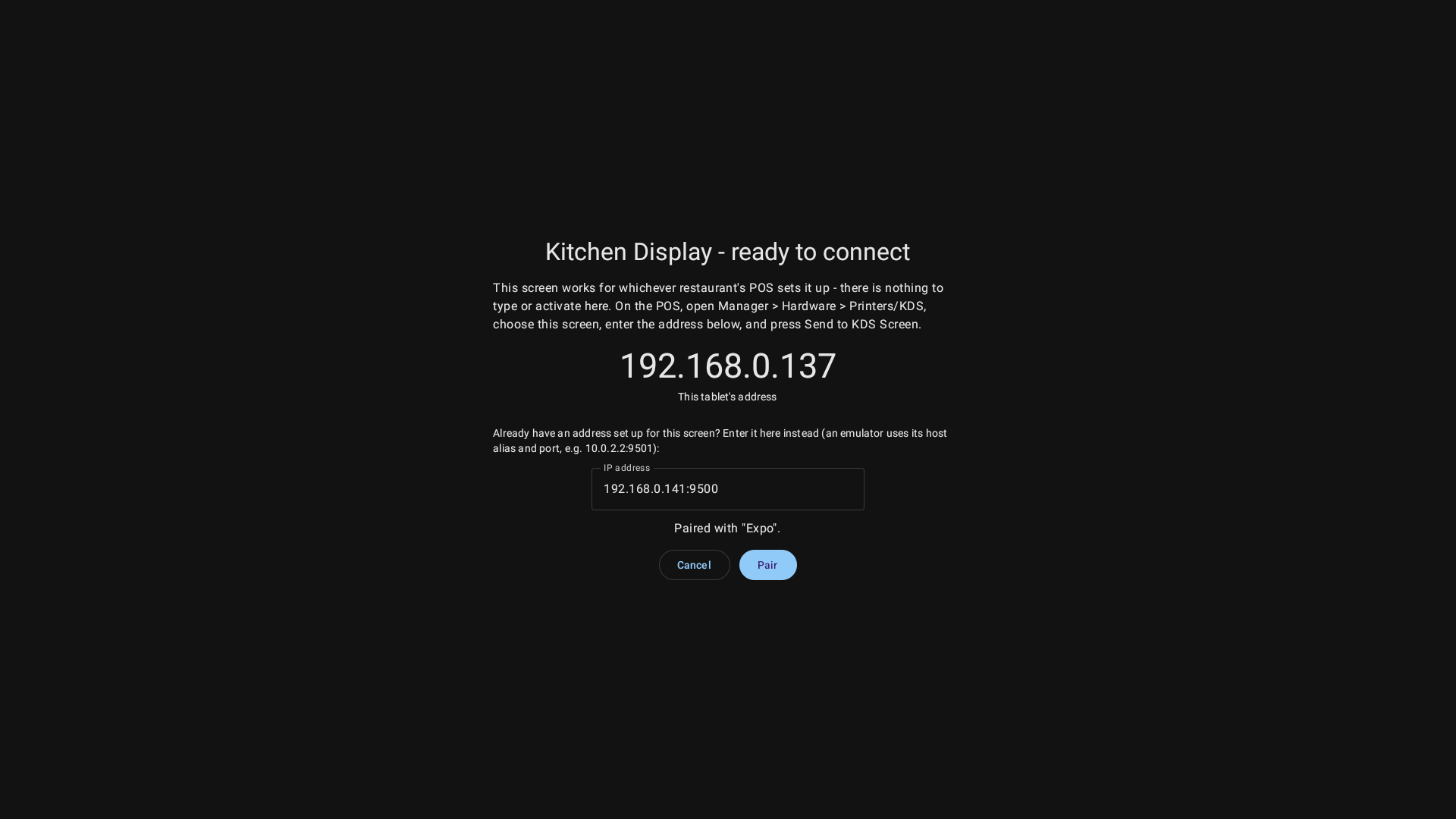 The kitchen app waiting to be paired
Steps
- Add the screen in the back office (if it isn't there yet): Hardware > Printers/KDS > + Add Printer/KDS, check Device Type is Kitchen Display Screen, give it a Printer/KDS Name (for example Grill), and assign its items under Items Assigned to this Device. Save.
- On the tablet, open the kitchen app. It shows Kitchen Display - ready to connect and the address under This tablet's address.
- On a POS terminal in the restaurant, go to Manager > Hardware > Printers/KDS and open that screen.
- Type the tablet's address in IP Address and save.
- Tap Send to KDS Screen. The tablet picks up its settings and starts showing orders.
Good to know
- Pairing has to be done from a POS terminal on the same network as the tablet. Send to KDS Screen in the web back office can't reach a tablet in your restaurant.
- The tablet and the terminals must be on the same network. If the tablet shows No network connection, connect its Wi-Fi first.
- Until it's paired, the screen shows NOT ACTIVATED in pink in the Printers/KDS list.
- If the tablet's address changes later, update IP Address and tap Send to KDS Screen again.
- One screen can be the Master Expo: it gets every item sent to the other screens.
Related: Printers and kitchen screens, A kitchen screen isn't getting orders.