Knowledge Base › Payments & cards
Add or change a tip after the card was paid
Key a card tip from your employee menu or Closed Orders, fix a wrong tip, and what the High Tip Warning means.
Tap your name in the top bar. Card checks waiting for a tip are under Pending Tips: tap one, type the tip from the signed slip, and tap Save. The tip is added to the card.
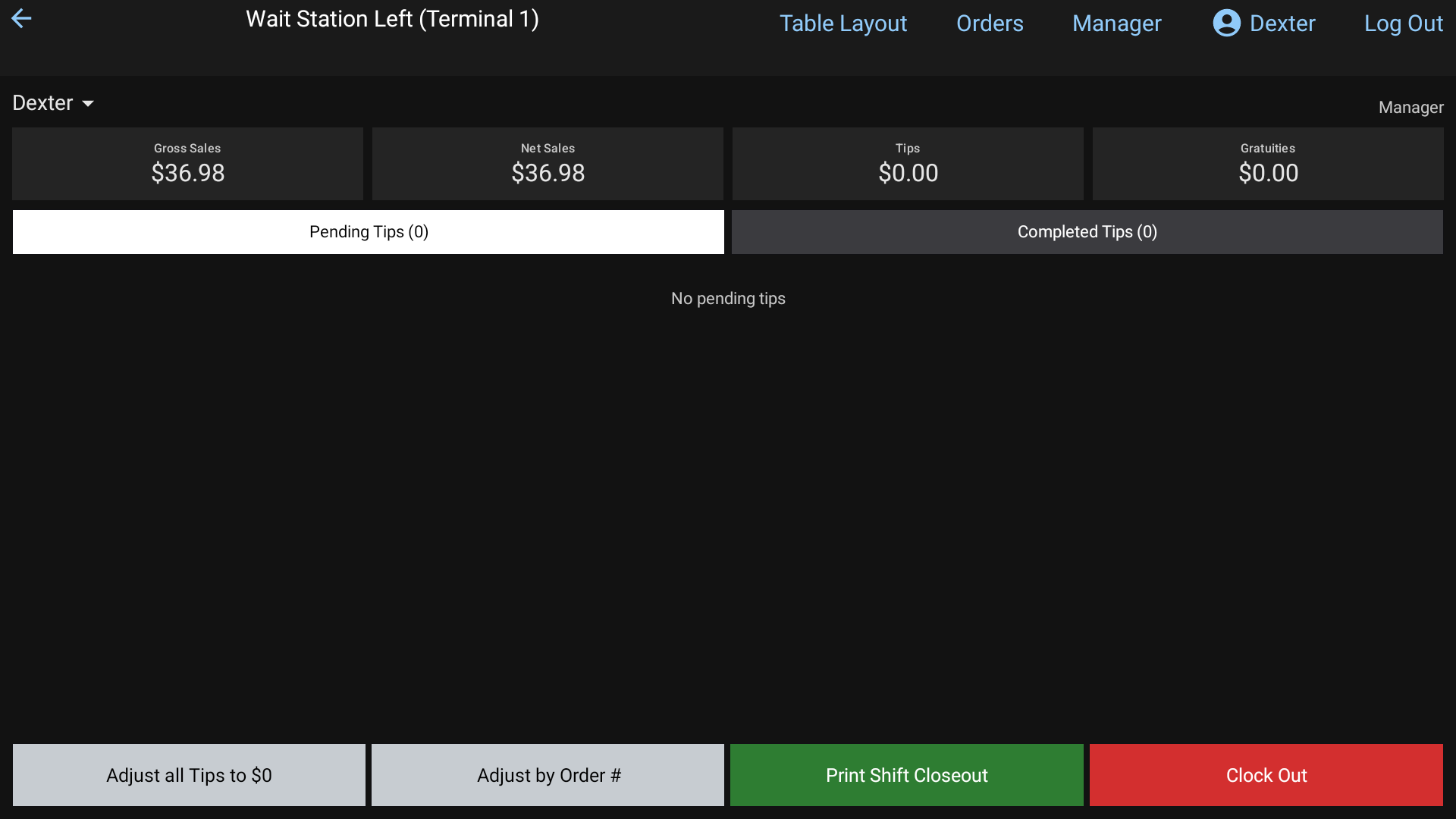 Pending Tips on the employee menu
Fix a tip you already entered
- Tap your name in the top bar, then Completed Tips.
- Tap the check, type the correct tip and tap Save.
Other ways in:
- Adjust by Order # on the employee menu: type the order number and press Enter.
- Orders > Closed Orders: touch and hold the order, then + Add Tip.
- In the back office: Reports > Credit Cards > Transactions (or Reports > Sales > Sales & Orders Journal), click the order, then + Add Tip. A terminal with a card reader does the work, so one has to be on.
High Tip Warning
If a tip is above the restaurant's High Tip % Warning, the POS shows High Tip Warning. Tap Adjust to fix it, or OK if it's right. Managers set the percentage in the back office under Employees > Settings.
Good to know
- No tip on the slip? Adjust all Tips to $0 on the Pending Tips tab sets every waiting tip to $0.
- You can't print your shift closeout or clock out until every tip is in.
- At the End of Day Time, store close sets any tip still waiting to $0, then closes the card batch. Enter tips before then.
- You can only tip your own checks unless your job has See All Staff Orders.
Related: Tips.