Knowledge Base › End of day
What happens at store close (end of day)
What the POS does on its own at the End of Day Time, including the card batch, and how to close out cleanly before it.
At the End of Day Time (back office Store Settings > Store Close), one POS terminal closes the day by itself, in this order:
- Every card tip still waiting is set to $0.
- Paid pickup orders still waiting are cleared, and Closed Orders and the shift reports start the new day.
- Every open bank is closed.
- Anyone still clocked in is clocked out (their entry shows pink in Timeclocks).
- The card batch is closed, so the day's card payments settle.
It then leaves a Manager Note listing what was done, whether the card batch closed, and any orders still open with their owners. Read it under Manager > Shift Notes > Manager Notes on the POS, or Shift Notes > Manager Notes in the back office.
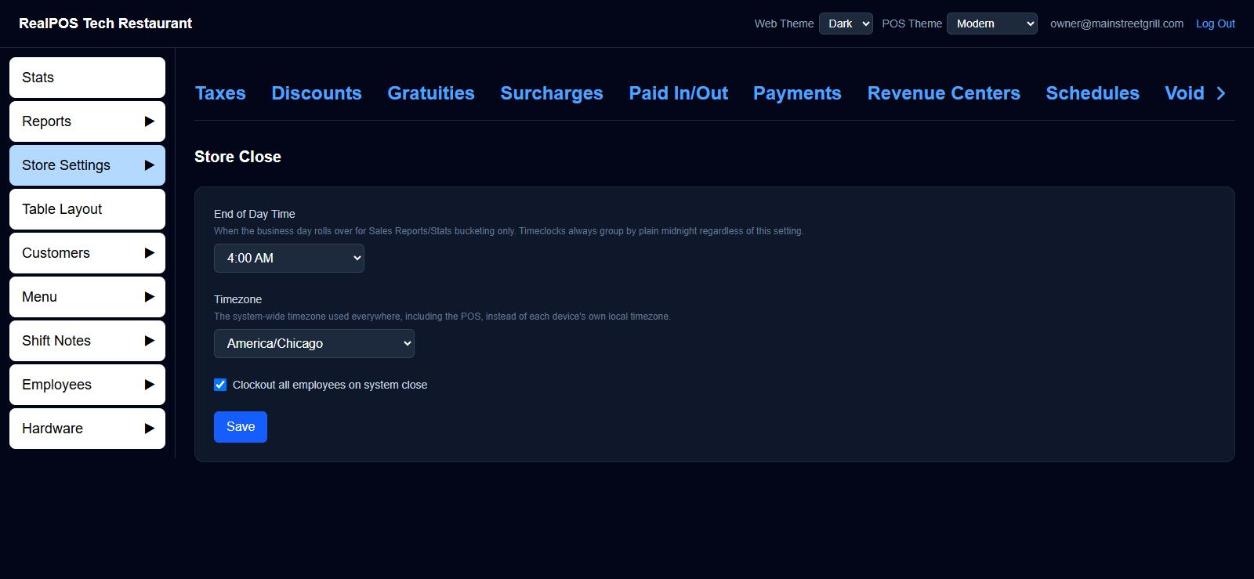 Store Close settings in the back office
Close out cleanly before it runs
On the POS, Manager > Reports > Stats has the Closeout Wizard. Each button is red until that step is done:
- Open Tickets - pay or close the remaining orders.
- Pending Tips - enter the card tips.
- Open Banks - tap to close each employee's bank (their shift report prints; they stay clocked in).
- Employees Clocked In - see who hasn't clocked out.
- Print Store Close - turns green once the first three are done, and prints the whole day's report.
Good to know
- Orders with no payment, or only part paid, stay open into the next day.
- A terminal has to be on and online at the End of Day Time to run it. If every terminal was off, the first one turned on within 12 hours runs it.
- The card batch can't close while the internet is down; the Manager Note says so. If it says the batch was not closed, contact your RealPOS dealer.
- End of Day Time also decides which day a late sale counts toward in reports.
Related: Store Close (manager guide), Add or change a tip.