Sign in to the back office
Create your password from the welcome email, sign in to login.realpos.net, and reset a forgotten password.
The back office is the website where you set up and run your restaurant. It's at login.realpos.net. You sign in with your email address and a password you choose. (This is separate from the 4-digit PIN staff use on the POS.)
The first time: create your password
When your dealer sets up your restaurant, you get an email titled Welcome to RealPOS - create your password.
- Open the email and click Create your password.
- The page says Welcome - create your password and shows the email address the login is for.
- Type a password in Password, and the same password again in Type it again. It needs at least 8 characters, with a letter, a number and a special character (like ! or #).
- Click Save password.
- When you see Password saved, click Go to sign in.
Sign in
- Go to login.realpos.net.
- Type your Email address and Password.
- Click Sign In.
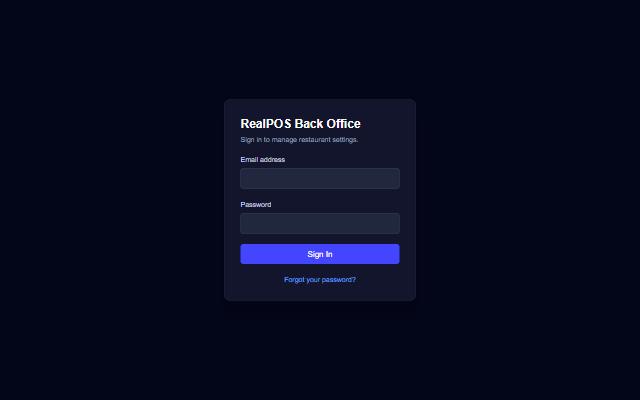 The back office sign-in page
You land on the Stats page. The menu down the left side (on a phone, tap the menu button at the top left) takes you to everything else: Reports, Store Settings, Table Layout, Customers, Menu, Shift Notes, Employees and Hardware.
To sign out, click Log Out at the top right.
If you see Invalid email or password., check the email address for typos and try the password again, or reset it (below).
Forgot your password?
- On the sign-in page, click Forgot your password?
- Type your Email address and click Send reset link.
- Check your email for Reset your RealPOS password and click Choose a new password.
- Type the new password twice and click Save password, then sign in with it.
Good to know
- More logins. Each person who needs the back office should have their own login. Ask your dealer to add one; the new person gets their own welcome email to create their password.
- Your POS PIN is different. The back office uses your email and password. The POS terminals, handhelds and the POS Manager screens use your 4-digit employee PIN. See Enter your employees.
- Changes reach the terminals by themselves. What you save in the back office is sent to your POS terminals the next time they sync. There is nothing to "publish".